


 4.5 on WordPress.org
wpDataTables registers its abilities
Actions such as creating tables and charts are registered in the WordPress Abilities API. No separate action configuration is needed.

Ask your AI assistant to create a table, build a chart from your data, or update a table and watch it happen without navigating the WordPress admin. wpDataTables MCP connects your data to any MCP-compatible AI client through a structured, permission-checked endpoint.
4.5 on WordPress.org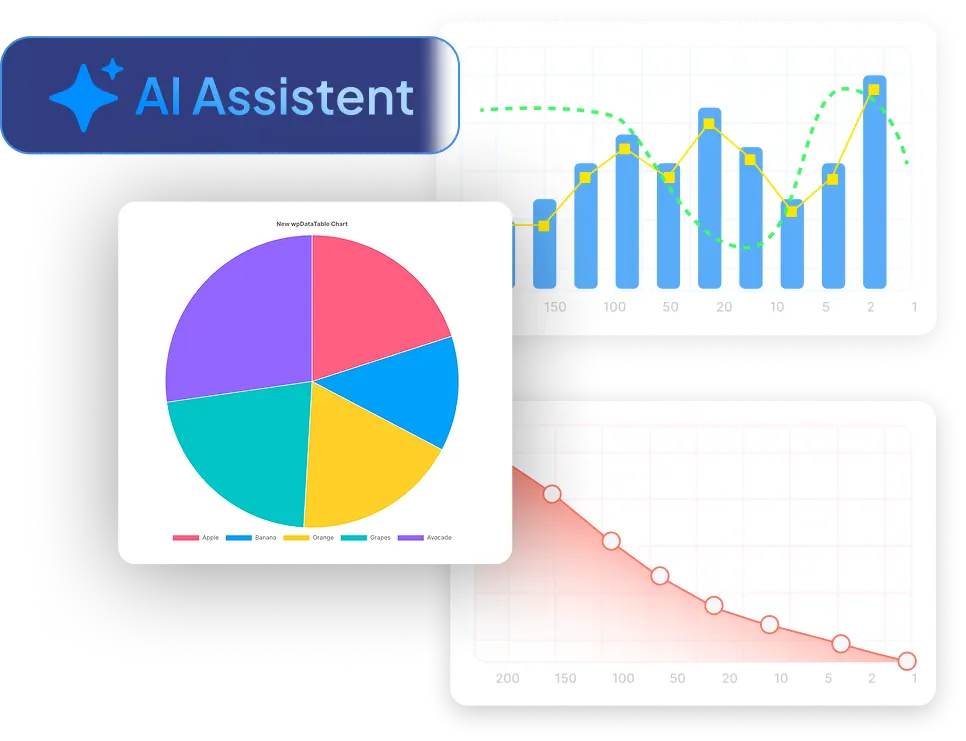
Create tables, generate charts and query your data in WordPress using plain-language AI commands. Bring your own AI assistant, wpDataTables does the rest.
wpDataTables registers its data actions in the WordPress Abilities API. An MCP adapter bridges them to any compatible AI client through a standardized, authenticated endpoint.
Actions such as creating tables and charts are registered in the WordPress Abilities API. No separate action configuration is needed.
Connect Claude Desktop, Claude Code, or Cursor. The AI discovers the available actions automatically.
/wp-json/mcp/wpdatatables-mcp-server
Ask in plain language. The AI calls the matching wpDataTables action and the result appears in WordPress.
You ask. wpDataTables executes.Ask your AI to build a table, create a chart, or get your data and wpDataTables handles the rest.
Build tables from multiple data sources, explore your WordPress data, and manage table configurations, files, and settings, all through natural-language instructions to your AI assistant.
Build tables from scratch, CSV, Excel, Google Sheets, and other supported files. Import data into MySQL or create database-driven tables using read-only SQL queries.
List tables, retrieve and filter data, inspect database structures, upload files, and browse WordPress media. Access system information and available capabilities.
Modify table configurations, column labels, filtering, and sorting. Update supported Simple table cells and manage global wpDataTables settings through your AI assistant.
Use your AI assistant to create charts from existing wpDataTables tables, explore visualizations, and update chart settings, all through natural-language instructions.
"Create a bar chart of revenue by region from the Q1 Sales table." Done. Chart built, ready to embed with a shortcode.
Retrieve a list of all charts, or get the underlying data for a specific chart, which is useful for verifying what's displayed.
Refine existing charts through natural-language instructions. Adjust supported chart configurations without rebuilding them from scratch. Changing the chart engine isn't supported through MCP.
Available across plans: Most MCP actions work with wpDataTables Lite. Live Google Sheets tables require Starter+, while importing CSV, Excel, or Google Sheets into MySQL, using separate database connections, and creating Highcharts or ApexCharts visualizations require Standard+.
All actions are subject to your WordPress permissions and supported data sources.
Watch an AI assistant handle real wpDataTables tasks through plain-language commands: no clicks, no forms, just a single instruction and a result that appears directly in WordPress.
wpDataTables MCP uses the WordPress Abilities API and a dedicated WordPress MCP Adapter endpoint. Setup is a one-time configuration in your AI client.
wpDataTables MCP requires WordPress 6.9 or newer. On older versions, the MCP server isn't registered, so the connection endpoint won't be available.
In your WordPress dashboard, go to wpDataTables → Settings → Main Settings and enable MCP for AI assistants.
Save your changes before proceeding. If MCP isn't enabled, the endpoint will return a 404 error.
Create a WordPress Application Password for the account you'll use to connect your AI assistant.
For better security, we recommend using a dedicated WordPress account with only the permissions needed for your intended actions. Administrator permissions aren't required for the MCP connection itself.
Connect your compatible AI client using the @automattic/mcp-wordpress-remote proxy, which requires Node.js and an HTTPS-enabled WordPress website.
Authenticate using your WordPress login username (not your email address) and the application password you created.
Configure the proxy to connect to your website's wpDataTables MCP endpoint.
/wp-json/mcp/wpdatatables-mcp-serverThree tools, one AI conversation. Collect with IvyForms, book with Amelia, and analyze with wpDataTables.

Create appointments, manage services and employees, handle customer data, and create events.

Create forms, manage fields, review entries and notifications, all through your AI assistant.

Build tables and create charts from your data for easier analysis, all from a single AI instruction.
 Collect with IvyForms
→
 Book with Amelia
→
 Work with data in wpDataTables
All accessible to your AI workflow through the same MCP-based WordPress architecture.
wpDataTables MCP is an integration that lets compatible external AI assistants access supported wpDataTables actions through the Model Context Protocol.
Instead of performing every task manually in the WordPress admin, you can ask your AI assistant to create tables, retrieve data, update settings, or build charts.
The documented setup supports Claude Desktop, Claude Code, and Cursor.
Other AI clients may work if they support the required MCP connection and authentication method. Check their compatibility before configuring the integration.
Both let you work with WordPress tables and charts through natural-language instructions, but they offer different experiences.
wpDataTables MCP connects an external AI assistant to your WordPress website. You work in your preferred AI client, and wpDataTables handles the supported actions.
Tabella AI is built directly into wpDataTables, allowing you to create and customize tables through a conversational interface inside WordPress.
Choose whichever workflow works best for you.
WordPress 6.9+.
No. The integration only adds an external connection point. Nothing changes in the table management screens, chart renderer, or query engine. All existing tables and charts continue to work exactly as before.
Exactly the permissions of the WordPress account it's authenticated as — no more, no less. If that account can't create tables, the AI can't create tables. Unauthenticated requests are rejected. Use an account with minimal necessary permissions.
Yes. Ask your connected AI assistant to “create a bar chart of revenue by region from the Q1 Sales table” and wpDataTables builds the chart, ready to embed with a shortcode. Bar, line, pie and more are supported.
Yes — read-only. You can ask questions like “show me all orders where status is pending and total is over $500,” and wpDataTables returns the matching rows. Querying never changes your data.
It works with any client that supports the Model Context Protocol. Claude Desktop, Claude Code and Cursor are confirmed today. As more assistants (including ChatGPT) add MCP client support, they will connect the same way — through the authenticated wpDataTables endpoint.
Yes. Point your AI assistant at your data and ask it to create a table; wpDataTables builds it in WordPress and makes it available immediately, so a spreadsheet or CSV becomes a live, embeddable table.
wpDataTables offers a free Lite version on WordPress.org (4.5/5 from 449 reviews, 70,000+ installs). The AI integration uses the WordPress Abilities API and a dedicated MCP adapter endpoint — you bring your own MCP-compatible AI client.
Connect your preferred AI tools to wpDataTables and create tables, explore data, and build charts using natural-language commands.