
Tables are one of those elements most WordPress users don’t think much about—until they actually need one. And when you’re comparing products, displaying pricing plans, or organizing large amounts of information, a simple paragraph just won’t cut it.
That’s usually the moment when a table plugin enters the picture. Not because tables are exciting, but because they’re practical. They help visitors scan information faster, understand differences at a glance, and actually make sense of the content you’re presenting.
So, in this wpDataTables vs WP Table Builder comparison, we’ll look beyond surface-level features and focus on how each plugin actually behaves once you start using it. They solve the same problem, but in very different ways, and those differences matter more than they might seem at first.
Table of Contents
Quick Overview: wpDataTables vs WP Table Builder
Before we dive deeper, it helps to understand the main focus of each plugin. Both wpDataTables and WP Table Builder allow you to create tables without coding, but they shine in different ways.
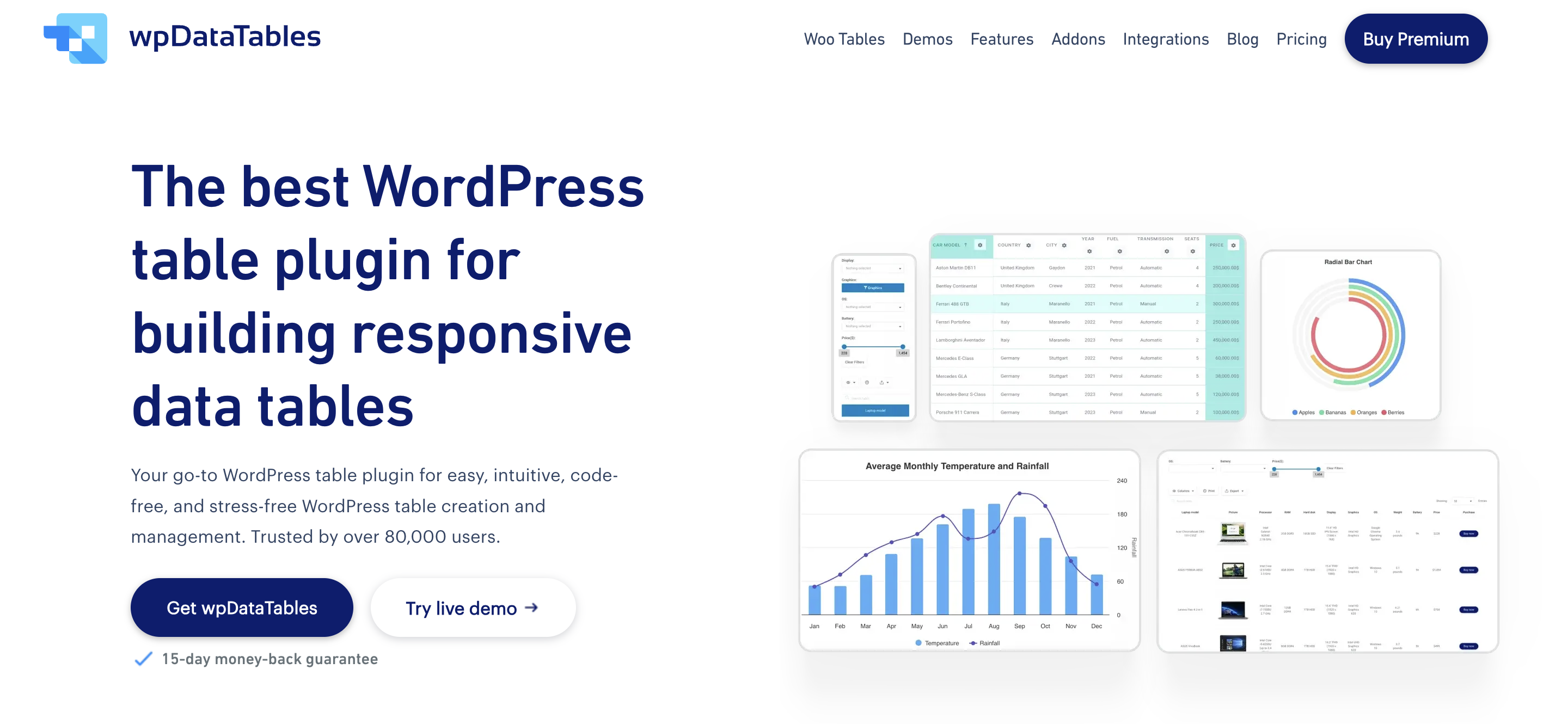
- wpDataTables is built to handle structured, dynamic data. It makes managing large datasets simple, supports features like sorting, filtering, and front-end editing, and integrates seamlessly with spreadsheets and databases. Beginners can get started quickly, but it also scales effortlessly as your data needs grow.

- WP Table Builder prioritizes simplicity and visual building. Its drag-and-drop interface makes creating static tables, like pricing charts or content comparisons, fast and easy. However, it can feel limited if you want advanced data handling, interactivity, or large datasets.


In short, WP Table Builder is great for quick, visually appealing tables, while wpDataTables offers flexibility, power, and features that scale with your website.
Feature Comparison: WP Table Builder vs wpDataTables
When it comes to core features, both plugins cover the basics, but the similarities mostly end there. Here’s a look at how they compare across key functionality:
| Feature | wpDataTables | WP Table Builder |
|---|---|---|
| Drag-and-drop table creation | ✅ Yes, for simple tables; more advanced tables use wizard | ✅ Yes, intuitive and visual |
| Table types | Dynamic & static tables, responsive, large datasets | Static tables, product lists |
| Sorting & filtering | ✅ Advanced, front-end, and back-end | ✅ Vertical and horizontal |
| Data import | ✅ Excel, CSV, Google Sheets, MySQL databases | ✅ Only manual entry or CSV/XML |
| Front-end editing | ✅ Yes, editable tables | ❌ No |
| Conditional formatting | ✅ Yes | ❌ No |
| Charts & visualizations | ✅ Yes, integrates charts from data | ❌ No |
| Responsive design | ✅ Automatic and customizable | ✅ Automatic, limited customization |
| Integration with other plugins | ✅ Wide range (WooCommerce, Form plugins, etc.) | ❌ Very limited |
| Scalability | ✅ Handles thousands of rows without lag | ❌ Best for small tables |
So, while WP Table Builder makes creating responsive, drag‑and‑drop tables quick and visually intuitive, wpDataTables delivers broader data‑handling capabilities, dynamic data source connections, and chart features.
Ease of Use & Workflow
A table plugin isn’t just about features; it’s about how it fits into your workflow. The difference between a tool that slows you down and one that lets you work efficiently becomes clear once you start using it regularly.
WP Table Builder is made with simplicity in mind. It’s a great choice for creating restaurant menus, pricing tables, product lists, and schedules. The drag-and-drop feature allows you to set up a fully functional table in minutes, which you can then customize to match your brand. However, when your tables grow larger or require advanced functionality such as hidden columns, row grouping, or fixed headers and columns, this plugin simply won’t be able to accommodate that.
On the other hand, wpDataTables, while still prioritizing ease of use, offers a more structured and flexible solution. Beginners can create simple tables quickly using its intuitive step-by-step wizard, while advanced users can import data from Excel, CSV, Google Sheets, or even MySQL databases. Built-in features like conditional formatting, advanced filtering, popover editing, and WCAG Compatibility ensure that tables are not only functional but also accessible and easy to manage. These and many other tools make it possible to handle large, complex datasets with minimal effort.
Features That Make Your Table Stand Out
While basic table creation is important, the features that truly make a table engaging, interactive, and powerful are what set plugins apart. After all, you are not really purchasing a plugin just to display static rows and columns. You want a tool that makes your data clear, highlights key information, and grows with your content.
Conditional color coding
wpDataTables lets you highlight rows, columns, or individual cells automatically. You can mark top performers, low stock, or pricing tiers. This makes tables easier to read at a glance.
Front-end editing
Edit table content directly on your website. No need to go into the WordPress dashboard. Combined with sorting and filtering, tables become even more interactive and dynamic for your users.
Different column types
wpDataTables supports a variety of column types, including String, Integer, Date, Image, and URL Link. This makes it easy to create tables that handle different kinds of content without extra formatting or custom code.
WooCommerce integration
Create dynamic product tables that pull live product data, display stock levels, prices, and custom fields. This wpDataTables and WooCommerce integration makes it easy to build interactive, searchable product catalogs without manual updates.
Single cell shortcode
With the single cell shortcode feature, you can display individual table cells anywhere on your site. Embed specific data points directly into posts or pages, and keep content dynamic and up to date without showing the full table.
Calculating totals for columns
Tables can automatically sum column values and calculate averages, minima, and maxima. Gain better insights and analyze data quickly without manual calculations.
Interactive charts
Tables are not all that you can utilize with wpDataTables. It can turn your data into interactive charts, including bar charts, line graphs, pie charts, and more. They also update automatically, so your visuals always display the most current data.
Pricing Breakdown: wpDataTables vs WP Table Builder
Besides core features, cost and value play a big role in choosing the right table plugin. Both wpDataTables and WP Table Builder offer tiered plans, but what you get at each level can differ significantly. This is especially true when comparing the two plugins in terms of long‑term use, support, and feature depth.
| Feature / Plan | wpDataTables | WP Table Builder |
|---|---|---|
| Free Version | ✅ Yes | ✅ Limited features |
| Starter / Basic | $69/year – Single site, core features | ❌ No |
| Standard / Mid | $149/year – 1 domain, advanced features | ❌ No |
| Pro / Advanced | $129/year – 3 domains, all features, premium support | $99/year – Annual Pro plan$279 – Lifetime Pro plan |
| Developer / Enterprise | $199/year – Unlimited sites, all features, priority support | ❌ No |
| Key Highlights | Dynamic data sources, charts, front-end editing, responsive design, WooCommerce integration | Drag-and-drop builder, responsive tables, and visual components |
| Support | Priority support, tutorials, and detailed documentation | Standard support, documentation |
Bottom line: wpDataTables offers a lot more plans, so you can actually choose the one that fits your needs and long-term goals. It also includes lifetime plans, giving you a one-time investment option with all features and updates included.
WP Table Builder has fewer options, which may work for smaller projects, but it doesn’t provide the same flexibility for growing websites or more complex data requirements. When you factor in features, support, and future scalability, wpDataTables delivers better long-term value for most users.
Security, Maintenance & Updates
wpDataTables focuses on keeping your data safe and your tables running smoothly. It follows WordPress best practices to protect your site and your information. Regular updates fix bugs and add new features. They also ensure the plugin stays compatible with the latest WordPress versions, themes, and other plugins. This way, your tables remain reliable, and your site stays up to date without extra effort.
WP Table Builder also includes security measures and receives regular updates. These updates help keep the plugin compatible with WordPress and reduce the risk of issues over time. Ongoing maintenance ensures that existing features remain stable and that the plugin continues to function reliably as WordPress evolves.
Final Verdict: wpDataTables vs WP Table Builder
Both wpDataTables and WP Table Builder remove the technical barriers that usually come with building tables in WordPress. While they solve the same problem, they are designed for different types of users, and that distinction plays a major role in which plugin will feel like the better fit.
WP Table Builder is a solid option for users who want a straightforward way to create tables and get results quickly. Its visual approach keeps things simple and accessible, especially for basic table needs.
wpDataTables goes a step further. It is designed for users who want more control over their data, more flexibility in how tables behave, and more room to grow over time. With support for dynamic data sources, advanced features like filtering, calculations, charts, and multiple pricing options, it adapts well to both beginners and more advanced use cases.
If your goal is to build tables that do more than just display information, and you want a solution that can scale with your website, wpDataTables is the stronger long-term choice.