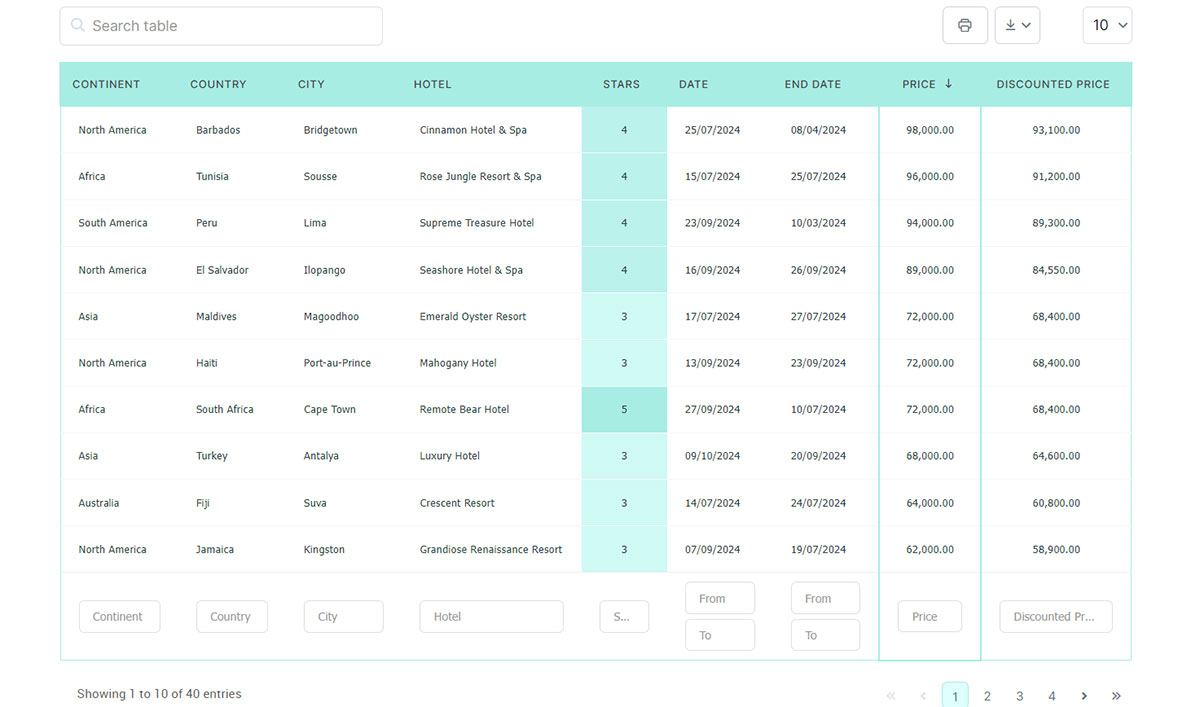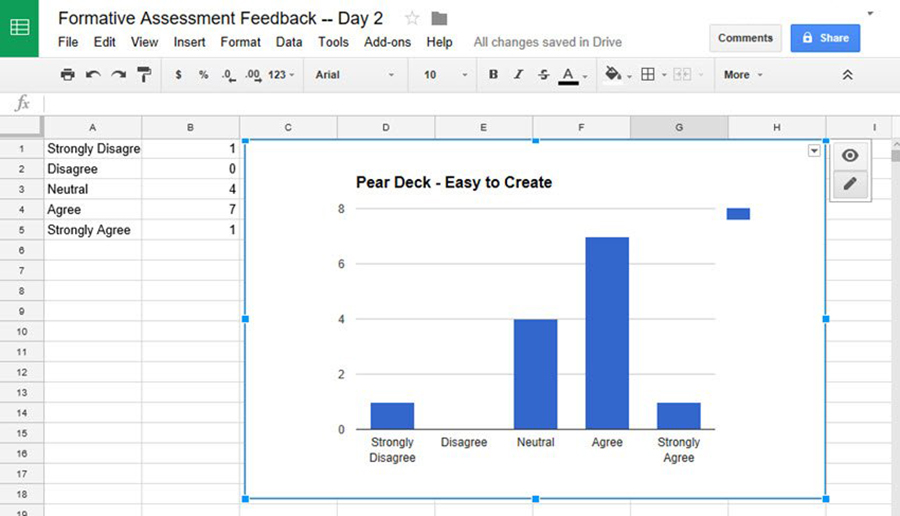
You’ve got data. Maybe it’s pricing tiers, feature comparisons, or a directory of services. You’ve even managed to get it into a table on your WordPress site. But something’s off. It looks clunky, the columns are uneven, and on mobile? Let’s not even go there.
Formatting tables in WordPress isn’t just about making them look pretty. A well-formatted table helps visitors find what they need faster, keeps them on the page longer, and can even drive more conversions. A poorly formatted one? It sends people scrolling right past your content.
So let’s fix that. Whether you’re using the built-in WordPress block editor or a plugin like wpDataTables, this guide walks you through how to format a table in WordPress so it actually works, both for your content and your visitors.
Table of Contents
Why WordPress Table Formatting Matters More Than You Think
Before we get into the how, let’s talk about the why. And the answer is simple, because it’s easy to underestimate how much table formatting affects the user experience.
Think about the last time you landed on a page with a wall of data crammed into tiny cells, no color differentiation, and text you had to squint to read. Did you stick around? Probably not.
Well-formatted tables do three things:
They improve readability. Clear headers, consistent spacing, and alternating row colors help visitors scan and absorb information quickly. Research shows that users spend an average of just 5.59 seconds looking at written content on a page. This means that your table needs to communicate fast.
They build trust. A polished, professional-looking table signals that you care about your content and your audience. That credibility matters, especially for pricing pages, product comparisons, and data-driven content.
They boost engagement and conversions. When people can easily compare options and find the information they need, they’re more likely to take action, whether that’s signing up, buying, or reaching out.
So no, WordPress table formatting isn’t just cosmetic. It’s functional.
How to Format a Table in WordPress Using the Block Editor
Let’s start with what’s built right into WordPress — the Table block. If you need a simple table without advanced features, this is the quickest way to get something on the page.
Adding a table block
Head to your post or page editor, click the + icon (or type /table on a new line), and select the Table block. You’ll be asked to choose the number of rows and columns, but don’t stress about getting it perfect, since you can always add or remove them later.
Basic formatting options
Once your table is created, here’s what you can do right from the block editor:
Text formatting. Select any cell and use the toolbar to make text bold, italic, add links, or even change text color. These small touches make a big difference for readability.
Column alignment. Click into a column and choose left, center, or right alignment. A quick tip: numbers and prices usually look best right-aligned, while text reads better left-aligned.
Table styles. WordPress gives you two built-in style options: Default (clean borders around each cell) and Stripes (alternating row background colors). Stripes are a smart choice for larger tables because they help the eye track across rows.
Header and footer sections. Toggle these on in the block settings sidebar. The header row automatically bolds your text and separates it visually from the data rows, so always use this for column titles.
Fixed-width cells. Enable this if you want all columns to be the same width regardless of content. It gives your table a more uniform, polished look.
Color and typography
Under the Styles tab in the sidebar, you can customize text color and background color for the entire table, typography settings like font size and line height, and border color and width.
These options are decent for basic tables, but you can’t style individual rows or cells differently. Everything applies to the whole table.
Where the Block Editor falls short
The built-in Table block gets the job done for simple tables, but it has some clear limitations when it comes to formatting: no sorting or filtering for visitors, no individual cell or row styling, limited responsive behavior on mobile (it just adds a horizontal scroll bar), no support for images, buttons, or icons inside cells, and no conditional formatting or data-driven styling.
If your table needs any of these, you’ll want to use a plugin. And that’s where things get interesting.
The Best Way to Format Tables in WordPress: Using a Plugin
For most WordPress users who work with data regularly, a table plugin is the best way to format tables in WordPress. Plugins give you granular control over every aspect of your table’s appearance, from individual cell colors to responsive breakpoints.
Why wpDataTables stands out for table formatting
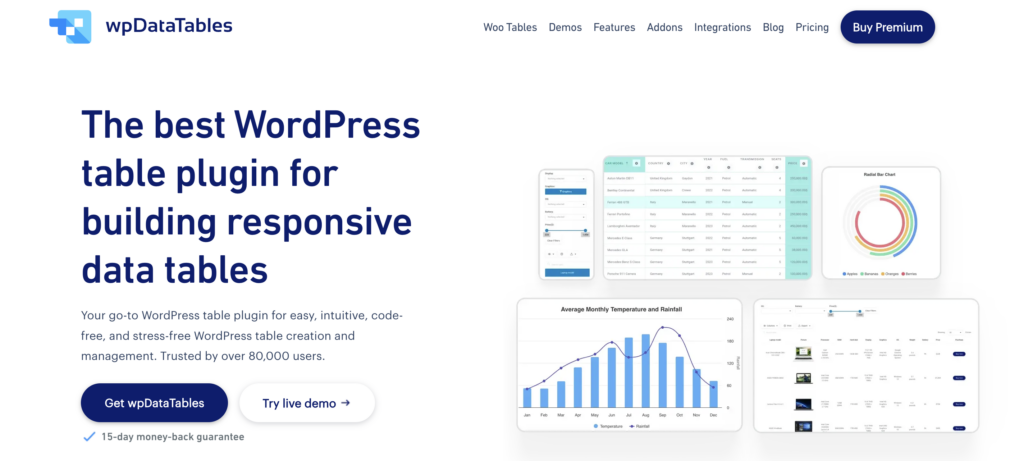
wpDataTables is built specifically for people who need to display data clearly and beautifully, without writing a single line of code. With over 70,000 active users, it handles everything from simple comparison tables to complex datasets with millions of rows, without slowing down your site.
Here’s what makes it a strong choice for WordPress table formatting:
Per-cell and per-row styling. Unlike the block editor, wpDataTables lets you style individual cells, rows, and columns. Want to highlight a specific price in green or mark a feature as unavailable in gray? You can do that.
Conditional formatting. This is a big one. Set rules that automatically change a cell’s color, font weight, or background based on its value. For example, you could highlight any price below $50 in green and anything above $100 in red and the table updates itself as data changes.
Responsive design built in. Tables created with wpDataTables automatically adapt to different screen sizes. You can control exactly which columns show on mobile, which ones collapse, and how the layout adjusts, so your table never breaks on a phone screen.
Built-in sorting, search, and filtering. Let your visitors interact with the data. They can sort columns, search for specific entries, and filter results, all without reloading the page.
Multiple data sources. Pull data directly from Excel files, CSV uploads, Google Sheets, SQL databases, or even manually entered data. Format once, and the styling persists even when the data updates.
And that’s not all — check out the rest of wpDataTables amazing features that make creating tables as flexible as possible.
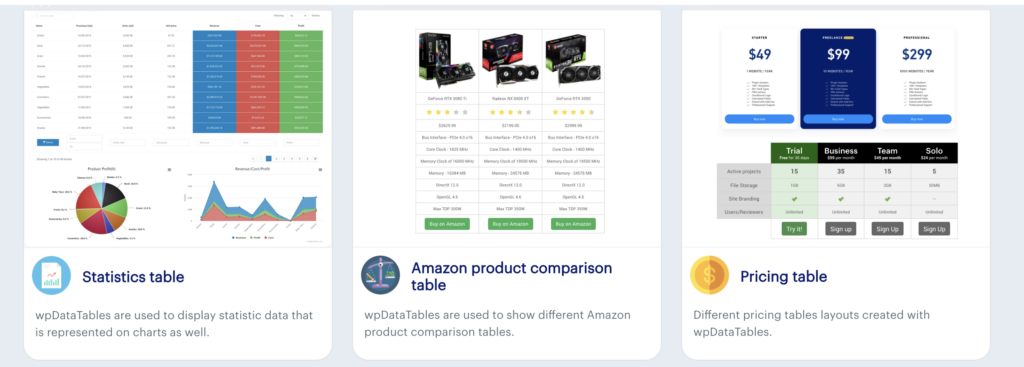
How to change table formatting in wpDataTables
Here’s a quick walkthrough of how to format table style in WordPress using wpDataTables:
Step 1: Create your table. Go to wpDataTables → Create a Table in your dashboard. Choose your data source: manual input, file upload, or external connection.
Step 2: Configure columns. For each column, set the data type (text, number, date, currency), alignment, and width. Getting column types right is the foundation of good formatting.
Step 3: Apply styling. In the table settings, you can choose from multiple pre-built skin options, set header background and text colors, enable alternating row colors (zebra striping), customize borders, padding, and margins, and set font family, size, and weight.
Step 4: Set up conditional formatting. Under the column settings, create rules like “if value > 100, set background to #FFCCCC.” This is incredibly useful for pricing tables, performance dashboards, and any table where certain values need to stand out.
Step 5: Embed and preview. Copy the shortcode or use the wpDataTables block in the editor. Always preview on both desktop and mobile to make sure the formatting looks right everywhere.
Table Formatting Best Practices (That Most Guides Skip)
Here’s where we go beyond the basics. Most articles about formatting tables in WordPress stop at “change the colors and add stripes.” But good table formatting is really about design thinking, making your data easy to read, scan, and act on.
Use a clear visual hierarchy
Your table’s header row should be the most visually distinct element. Use a bold font, a contrasting background color, and slightly larger text. This tells the reader’s eye where to start and what each column means.
Then use lighter styling for the data rows because they shouldn’t compete with the header for attention.
Stick to 2-3 colors maximum
It’s tempting to go wild with colors, but restraint is your friend here. Pick one color for the header, one for alternating rows (or a very subtle variation of your background), and one accent color for highlighting important values.
Too many colors make a table look chaotic and actually hurt readability.
Give your data room to breathe
Padding matters more than you’d think. Cramped cells with text pressed against the borders are hard to read. Add generous cell padding — at least 10-12px on all sides — and your table will immediately look more professional.
The same goes for line height within cells. A bit of extra vertical space between lines makes a noticeable difference, especially for tables with longer text entries.
Align your data consistently
Here’s a simple rule that instantly improves any table: Text should be left-aligned. Numbers and currencies should be right-aligned. Status indicators and short labels should be center-aligned.
Consistent alignment creates clean vertical lines within your columns, making the table much easier to scan.
Format for mobile first
Nearly 63% of web traffic comes from mobile devices. If your table looks great on desktop but turns into a sideways-scrolling mess on a phone, you’ve lost more than half your audience.
The best approach is to limit the number of columns (5-6 maximum for mobile), use a plugin that supports responsive breakpoints, test your table on actual mobile devices (not just the browser’s responsive mode), and consider which columns are essential and which can be hidden on smaller screens.
Don’t forget accessibility
Formatted tables should be usable by everyone, including visitors using screen readers. A few quick wins: always use a proper header row (not just bolded text in regular cells), add descriptive captions to your tables, ensure sufficient color contrast between text and backgrounds (at least a 4.5:1 ratio), and avoid using color alone to convey meaning — pair it with text or icons.
Common Table Formatting Mistakes (And How to Fix Them)
Even experienced WordPress users make these formatting errors. Here’s what to watch out for:
Mistake 1: Skipping the header row
Without a header row, visitors have to guess what each column represents. Always enable the header section and use clear, concise labels. “Monthly Price” is better than “Price,” and “Response Time (hrs)” is better than “Speed.”
Mistake 2: Using tiny font sizes
Tables often default to smaller font sizes than your body text. If visitors need to zoom in to read your data, bump it up. A minimum of 14px for table body text and 15-16px for headers is a good starting point.
Mistake 3: Ignoring borders entirely
While heavy borders can look dated, removing all borders makes it hard to distinguish between cells. The sweet spot is subtle borders — thin lines (1px) in a light gray — or alternating row colors to provide visual separation without clutter.
Mistake 4: Overloading tables with too much data
If your table has 15+ columns and 100+ rows, it’s probably trying to do too much. Consider splitting it into multiple focused tables, or use a plugin like wpDataTables that supports filtering and search so visitors can find what they need without scrolling endlessly.
Mistake 5: Not previewing on multiple devices
What looks perfectly formatted in your editor might break completely on a tablet or phone. Always preview your formatted table on at least two screen sizes before publishing.
Add Table Format to WordPress: A Quick Comparison of Methods
Here’s a quick summary to help you choose the best way to format tables in WordPress based on your needs:
| Feature | WordPress Block Editor | wpDataTables |
| Basic text formatting | Yes | Yes |
| Custom colors | Table-wide only | Per cell, row, column |
| Alternating row colors | Yes (Stripes style) | Yes, fully customizable |
| Conditional formatting | No | Yes |
| Mobile responsive | Horizontal scroll only | Multiple responsive modes |
| Sorting and filtering | No | Yes |
| Data source imports | No | Excel, CSV, Google Sheets, SQL |
| Images and buttons in cells | Limited | Yes |
| Best for | Simple, static tables | Data-rich, interactive tables |
Time to Make Your Tables Work Harder
Formatting tables in WordPress doesn’t have to be complicated, but it does deserve more thought than most people give it. A well-formatted table isn’t just nice to look at. It’s easier to read, more trustworthy, and far more likely to help your visitors take action.
If you’re working with simple data that doesn’t change often, the WordPress block editor will get the job done. But if you’re dealing with product comparisons, pricing pages, directories, or any table that needs to look polished and work beautifully on every device, wpDataTables gives you the formatting power to make it happen.
Give wpDataTables a try and see how easy it is to create tables that look as good as the data they hold.
Frequently Asked Questions
How do I format a table in WordPress without a plugin?
You can use the built-in Table block in the WordPress block editor. It supports basic formatting like text styling, alignment, color changes, and alternating row stripes. For anything beyond the basics, like conditional formatting, responsive layouts, or individual cell styling, you’ll need a table plugin.
What’s the best way to format tables in WordPress for mobile?
The most reliable approach is to use a plugin that supports responsive breakpoints, like wpDataTables. You can control which columns appear on mobile, set priority for essential columns, and choose between collapsible rows or horizontal scrolling. The block editor’s built-in table only offers horizontal scrolling on mobile, which isn’t ideal.
Can I change the formatting of individual cells in a WordPress table?
Not with the default block editor, as its color and styling changes apply to the entire table. With wpDataTables, you can format individual cells, rows, and columns independently, and even set up conditional formatting rules that change cell appearance based on data values.
How do I add alternating row colors to my WordPress table?
In the block editor, select your table, open the Styles panel in the sidebar, and choose the “Stripes” option. In wpDataTables, you can customize the alternating row colors to match your site’s design. You can choose specific colors for odd rows, even rows, the header, and the footer independently.
How do I make my WordPress table look more professional?
Focus on five things: use a proper header row with distinct styling, add consistent cell padding (10-12px minimum), align text left and numbers right, stick to 2-3 colors maximum, and always test on mobile. These simple adjustments make a bigger visual difference than any fancy design trick.