Default HTML tables have no borders. Nothing around the table, nothing between the cells. So the first time you drop real data into one, you get a wall of text with no lines anywhere, and it’s miserable to read.
Fixing it comes down to knowing which CSS property does what, and there are fewer of them than you’d guess. Three or four cover the vast majority of what people want out of a table: a clean grid, or just row lines, or rounded corners on the outside edge.
The wrinkle is that a couple of these properties interact in ways that aren’t obvious. Switch one on and another quietly stops working, with no error to tell you why. That’s where most of the wasted time goes, and it’s most of what the sections below dig into.
Table of Contents
What is an HTML Table Border?
An HTML Table Border is the line you see around a <table> and its <td> and <th> cells once they’re styled. You can draw it with CSS or with the old border HTML attribute, though that attribute has been deprecated since HTML5, and W3C now points you to CSS for all of it.
Before you style anything, the table has none of these lines. You’re adding from zero.
What throws people early is that a table actually has three border areas, not one:
- The outer border around the whole
<table> - The cell borders, since every
<td>and<th>carries its own layer - The gap between cells, which
border-spacingcontrols
That third one sits behind the classic double-border mess. The browser draws a border on the <table> and another on each <td>, you end up seeing both, and everything looks doubled up. The standard fix is border-collapse: collapse, which MDN recommends for most table styling anyway (MDN, 2024).
What Are the CSS Properties That Control HTML Table Borders?
Six properties carry the load: border, border-collapse, border-spacing, border-radius, border-style, and outline. Getting a feel for what each does before you start saves you a lot of squinting at Chrome DevTools later, wondering why a rule did nothing.
| Property | What It Controls | Applies To |
|---|---|---|
border |
Width, style, and color in one declaration | table, td, th |
border-collapse |
Merge or separate cell borders | table only |
border-spacing |
Gap size between cell borders | table (separate mode only) |
border-radius |
Rounded corners | table (separate mode only) |
outline |
Draws outside border box, no layout shift | Any element |
The outline versus border distinction is one to keep straight. outline doesn’t touch the box model or layout, and border does. On screen they look almost identical, but that difference shows up the moment you’re trying to line cells up to the pixel.
border-collapse: collapse vs border-collapse: separate
You’ll touch this property on nearly every table you build. It’s been in all major browsers since July 2015 and sits at 96% global usage (MDN, 2024), so support isn’t something you need to worry about.
In collapse mode, adjacent cell borders merge into a single shared line with no gaps, which is what most well-built data tables run on. In separate mode, each cell keeps its own border and a visible gap stays between them, and you need that mode if you want border-spacing or border-radius to do anything at all.
The trade-off that bites people: while border-collapse: collapse is active, border-radius stops working on the <table> element entirely. If rounded corners matter, you’re committed to separate mode.
Piccalilli (2024) notes that browsers ship with border-collapse: separate and border-spacing: 2px as user-agent defaults, which is the reason an unstyled table always shows those little gaps between cells.
How Do You Add a Basic Border to an HTML Table?
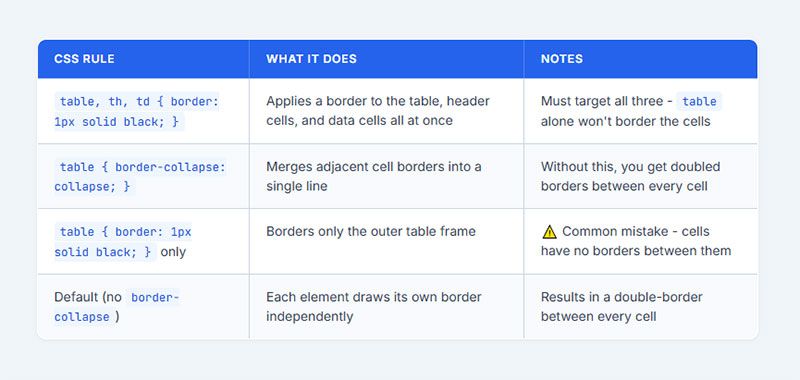
Targeting only <table> is the mistake almost everyone makes first. The outer border and the cell borders are independent, so that single rule never produces the lines you’re imagining. You have to hit all three together: table, th, and td.
If you’re starting from scratch, an HTML Table Generator can help you put the rows and columns together before you tackle the CSS. Once the structure is in place, adding borders is straightforward.
This is the syntax that works:
table, th, td {
  border: 1px solid black;
}
table {
  border-collapse: collapse;
}
Leave off border-collapse: collapse and you’ll get doubled borders everywhere, since the <table> and each <td> are both drawing their own. W3Schools flags this double-border default as one of the first things to fix when styling a table (W3Schools, 2024).
GitHub is a good example of getting it right. Its repository contribution tables use collapsed, single-pixel cell borders, and they stay readable at any screen size because there’s no double-border noise competing with the data.
Why Targeting Only the Table Isn’t Enough
Apply border: 1px solid black to table on its own and you get a rectangle around the outside, with no lines between any of the rows or columns. An empty frame.
That comes down to the box model. Each <td> is its own independent box. The table element wraps every cell but doesn’t share its border with any of them, so the interior lines only appear once you declare them directly on td and th.
One rule on table styles the container. The three rules across table, th, and td are what style the table people actually see.
How Do You Style Only Specific Sides of a Table Border?
See the Pen
CSS Table Border Sides by Bogdan Sandu (@bogdansandu)
on CodePen.
Each side has its own property: border-top, border-right, border-bottom, and border-left. These are what you use when you want column dividers without the outer edges, or row separators without committing to a full grid.
The pattern you see most in modern table design is horizontal-only. It drops the vertical column dividers and keeps a clean line between rows:
th, td {
  border-bottom: 1px solid #e0e0e0;
  border-top: none;
  border-left: none;
  border-right: none;
}
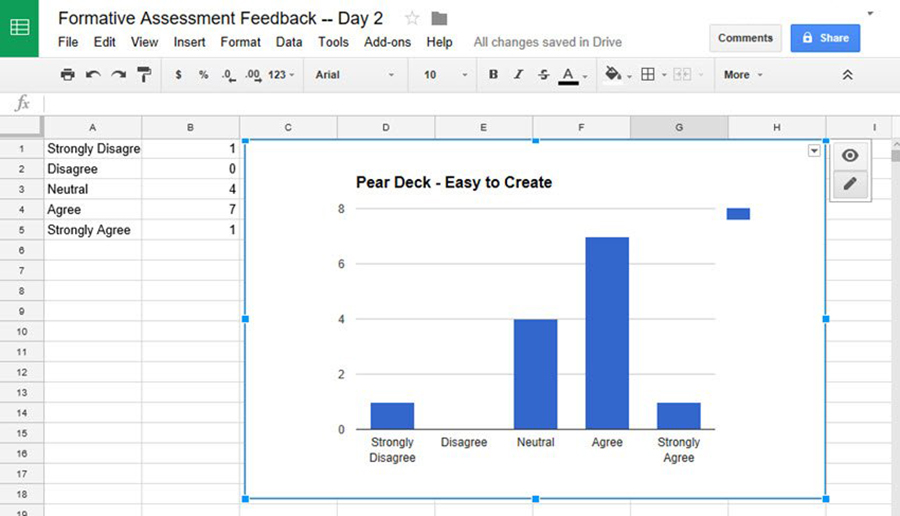
Google Sheets uses this exact look as its default. No vertical cell lines, just horizontal row dividers, and it reads lighter and far less busy than a full grid.
A few places this style earns its keep:
- Bottom-only borders give you row dividers without the cage-like full grid, and they hold up best on data tables with a lot of columns.
- A left border on cells alone creates a vertical column-separator effect without a full outer border around everything.
- A top border on the outer table only marks the start of a section without boxing in all the data underneath.
To strip the outer table border while keeping the inner cell lines, set border: none on table and apply only border-bottom to td and th. And if the first and last rows need tidying, :first-child and :last-child let you pull the top border off the first row and the bottom border off the last.
How Do You Change Table Border Color, Width, and Style?
See the Pen
CSS Table Border Reference by Bogdan Sandu (@bogdansandu)
on CodePen.
The border shorthand takes its values in a fixed order, width then style then color, so all together it reads as border: 2px dashed #3a86ff.
Width accepts pixels, ems, or keywords:
thin, which lands near 1px in most browsersmedium, roughly 3pxthick, roughly 5px
Pixels give tighter control. The keywords render a bit differently from one browser to the next, so most people skip them and just state the pixel value.
Border Style Options and Visual Differences
CSS3 supports eight named border styles, and each one looks distinct enough to be worth knowing:
| Style Value | Visual Output | Common Use |
|---|---|---|
solid |
Single continuous line | Data tables, pricing tables |
dashed |
Evenly spaced dashes | Draft states, editable cells |
dotted |
Evenly spaced dots | Subtle separators |
double |
Two parallel lines | Outer table frame styling |
groove |
3D carved-in effect | Legacy or decorative tables |
ridge |
3D raised effect | Legacy or decorative tables |
For color, rgba() gets you semi-transparent borders. A value like rgba(0, 0, 0, 0.12) makes a good starting point for a light gray cell border, since it softens against both white and tinted backgrounds without you swapping the hex code every time the theme shifts.
Using hidden to Remove Borders in Collapsed Tables
border: none and border: hidden stop behaving the same way once border-collapse: collapse is active, and it’s worth knowing the difference before it catches you out.
In collapsed mode, hidden wins over any other border style on a shared cell edge, and none doesn’t. So if one cell has border: none and the cell beside it has border: 1px solid black, that solid border takes the shared edge and stays visible.
Reach for border: hidden when you need to definitively kill a shared cell border in a collapsed table. Keep border: none for tables that aren’t collapsed.
How Do You Add a Rounded Border to an HTML Table?
See the Pen
SaaS Pricing Comparison Table – Pure CSS & HTML by Bogdan Sandu (@bogdansandu)
on CodePen.
border-radius on a <table> only works when border-collapse: separate is set. With collapse active, the rounded corners won’t render in any browser.
This is one of the more frustrating CSS table quirks, because it fails silently. You set border-radius: 8px, reload, and stare at the same sharp corners you had before. The fix is switching to separate mode, then zeroing out border-spacing so you don’t bring the default gaps back:
table {
  border-collapse: separate;
  border-spacing: 0;
  border: 1px solid #ccc;
  border-radius: 8px;
  overflow: hidden;
}
That overflow: hidden is pulling its weight. It clips the cell backgrounds at the corners so they don’t bleed past the rounded edge. Drop it and the cell backgrounds poke out beyond the curve in both Chrome and Firefox (UnusedCSS, 2024).
Stripe takes a different route across its dashboard UI, and it’s the cleaner one. They wrap the table in a <div> that holds the border-radius and overflow: hidden, while the table itself stays in collapse mode for tidy inner borders. That sidesteps the border-collapse: separate requirement instead of wrestling with it.
Rounding Individual Cell Corners
Applying border-radius straight to a <td> or <th> works in most browsers, but the spec treats its behavior on internal table elements as technically undefined in CSS3 Backgrounds and Borders (W3C, 2011). So you’re relying on browser behavior, not a guarantee.
Chrome and Firefox both render it in practice. Safari is the inconsistent one, getting flaky on certain overflow: hidden combinations (GitHub, 2024).
For a rounded header specifically, there’s a safer move. Put border-radius on just the first and last <th> with :first-child and :last-child. That gives the header row its pill shape without you ever touching the internal cell borders, which is where things tend to break.
How Do You Style Table Borders with CSS Classes and Inline Styles?
To set borders at the element level rather than from a global stylesheet, you’ve got two options: inline style attributes and CSS class selectors.
Both work, but they’re for different jobs, and using them interchangeably breeds specificity conflicts that are a pain to debug.
Inline Styles vs CSS Classes
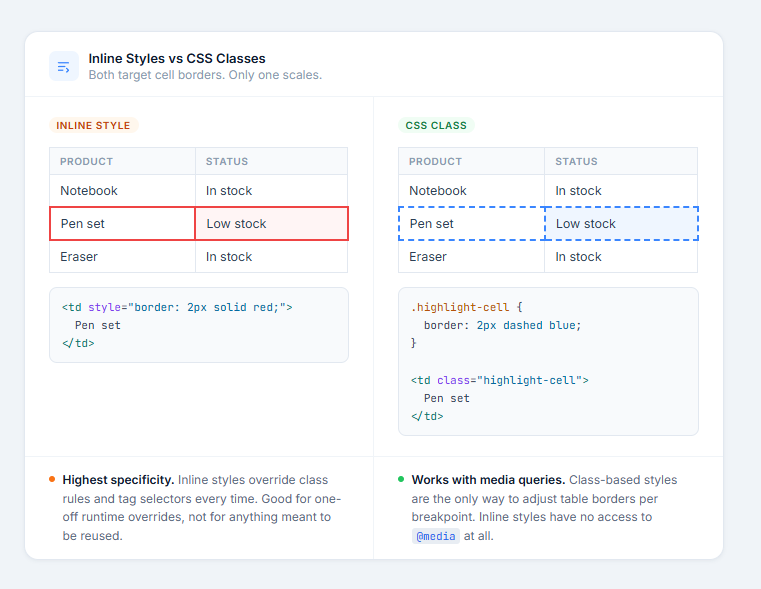
An inline style goes directly on the element through the style attribute:
<td style="border: 2px solid red;">Cell content</td>A class lives in your stylesheet and attaches through the class attribute:
.highlight-cell {
  border: 2px dashed blue;
}
Inline styles carry the highest specificity short of !important. They override class rules and tag selectors every time, which makes them handy for a one-off and a bad idea for anything you mean to reuse.
There’s a practical reason that second point matters. The State of CSS 2024 survey found only 67% of developers test their work on mobile (CSS-Tricks, 2024). Class-based styling with @media queries is the only workable way to adjust table borders per breakpoint, and inline styles don’t support media queries at all.
So for most tables, use a class for the base border style and save inline styles for the dynamic overrides your JavaScript generates at runtime.
Targeting Specific Rows and Columns with :nth-child()
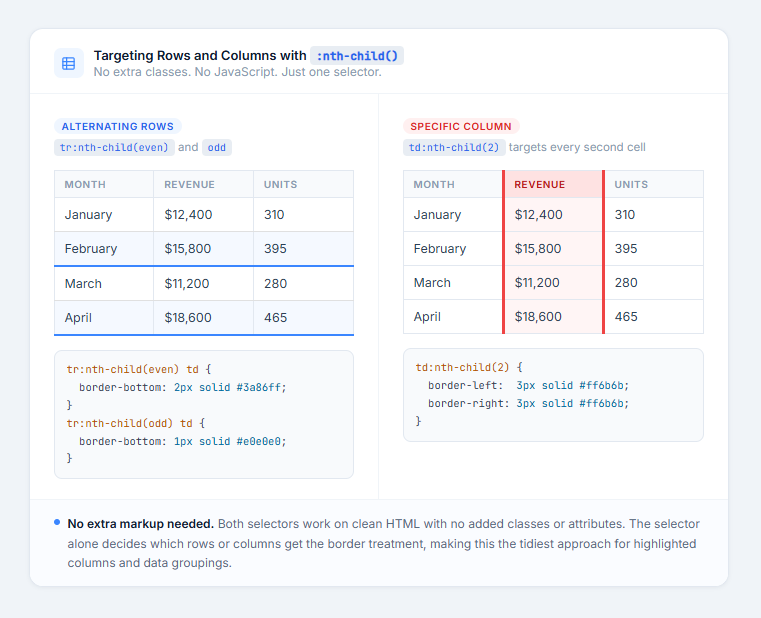
The :nth-child() pseudo-class lets you border specific rows or columns without piling extra classes into your HTML. For alternating rows:
tr:nth-child(even) td {
  border-bottom: 2px solid #3a86ff;
}
tr:nth-child(odd) td {
  border-bottom: 1px solid #e0e0e0;
}
And to border a particular column, you point :nth-child() at the td:
td:nth-child(2) {
  border-left: 3px solid #ff6b6b;
  border-right: 3px solid #ff6b6b;
}
That hits the second column in every row with no extra markup and nothing in JavaScript, just the one selector. If your HTML table design involves highlighted columns or special data groupings, this is about as clean as pure CSS gets.
Why Use wpDataTables to Build and Customize Tables – Without Coding
If you want powerful, interactive tables on your WordPress site without diving into HTML or CSS, wpDataTables is a top-tier solution. It’s built specifically for users who need to create, manage, and style complex data tables – all from a friendly interface.
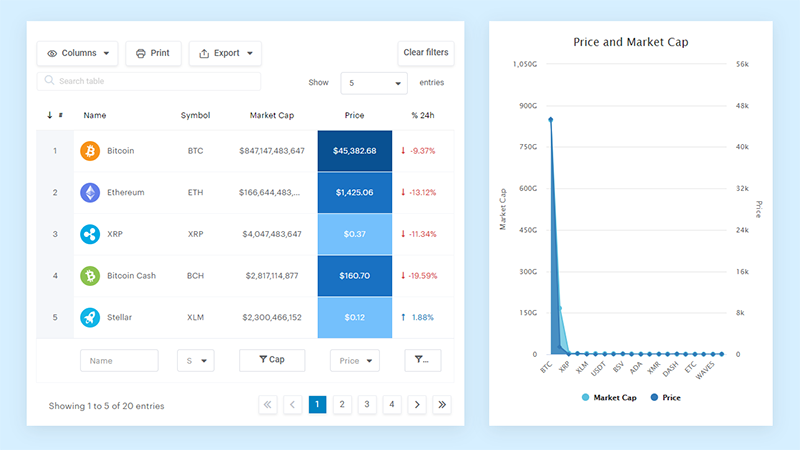
No Coding Required for Table Creation
With the Table Creation Wizard, you can build a table from scratch – define rows, columns, and structure – directly in your WP admin. You don’t need to know SQL, HTML, or anything technical.
Import Data from Any Source
Bring in data from Excel, CSV, Google Sheets, JSON, XML, or a MySQL database – without writing a single line of code.
Customize Table Appearance Visually
Use the “Customize” settings panel in the wpDataTables dashboard to control everything:
- Fonts (size, color).
- Header styles (background color, text color, hover effect).
- Borders (inner cell borders, outer table borders, or even removing them).
- Row colors (alternate row backgrounds, hover color).
- Table pagination style and colors.
- Custom CSS (if you want to add your own tweaks).
Responsive Design Out-of-the-Box
Tables created with wpDataTables can adapt for mobile, tablet, and desktop – no extra CSS needed.
Advanced Features Without Complexity
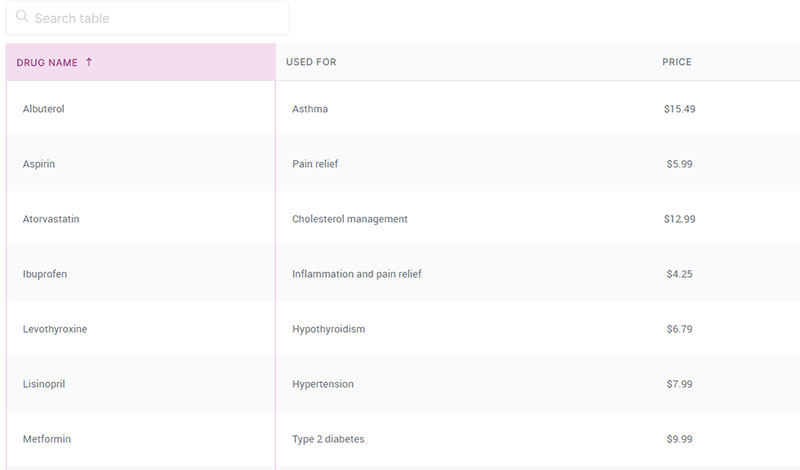
Get features like sorting, filtering, conditional formatting, and calculated columns.
Bottom line: With wpDataTables, you don’t need to be a developer to build sophisticated, data-rich tables. Whether you’re working with large datasets, background imports, or need full control over styling – wpDataTables gives you a powerful, intuitive way to deliver professional tables on your WordPress site.
It’s as simple as:
- You provide the table data
- Configure and customize it
- Publish it in a post or page
And it’s not just pretty, but also practical. You can make large tables with up to millions of rows, or you can use advanced filters and search, or you can go wild and make it editable.
“Yeah, but I just like Excel too much and there’s nothing like that on websites”. Yeah, there is. You can use conditional formatting like in Excel or Google Sheets.
Did I tell you you can create charts too with your data? And that’s only a small part. There are lots of other features for you.
Check out the pricing and choose plan that suits your table-building needs!
How Do You Create a Table with No Border?
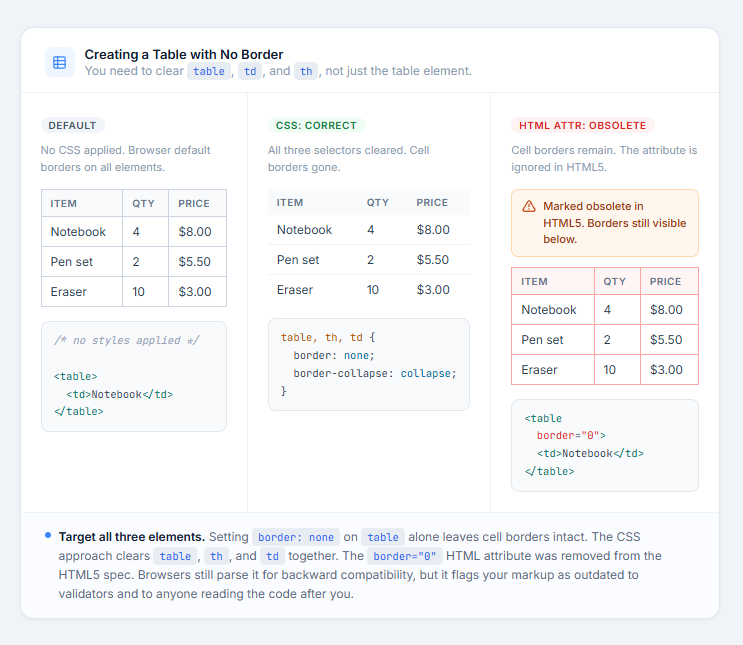
Clearing every border means targeting three elements, not one: table, td, and th. Setting border: none on table alone leaves the cell borders fully visible.
This wipes them all:
table, th, td {
  border: none;
  border-collapse: collapse;
}
The border="0" HTML attribute is marked obsolete in the HTML5 spec (W3C). All presentational markup, border="0" included, was pulled out of HTML5 in favor of CSS. Browsers still parse it for backward compatibility, but leaning on deprecated features flags your markup as dated to validators and to the next developer who reads it (Rocket Validator, 2024).
Why border: none and border-spacing Both Matter
Setting border: none across the table elements clears the visible lines, but the gaps can hang around if you don’t also reset border-spacing.
Browsers default to border-collapse: separate with border-spacing: 2px, so even after the lines are gone, a 2px gap between cells stays put. The full reset looks like this:
table {
  border-collapse: collapse;
  border-spacing: 0;
  border: none;
}
th, td {
  border: none;
}
Notion uses borderless tables throughout its database view. No outer edge, no cell lines. It reads as a list rather than a grid, which suits content-heavy layouts where you don’t want borders adding visual weight.
How Do You Add a Border to a Table in Bootstrap?
See the Pen
Bootstrap 5 Table Classes by Bogdan Sandu (@bogdansandu)
on CodePen.
Bootstrap runs 77.5% of every site that uses a known CSS framework (Quora, June 2024), so there’s a fair chance you’re on it already. Its table utilities let you switch borders on or off without writing any custom CSS.
Bootstrap 5 gives you two classes here. .table-bordered adds a 1px solid border on all sides of the table and every cell inside it. .table-borderless strips them off, outer edge included. That’s the whole toolkit, and it’s usually enough.
Wiring it up looks like this:
<table class="table table-bordered">
  <thead>...</thead>
  <tbody>...</tbody>
</table>
One handy detail: Bootstrap tables drive their border color through CSS variables. Override --bs-border-color and you’ve recolored every border in the table at once, without rewriting the class structure.
Overriding Bootstrap Table Border Color with CSS Variables
The default border color in Bootstrap 5 is #dee2e6, a light gray. Swapping it is a two-line job:
.table {
  --bs-border-color: #3a86ff;
}
Scoping it to .table keeps the change contained, so you’re not accidentally repainting other Bootstrap components that read the same variable globally. A small thing that saves a headache.
Specificity is where it gets fiddly. Under the hood, .table-bordered applies $table-border-width solid $table-border-color. So the moment you write custom CSS hitting td or th with a border shorthand, whether your rule wins or Bootstrap’s does depends on source order in the stylesheet. That one trips people up constantly, and it’s nearly always an ordering problem rather than a syntax one.
When Bootstrap Border Classes Do Not Work as Expected
Bootstrap 5 targets cells with a child combinator, .table > :not(caption) > * > *, and does it deliberately, to stop border styles bleeding down into nested tables (Bootstrap docs, 2024).
In practice that means a nested <table> inside a Bootstrap table is completely on its own border-wise. Putting .table-bordered on just the outer table won’t reach the inner one. Every nested table needs its own class. It’s annoying the first time you hit it, but it behaves predictably once you know the rule.
How Do You Make a Table Border Responsive?
See the Pen
Responsive Table Borders with @media Queries by Bogdan Sandu (@bogdansandu)
on CodePen.
Mobile pulled 58.54% of global web traffic in 2024, up from 35.1% in 2015 (MobiLoud). A table whose borders look sharp on desktop can fall apart or turn cluttered the second it loads on a phone.
Borders don’t adapt on their own. Left alone, a bordered table on a 375px screen either overflows its container or forces a horizontal scroll.
Using @media Queries to Adjust Borders at Breakpoints
The most direct fix is cutting the borders back at small widths:
@media (max-width: 600px) {
  th, td {
    border-left: none;
    border-right: none;
    border-bottom: 1px solid #e0e0e0;
  }

  table {
    border: none;
  }
}
This swaps a full-grid layout for horizontal lines only on mobile. The rows still separate cleanly, the vertical cell lines drop away, and the table reads more like a list, which is far easier to parse without zooming.
The choice isn’t only cosmetic. 73.1% of web designers report that non-responsive design is the main reason visitors leave a site (BusinessDasher, 2024), and adjusting table borders at breakpoints is one small part of taking responsiveness seriously.
Wrapping Tables for Overflow Control
If you’d rather keep the full bordered layout, wrap the table in a scrollable container and you won’t have to touch a single border rule:
<div style="overflow-x: auto;">
  <table>...</table>
</div>
The trade-off is real. Your borders stay intact and readable, but people have to scroll sideways to reach the last columns. That’s a fair deal on data-heavy tables with many columns. It’s the wrong call for a two or three column table that would be better off reflowing on mobile.
Bootstrap’s .table-responsive wrapper applies overflow-x: auto for you. Same mechanism as the manual wrapper above, just through the Bootstrap class API. Either way, the bordered table stays visually intact at any screen width.
What Are Common HTML Table Border Mistakes and How to Fix Them?
Most table border bugs trace back to a handful of causes, and each one has a direct fix.
| Mistake | Cause | Fix |
|---|---|---|
| Double borders appear | Table and cell both carry border layers | Add border-collapse: collapse |
Deprecated border attribute used |
Pre-HTML5 habit | Remove attribute, use CSS border property |
border-radius has no effect |
border-collapse: collapse active |
Switch to border-collapse: separate |
| Only outer border visible | CSS targets table but not td/th |
Add rule for td, th { border: ... } |
border-spacing does nothing |
border-collapse: collapse overrides it |
Switch to border-collapse: separate |
The Double Border Problem
Double borders are the most reported table styling issue out there. They show up when both <table> and its <td> elements render their own border, leaving a visible 2px gap between the two.
A single line clears it:
table {
  border-collapse: collapse;
}
Using inline styles on individual cells instead of a stylesheet makes this steadily worse. Hongkiat (2023) notes that inline styles bring maintenance pain and specificity conflicts that compound quickly across large tables.
border-radius Not Working
Set border-radius on a table while border-collapse: collapse is active and nothing happens. Every browser ignores it. This isn’t a bug, the spec defines the behavior on purpose.
When you need collapsed borders and rounded corners at once, there are two ways through it. You can wrap the table in a <div> with border-radius and overflow: hidden and leave the table in collapse mode. Or you can switch to border-collapse: separate with border-spacing: 0 and apply border-radius directly on the table.
The wrapper-div route is the one Stripe uses on its dashboard tables. It keeps the rounding concern separate from the border-collapse concern, so both work on their own without fighting each other.
border-spacing Has No Effect
border-spacing only works when border-collapse: separate is set. In collapse mode, cell gaps don’t exist by definition, so the property gets ignored without a peep.
When you want spacing between cells alongside visible borders, this handles it:
table {
  border-collapse: separate;
  border-spacing: 8px;
}

td, th {
  border: 1px solid #ccc;
}
For more control over the full styling of HTML tables beyond borders, including padding, alignment, and zebra striping, keep in mind that the same border-collapse decision you make here carries into how those other styles behave too.
FAQ on How To Stylize A Table Border In HTML
How do I add a border to an HTML table using CSS?
Target table, th, and td together with the border shorthand: border: 1px solid black. Then add border-collapse: collapse to remove the default double-border gap between cells.
Why does my HTML table show double borders?
Because <table> and each <td> render separate border layers by default. Add border-collapse: collapse to your table rule and the adjacent cell borders merge into one shared line.
What CSS property removes the gap between table cell borders?
border-collapse: collapse takes the gap out entirely. If you need spacing between cells while keeping borders visible, use border-collapse: separate together with border-spacing to control the exact gap size.
Can I add a border to only specific sides of a table cell?
Yes. Use border-top, border-right, border-bottom, or border-left on their own. The most common pattern is border-bottom only on td and th, which creates clean row dividers without a full grid.
How do I add rounded corners to an HTML table border?
Set border-collapse: separate and border-spacing: 0 on the table, then apply border-radius. Add overflow: hidden to clip cell backgrounds at the corners. Rounded corners don’t render while border-collapse: collapse is active.
How do I remove all borders from an HTML table?
Apply border: none to table, td, and th together. Also set border-collapse: collapse and border-spacing: 0 to remove residual cell gaps. Steer clear of the deprecated border="0" HTML attribute.
What is the difference between border: none and border: hidden in CSS tables?
In border-collapse: collapse mode, hidden wins over any adjacent cell’s border style and none doesn’t. Use hidden when you need to definitively erase a shared cell edge in a collapsed table.
How do I style table borders in Bootstrap 5?
Add .table-bordered to your <table> for borders on all sides, or .table-borderless to remove them. Change the default border color by setting the --bs-border-color CSS variable on the .table class.
How do I make an HTML table border responsive on mobile?
Wrap the table in a <div> with overflow-x: auto for horizontal scrolling. Or use @media queries to switch to bottom-border-only cell styling on small screens, which reduces the visual clutter on narrow viewports.
How do I change the color and width of a table border in CSS?
Use the border shorthand: border: 2px solid #3a86ff. The three values run width, style, color. For semi-transparent borders, use an rgba() value like rgba(0, 0, 0, 0.12) instead of a hex code.
Conclusion
This conclusion is for an article presenting the full range of ways to control table border styling in HTML, from basic CSS rules to responsive adjustments and Bootstrap utilities.
The core decisions are simple once you understand them. border-collapse: collapse fixes double borders. Side-specific properties like border-bottom clean up visual noise. border-spacing only works in separate mode.
Rounded corners need border-collapse: separate, or a wrapper div with overflow: hidden. The deprecated border HTML attribute belongs in the past.
Getting the CSS border shorthand property right on table, td, and th together is what separates a broken table layout from a clean one.
Apply these rules once and they hold across every project.