
Most WooCommerce stores follow the same playbook. Pretty product page. Big “Add to Cart” button. Hope buyers click through and check out. It works, but only up to a point.
For stores that sell many products or want to push subscription plans, the standard layout slows buyers down. Each product takes its own page load. Each subscription plan needs its own click. By the time a buyer compares three options, the moment is gone.
That’s where the combination of WooCommerce subscription plugins and product table plugins comes in. Together, these two tool types create a faster, cleaner shopping experience that lifts conversions in measurable ways.
This post breaks down exactly how to combine WooCommerce subscription plugins with product tables for better results. The right tool stack. The setup steps. The conversion tricks. The numbers that prove it works.
Let’s get into it.
Table of Contents
Why This Combination Works So Well
WooCommerce subscription plugins turn one-time buyers into recurring revenue. They handle billing cycles, free trials, customer dashboards, and renewal management. They lift lifetime value by 5-10x compared to single-purchase products.
Product table plugins do something different. They show many products in a clean, sortable table format instead of standard grid pages. Buyers see prices, options, and add-to-cart buttons all on one screen. No page loads. No scrolling through endless products.
Combine these two tool types, and magic happens. Subscription pricing tables. Multi-product subscription comparisons.
This is especially powerful for:
- Subscription box stores (compare different box options on one screen)
- Course sites with multiple subscription tiers
- B2B stores with bulk subscription orders
- Membership sites with multiple plan levels
- Wholesale shops with recurring orders
Now let’s look at the tools that make this combo work.
Best Product Table Tools for WooCommerce
WooCommerce offers multiple reliable table tools that users can choose from. The three most popular choices consist of wpDataTables, WooCommerce Product Table by Barn2 Plugins, and YITH WooCommerce Product Bundles.
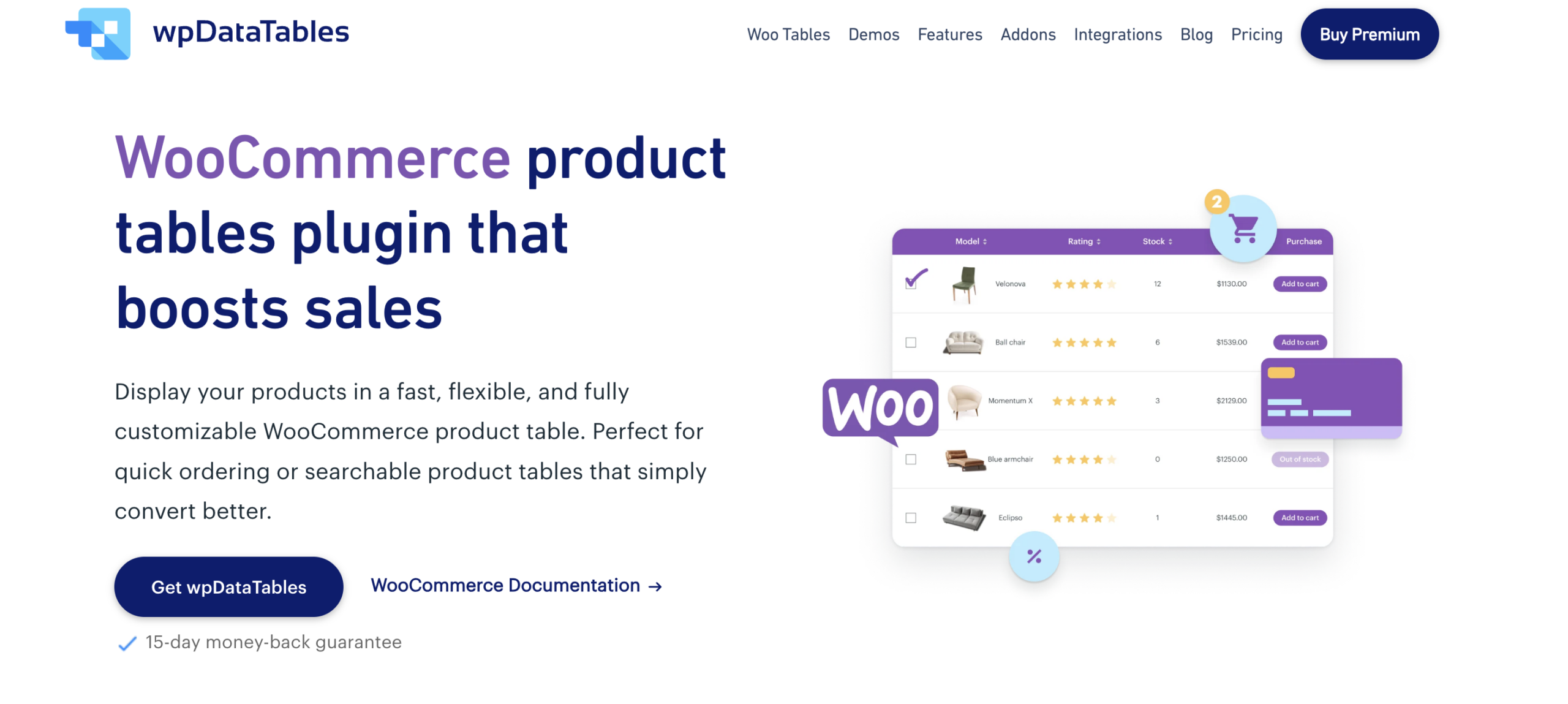
wpDataTables provides users with advanced data management capabilities, which enable them to build dynamic product tables that feature both sorting and filtering options, search functionality, and conditional formatting rules.
The platform establishes effective connections with WooCommerce, and it’s called WooTables. It enables users to bring their data from CSV files, Excel spreadsheets, JSON files, and Google Sheets documents. The Lite plan requires customers to pay $99 each year for its starting price.
WooCommerce Product Table by Barn2 is built specifically for WooCommerce and ships with deep e-commerce features out of the box. Pricing starts at $99/year.
YITH WooCommerce Product Bundles serves as a solution that focuses on creating organized product displays through its integration within the YITH platform system.
Top WooCommerce Subscription Plugins to Pair With Product Tables
Here are the WooCommerce subscription plugins that pair best with product table plugins in 2026.
1. WPSubscription

WPSubscription is the smartest WooCommerce subscription plugin to pair with product tables in 2026. It’s built by Convers Lab, lives on WordPress.org with a 4.9 rating, and offers a free version plus an affordable Pro plan.
What makes WPSubscription perfect for table layouts is the split payment feature. A product table can display a $300 course with a “Pay $50/month for 6 months” option right next to the “Buy Now” button. Buyers see the affordable installment plan instantly, which dramatically increases conversion.
The plugin also handles free trials, sign-up fees, role assignment, and a customer self-service dashboard. All the building blocks needed for high-converting subscription tables.
Pricing:
- Free version on WordPress.org
- Basic: $89/year (1 site)
- Standard: $149/year (5 sites)
- Pro: $299/year (50 sites)
- 14-day money-back guarantee
Main features:
- Subscription pricing visible in table rows
- Split payment options are shown next to single-purchase prices
- Free trial indicators in product columns
- Stripe, PayPal, Paddle, Mollie, Razorpay support
- Customer dashboard for plan management
- Pending cancellation for clean retention
Why it pairs best with tables:
- Affordable, so the table can include many subscription products without runaway licensing costs
- Free version lets shops test the table-plus-subscription combo at zero risk
- Split payments fit naturally into table column layouts
- Active development means new features keep arriving
2. WooCommerce Subscriptions (Official by Automattic)
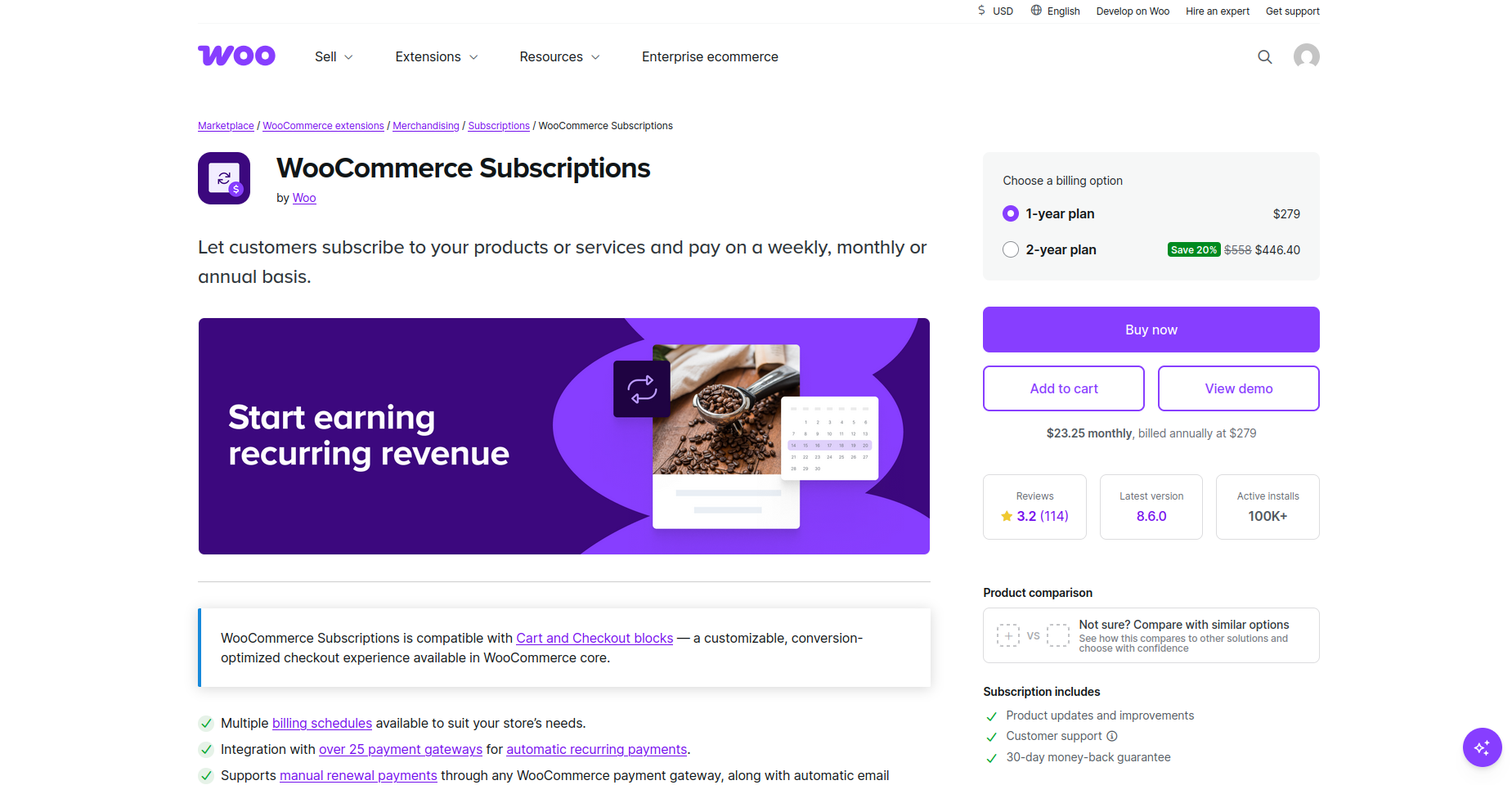
The official plugin from the WooCommerce team. It’s the most well-known of all WooCommerce subscription plugins and pairs with any major product table plugin.
For shops that need enterprise-level features like synced renewals, proration, or grouped subscriptions in their product tables, this plugin handles it.
Pricing:
- $279/year for unlimited sites
- No free version
- 30-day money-back guarantee
Main features:
- Variable subscriptions display multiple price points in one row
- Grouped subscription products work in table layouts
- Synced renewals across all displayed products
- 25+ payment gateway support
- Strong API for custom table integrations
3. YITH WooCommerce Subscription
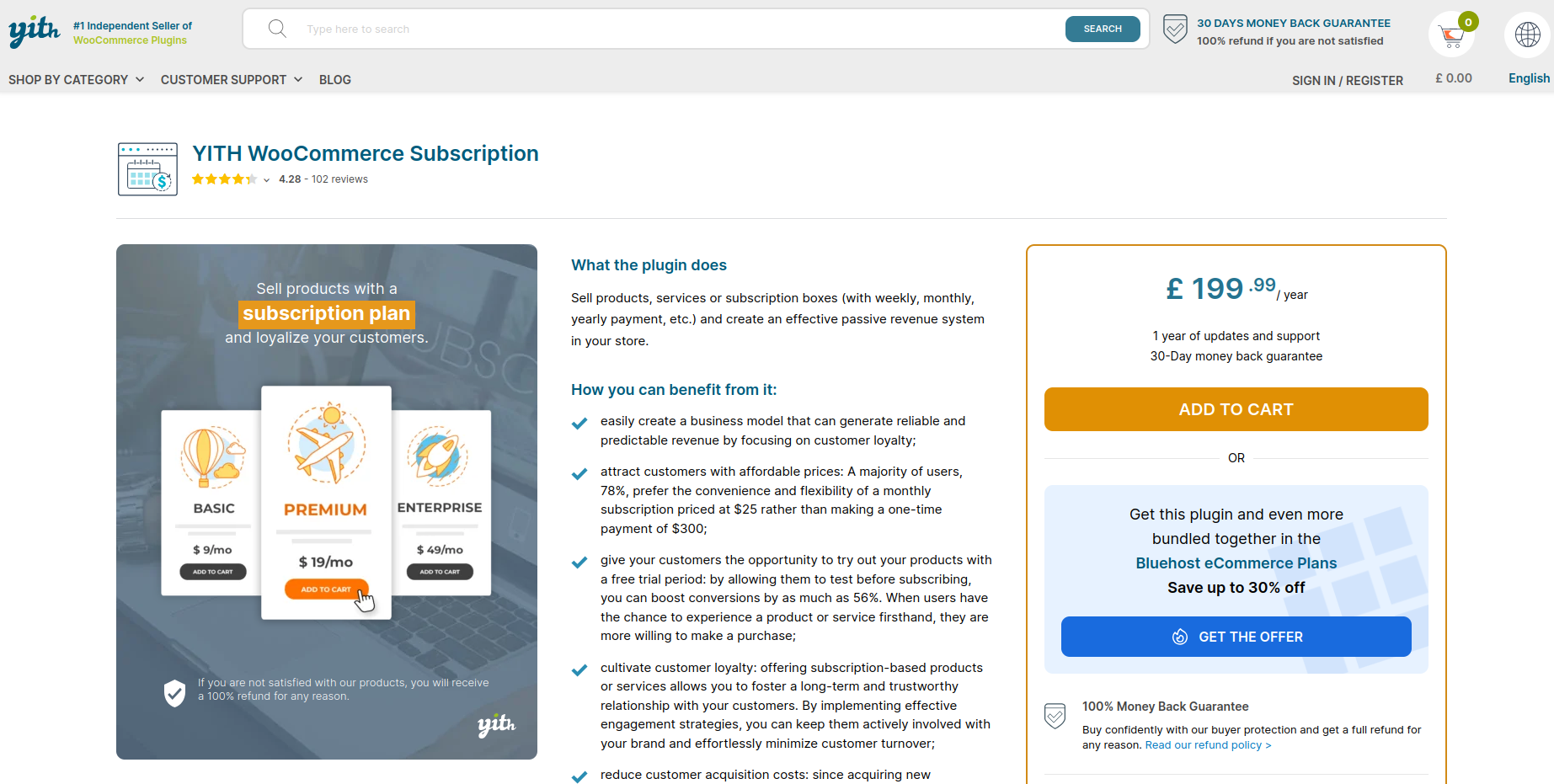
YITH’s subscription plugin works great in product tables, especially for subscription box stores. The “build your own box” feature can be displayed as a table where buyers tick items to include in their monthly delivery.
Pricing:
- $215/year for 1 site
- Free version on WordPress.org with limited features
- 30-day money-back guarantee
Main features:
- Subscription Box product type in table rows
- Variable subscription pricing is displayed cleanly
- Multi-language support for global stores
- Coupon support inside table-displayed subscriptions
4. WP Swings Subscriptions Pro
WP Swings offers an affordable middle-ground plugin that works well with table tools. The free version covers basic subscription billing for table displays.
Pricing:
- Free version on WordPress.org
- Pro: $129/year
- 30-day money-back guarantee
Why it pairs well: Affordable price means shops can build large product tables with dozens of subscription products without breaking the budget.
Step-by-Step: How to Combine the Tools
Once you choose the plugins you want to use, the setup is fairly straightforward. The exact steps may vary slightly depending on your subscription plugin and product table plugin, but the general process looks like this.
Step 1: Install both plugins
Start by installing your WooCommerce subscription plugin. You can do this from WordPress.org, your plugin provider’s website, or the WordPress dashboard if you already have the plugin file.
Then install your product table plugin. For stores that need advanced filtering, sorting, or data-based product displays, wpDataTables can be a useful option.
Before moving on, make sure WooCommerce is active and both plugins are properly configured.
Step 2: Create your subscription products
Go to WooCommerce > Products and create a new product.
Once your subscription plugin is active, you should see subscription-related options in the product settings. Set the subscription price, billing cycle, free trial, sign-up fee, or any other conditions you want to offer.
Repeat this process for each subscription product or plan you want to include in the table.
If your subscription plugin supports installment or split payment options, this is usually where you would configure them as well.
Step 3: Build your product table
Next, open your product table plugin and create a new table.
Choose which subscription products you want to display. You can usually filter products by category, tag, product type, or another product attribute.
For subscription products, useful table columns often include:
- Product image
- Product name
- Short description
- Subscription price
- Billing cycle
- Free trial details
- Add to Cart button
Keep the table focused. Too many columns can make the layout harder to scan, especially on mobile.
If you are using wpDataTables, features like sorting, filtering, and conditional formatting can help make larger product lists easier to navigate.
Step 4: Add the table to a page
Most product table plugins generate a shortcode or block. Copy it and place it on the page where you want the table to appear.
Good options include:
- A pricing page
- A compare plans page
- A subscription category page
- A landing page
- A blog post that compares subscription options
The goal is to put the table where buyers are already making a decision.
Step 5: Test the full checkout flow
Before publishing the page, test the entire process.
Add a subscription product from the table to the cart, go through checkout, and confirm that the subscription is created correctly.
Pay special attention to AJAX add-to-cart behavior, payment gateway settings, trial periods, recurring totals, and customer account pages. Small compatibility issues are easier to fix before the page goes live.
Step 6: Improve the table for conversions
Once the basic setup works, you can make the table easier to compare and act on.
Useful improvements include:
- Highlighting the recommended plan
- Adding a “Most Popular” or “Best Value” label
- Showing monthly vs annual savings
- Making free trial details visible
- Displaying installment options for higher-priced products
- Adding a short testimonial near the table
- Keeping the “Add to Cart” button easy to find
The key is to help buyers compare plans quickly without overwhelming them.
Real-World Use Cases
Here are some common ways WooCommerce subscription plugins and product tables are used together in real stores.
Use case 1: Subscription box comparison
Coffee, snack, and beauty box stores often offer several subscription tiers. A product table makes it easier to compare them in one place.
Each row can show box size, monthly price, included items, and a subscribe button. Instead of opening multiple product pages, buyers can review options and choose quickly.
Use case 2: Course or membership plans
Online course platforms and membership sites usually offer multiple plans, such as Basic, Pro, and Premium.
A table layout allows these plans to be displayed side by side, with features, pricing, and calls to action clearly visible.
If the subscription plugin supports it, installment options can also be shown alongside full payment, giving users more flexibility when choosing a plan.
Use case 3: Bulk recurring orders
For B2B and wholesale stores, product tables can simplify recurring orders.
Instead of adding items one by one, customers can select multiple products directly from the table and set up recurring purchases in a single flow. For example, a contractor could quickly add materials like cement, lumber, and fasteners to a weekly order without navigating through multiple pages.
Use case 4: Multi-tier memberships
Gyms, studios, and content platforms often offer multiple membership levels.
A product table can present these tiers side by side, making it easier to compare features and pricing at a glance. This reduces friction in the decision process and helps users choose the plan that fits them best.
Use case 5: Refill subscriptions
Brands selling consumable products, such as personal care items or supplements, often offer different refill intervals.
A table can display options like “Every month”, “Every 2 months”, and “Every 3 months”, along with pricing and discounts. This makes it easier for customers to choose a schedule without confusion.
Mistakes to Avoid
A few common traps that hurt conversion when combining these tools:
Mistake 1: Too many columns in the table. More than 6-7 columns make the table hard to scan, especially on mobile. Stick to essential info.
Mistake 2: Not testing on mobile. Most WooCommerce traffic is mobile. The table plugins present compatibility problems, which occur when users attempt to view the content through their mobile devices. Test before launching.
Mistake 3: Hiding the subscription price. The absence of visible pricing information in the subscription section leads customers to abandon the website. The recurring cost needs to be visible during the initial presentation stage.
Mistake 4: No social proof near the table. A “1,000+ active subscribers” badge or a testimonial near the table lifts trust and conversion. Add at least one trust signal.
Mistake 5: Skipping the free trial display. The subscription must show its free trial availability through a direct row presentation. “7-day free trial” badges are conversion gold.
Final Thoughts
Combining WooCommerce subscription plugins with product tables can make the buying process much easier, especially for stores that sell multiple plans, refill options, memberships, or recurring products.
Instead of sending shoppers through several product pages, a table layout lets them compare key details in one place. They can see the price, billing cycle, trial details, and call to action without unnecessary extra steps.
The best setup depends on the store’s needs. A plugin like WPSubscription can handle recurring payments, trials, renewals, customer account management, and split payments. A product table plugin, such as wpDataTables, can then make those options easier to browse, filter, and compare.
When the setup is clean, the result is simple: buyers understand the offer faster, compare plans more easily, and have a clearer path to checkout.