The best AI plugins for WordPress are WordPress plugins built to call a machine learning model or large language model from inside the admin, generating or adjusting content, layouts, or replies instead of running on fixed rules alone.
They span six functional categories on the platform: content generation, SEO optimization, page design, customer support, forms and workflow automation, and full site control through the Model Context Protocol.
WordPress shipped the framework behind that last category in December 2025, when version 6.9 introduced the Abilities API, the registry that lets a plugin describe its own actions in a form an AI system can read (WordPress.org Developer Blog, 2025).
Table of Contents
What Is an AI Plugin for WordPress?
An AI plugin for WordPress is a plugin that calls a machine learning model or large language model to perform a task inside the WordPress admin, instead of following fixed rules written in advance.
The distinction matters in practice. A standard plugin repeats the same logic every time, while an AI plugin generates a fresh paragraph, image, chat reply, or layout on each run.
Six functional categories cover almost every AI plugin on the market: content generation, SEO optimization, page design, customer support, forms and workflow automation, and full site control through the Model Context Protocol.
The ecosystem at a glance:
- WordPress powers more than 40% of all websites worldwide, the base every AI plugin in this list runs on (W3Techs, 2026)
- The WordPress.org Plugin Directory lists more than 60,000 free plugins, with new AI-labeled listings added every month (WordPress.org, 2026)
- WordPress 6.9 shipped the Abilities API in December 2025, the registry that lets a plugin describe its own actions in a format an AI system can read (WordPress.org Developer Blog, 2025)
That last change is not cosmetic. Before the Abilities API existed, an AI assistant had no standard way to discover what a plugin could safely do, so most AI plugins built one-off connections instead of sharing a common protocol.
How Does an AI Plugin Connect to WordPress?
An AI plugin connects to WordPress through one of three paths: a direct API call to an external model, a registered ability under the WordPress Abilities API, or a full MCP endpoint that an outside AI client calls directly.
The first path is the oldest and the simplest to build.
- Direct API call: the plugin sends a prompt to a provider such as OpenAI, Anthropic, or Google, then displays the response inside a panel in the Gutenberg editor
- Abilities API registration: the plugin declares its actions in a central registry with a defined input schema, output schema, and permission check, exposed automatically at REST endpoints under the wp-abilities/v1 namespace
- MCP endpoint: the plugin runs its own Model Context Protocol server on top of that registry, so an external client such as Claude Desktop can discover and call its abilities directly
wpDataTables documents this exact chain. Its actions are registered as abilities and then exposed through a dedicated AI assistant integration built on the WordPress Abilities API, with no chat panel added inside the plugin itself.
An in-admin AI widget and an external MCP client connection are not the same thing.
The widget lives inside the WordPress dashboard and only works during a logged-in session, while an MCP connection runs from a separate application on the user’s own computer, authenticated with its own API key or WordPress Application Password.
What Permissions Does an AI Plugin Need on WordPress?
An AI plugin needs the manage_options capability, the same permission WordPress reserves for site administrators, before it can read or change anything on a site.
This single requirement explains why AI integrations behave so differently from the rest of the WordPress permission system.
- Editors, authors, and subscribers cannot use most AI plugin tools, even in read-only mode
- A WordPress Application Password, generated from the administrator’s own profile, is the standard credential for an external MCP client
- Requests carrying no valid credential are rejected outright and return no data
Some plugins add a second gate on top of the capability check. The integration itself has to be switched on before the connection works at all.
IvyForms follows that pattern closely. Its MCP integration for form management stays off by default and only activates once a site administrator turns it on in settings, so an unauthenticated request gets a 404 rather than a permission error.
Best AI Plugins for Full Site Control Through MCP
Four plugins currently give an AI assistant broad, structured control over a WordPress site through the Model Context Protocol: Easy MCP AI, wpDataTables, Amelia, and IvyForms.
Scope is what separates them, not the underlying mechanism covered earlier. Each one registers its actions under the same WordPress Abilities API and exposes them at its own MCP endpoint, but the range of what gets exposed varies enormously. For content-facing workflows, an AI text humanizer can help editors refine AI-generated drafts so they read more naturally before publication.
| Plugin | Scope | Tools exposed | Delete actions |
|---|---|---|---|
| Easy MCP AI | Whole site: content, WooCommerce, SEO, analytics | 243 tools | None |
| wpDataTables | Tables and charts only | 23 actions | None |
| Amelia | Bookings and appointments only | 12 supported actions | None |
| IvyForms | Forms, entries, and notifications only | 7 tool categories | None |
wpDataTables
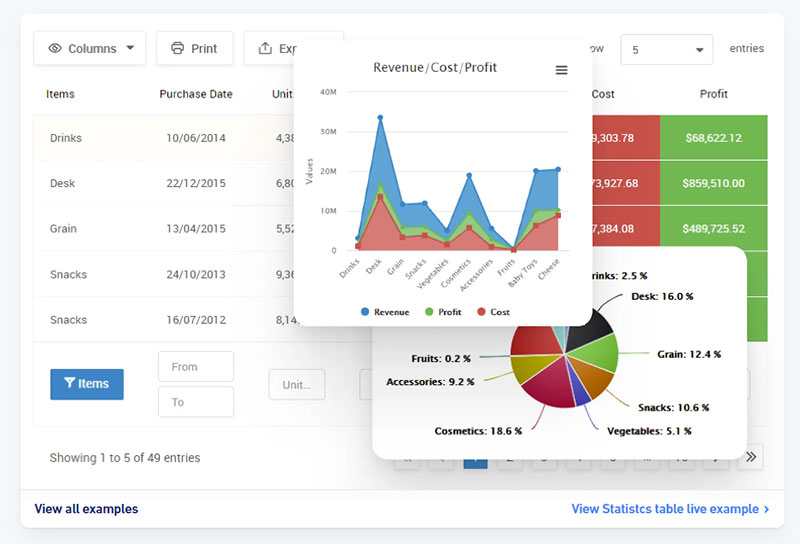
Table and chart specialist: wpDataTables exposes 23 actions at its own MCP endpoint, registered automatically once WordPress 6.9 or newer is running, with no separate Enable switch to flip.
Those 23 actions split into six groups: discovery and reading, creating tables, editing tables, charts, media and files, and settings.
- Discovery: list every table and chart on the site, read a table’s full configuration, pull row data with search and column filters, list raw database tables, describe a table’s schema, and check the license matrix for what the current tier actually supports
- Creation: build a live table straight from a CSV, Excel, JSON, or Google Sheets source, or from a read-only SQL SELECT query
Editing and chart actions round out the set: updating a table’s display and behavior settings, creating a chart from an existing table, and editing a chart’s configuration, though never its rendering engine.
Row-level data editing stays outside the integration for database-backed tables. The one exception is Simple tables, whose cell values are part of the table definition itself and can be changed through the same editing actions.
The SQL action rejects INSERT, UPDATE, DELETE, DROP, TRUNCATE, CREATE, and ALTER, along with UNION queries, chained statements, and subqueries, at the validation stage, before any of it reaches the database.
A few actions stay behind a paid tier: the Google Sheets source needs Starter, importing a file into an editable MySQL table needs Standard, and so does querying a separate database connection rather than the site’s own.
Requires the manage_options capability for every one of its 23 actions, including the read-only ones.
If you want to go beyond content and let an assistant work directly with your data, the wpDataTables AI table generator for WordPress lets you create tables, generate charts, and query your data through plain-language commands.
Limitation: an assistant can read and assemble table data, but wpDataTables has no export action of its own. Producing a downloadable file happens on the assistant’s side, not the plugin’s. Inside WordPress, the built-in table export tools still cover CSV, Excel, and PDF.
wpDataTables exposes 23 read-and-build actions over MCP — tables, create charts, export — with a read-only query guard and no delete actions. Connect Claude and turn your data into reports by asking.
Amelia
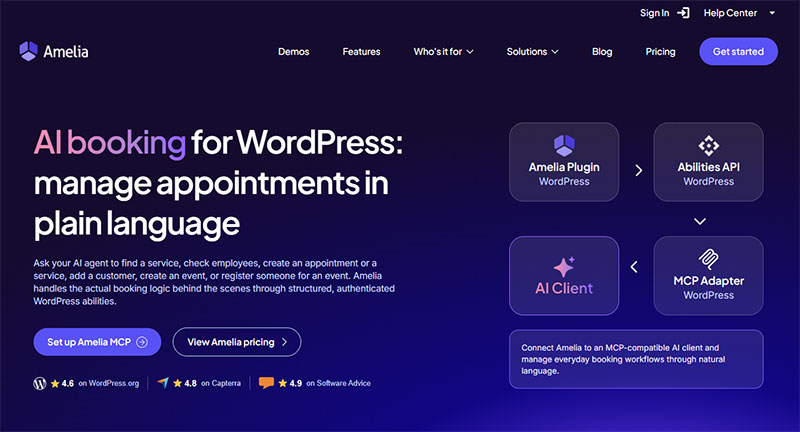
Booking specialist: Amelia connects at its own endpoint, which always ends in wp-json/mcp/amelia-mcp-server, added to an MCP client’s configuration file rather than a setting inside WordPress itself. The connection runs on Node.js, through the same WordPress remote package Automattic maintains for MCP clients.
Once connected, an assistant can call 12 supported actions, split evenly between reading and writing.
- Read tools: list services, employees, customers, events, and appointments
- Write tools: add a service or customer, create an appointment or event, register a customer for an event, check availability, and cancel a booking
The integration exposes only these 12 actions. It does not provide unrestricted access to Amelia or direct access to the WordPress database.
The AI assistant integration ships on every Amelia license plan and works with no Enable switch, so what an assistant can reach depends entirely on the connecting WordPress user’s own permissions, not on the plan.
Amelia’s own setup guide for connecting an AI assistant over MCP recommends testing a read-only request, like listing services, before attempting any action that changes booking data. It also flags that the Amelia Employee role is not yet supported for AI-assisted booking, and that a request bundling several actions together is less reliable than one clear task at a time.
The same feature set powers Amelia’s AI-driven appointment booking for WordPress, letting a site run scheduling conversations through chat rather than a booking form alone.
Limitation: services and events an assistant creates use default settings for color, visibility, and deposits, and customer notifications are not currently sent for any booking an assistant creates, so someone still needs to review and adjust the result afterward.
IvyForms
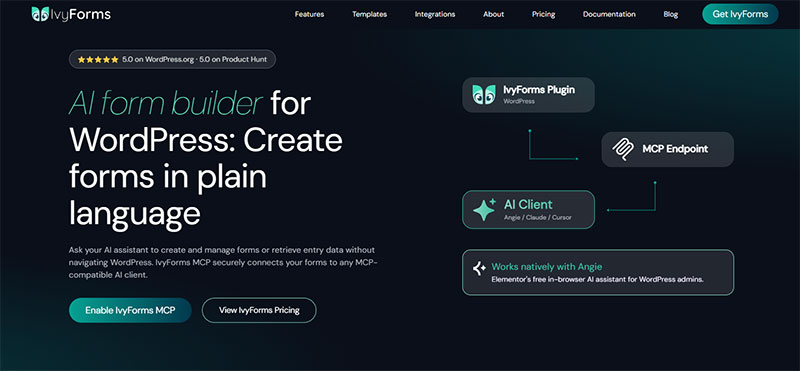
IvyForms registers its own MCP server at an endpoint ending in wp-json/mcp/ivyforms-mcp-server, but only once the integration is switched on inside IvyForms, Settings, General. Until then, the endpoint returns a 404.
Inside the WordPress admin, the main way to reach it is Angie, Elementor’s free AI agent, still in beta and running on daily renewing credits. An external client such as Claude Desktop, Cursor, or Claude Code can also connect, though that setup is separate and more technical than working through Angie.
With MCP switched on, the assistant works across seven tool categories.
- Forms: list, open, create, and duplicate forms, update their settings and status, and add, reorder, or duplicate individual fields
- Entries: list entries, view a summary, count them, and star or unstar
- Notifications: list, view, create, update, duplicate, and search
- Settings, templates, integrations, and navigation round out the set: reading plugin settings, listing templates, checking integration status, and jumping straight to a form or entry in the admin
MCP leaves several actions out on purpose. There is no tool to delete a form, entry, or notification, no way to save settings changes over MCP, and no access to the confirmation-message editor.
Every response also masks sensitive data before it leaves the site: entry field values, IP addresses, and user agents come back redacted, and the same masking applies to API keys, tokens, passwords, and SMTP secrets.
Limitation: IvyForms has no tool for editing the confirmation-message flow, so that part of a form still needs a manual trip into the WordPress admin. Enabling MCP also gives the assistant real edit access to live form data, not just read access, so the toggle deserves the same caution as handing out an admin account.
Easy MCP AI
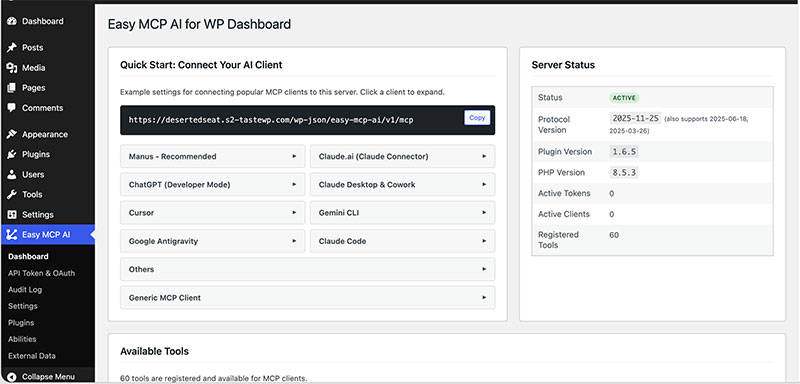
Easy MCP AI exposes 243 tools spanning core WordPress content, WooCommerce, and six SEO plugins in a single free plugin (WordPress.org, 2026).
- 96 core WordPress tools cover posts, pages, media, users, comments, menus, and taxonomies
- 93 plugin-integration tools reach WooCommerce, Advanced Custom Fields, and several SEO plugins directly
- 54 data-integration tools pull from Google Analytics 4, Google Search Console, and third-party SEO data providers
An assistant connected this way can research a keyword, draft and publish the post, push the SEO metadata, and then read back the resulting Search Console data in the same conversation.
Limitation: that breadth widens the attack surface if the connecting credential is compromised, since one token can reach nearly every corner of the site at once.
Using IvyForms, Amelia & wpDataTables together
|
One MCP connection and a much bigger WordPress workflow wpDataTables doesn’t have to work alone. Amelia and IvyForms can also expose AI-ready capabilities, opening the door to workflows that move beyond a single plugin. The bigger idea?
All accessible to your AI workflow through the same MCP-based WordPress architecture. |
Best AI Plugins for Content Generation
Three plugins lead the content generation category on WordPress: Jetpack AI, and Jasper AI, each built around a different balance of scope and price.
Jetpack AI
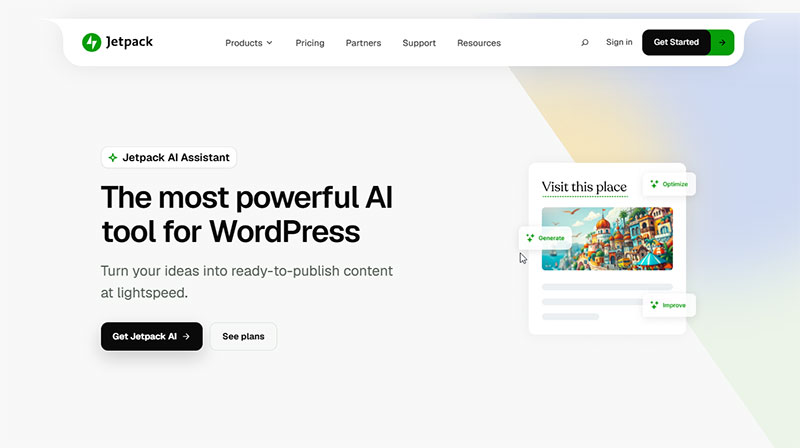
Built into an existing suite: Jetpack AI ships as a feature inside the broader Jetpack plugin rather than as a standalone download, so a site already running Jetpack for backups or security gets writing help without a second installation.
- Generates blog drafts, titles, and excerpts directly inside the Gutenberg block editor
- Corrects spelling and grammar and adjusts tone on existing paragraphs
- Runs on a credit-based usage model tied to the Jetpack AI Assistant add-on
Limitation: the free credit allowance runs out quickly on a site publishing daily, and topping up requires a paid Jetpack plan rather than a standalone purchase.
Jasper AI
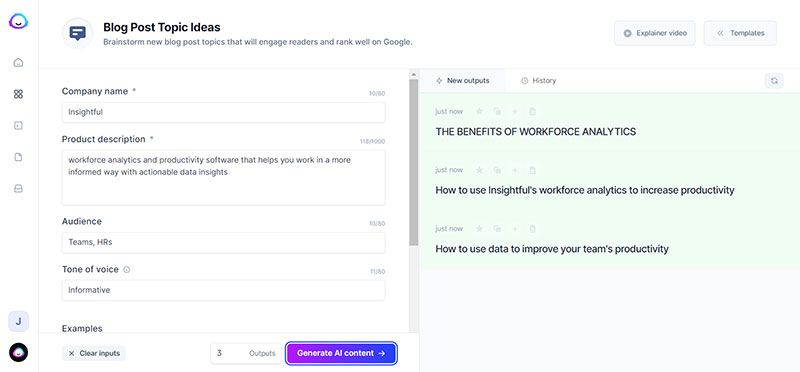
Jasper AI is not a WordPress plugin at its core. It is a browser-based AI writing platform that connects to WordPress through a lightweight publishing extension.
The extension pushes finished drafts straight into the WordPress editor as a new post, skipping the copy-paste step most standalone AI writers still require.
- Built for teams: shared brand voice profiles and campaign briefs across multiple writers
- Covers a template library spanning product pages, landing pages, and email sequences
- Priced per seat on a subscription tier, aimed at agencies rather than solo bloggers
Limitation: the WordPress connection only pushes finished content. It does not read existing posts back into Jasper for editing, so updates to a published page still happen inside WordPress itself.
Best AI Plugins for SEO
Three SEO plugins now build AI directly into their optimization workflow: Rank Math, Yoast SEO, and AIOSEO, each attaching AI to a different part of the content-scoring process.
Rank Math
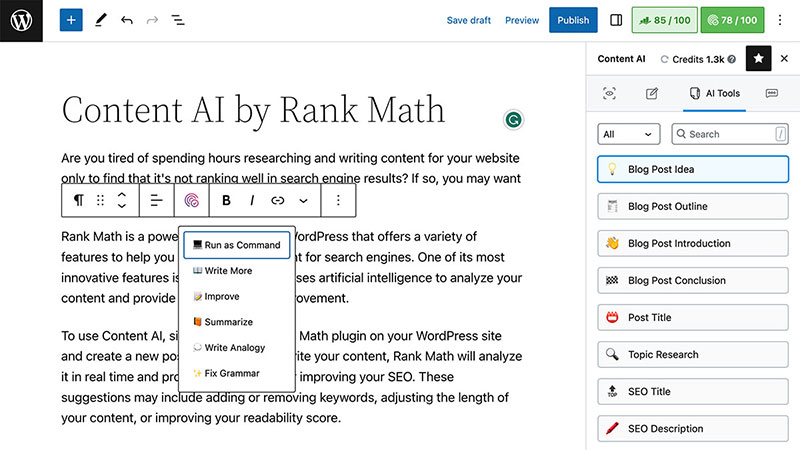
Rank Math has more than 3,000,000 active installations on the WordPress.org Plugin Directory, making it the fastest-growing SEO plugin in this category (WordPress.org, 2026).
- Content AI module drafts titles, meta descriptions, and FAQ blocks from a target keyword
- Integrates directly inside the Elementor and Divi editors, not only the block editor
- Free-tier users get between one and five AI-powered actions per month before the usage limit resets (Rank Math, 2025)
Limitation: that free monthly allowance is too small for a content team publishing more than a handful of pages a week, pushing most agencies onto a paid Content AI subscription tier.
Yoast SEO
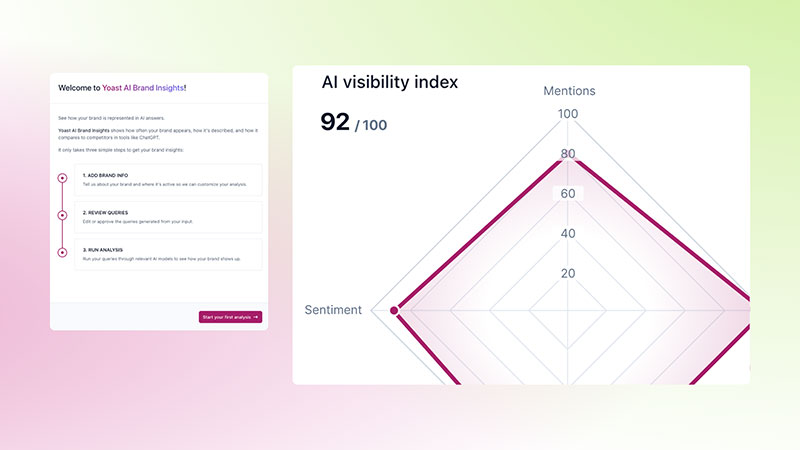
The established option: Yoast SEO built its reputation on manual, rule-based content scoring long before AI entered the picture, and it now layers AI features on top of that same scoring engine.
- Generates SEO titles and meta descriptions from existing page content
- Builds schema aggregation so an AI agent can read a site’s structured data in a single request
- Adds LLMs.txt management, letting a site owner set rules for how large language models use its content
Yoast reports that more than 13,000,000 sites now run the plugin, the largest install base of any SEO tool covered here (Yoast, 2026).
Limitation: the AI-assisted title and meta description tools sit behind Yoast SEO Premium, so the free version keeps the manual scoring but not the generation features.
AIOSEO
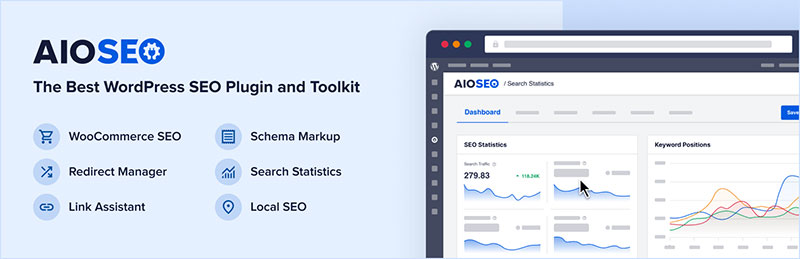
AIOSEO takes a narrower approach than Rank Math or Yoast. Instead of a general content assistant, it focuses AI specifically on the title tag and meta description fields.
Focused generation: the plugin drafts alternate title and meta description options for a page and lets an editor choose one, rather than writing freeform paragraphs.
- Built-in TruSEO scoring runs alongside the AI suggestions
- Smart schema generator adds structured data without a separate plugin
Limitation: AIOSEO’s AI stays narrowly scoped to metadata, so a team wanting full paragraph drafts still needs a separate content generation plugin from the earlier section.
Best AI Plugins for Page Design
Two AI tools dominate WordPress page design: Elementor AI, tied to the Elementor page builder, and Divi AI, bundled with the Divi theme from Elegant Themes. Both are locked to their own builder, which leaves sites on Gutenberg, Bricks, or Oxygen without an in-editor option. Those teams generate images outside WordPress with a model like GPT Image 2, then upload them to the media library, which is the route Higgsfield covers.
| Plugin | Builder tie-in | Core AI feature | Best for |
|---|---|---|---|
| Elementor AI | Elementor page builder | Text, image, and code generation inside the editor | Agencies already standardized on Elementor |
| Divi AI | Divi theme and builder | Layout, copy, and image generation in the Visual Builder | Divi users building full sites from scratch |
Elementor AI

Elementor AI runs on top of a plugin with more than 10,000,000 active installations, giving it the largest reach of any design AI tool on WordPress (WordPress.org, 2026).
- Generates layout wireframes, section content, and custom CSS from a text prompt
- Creates and edits images directly inside the Elementor editor, including background removal
- Angie, Elementor’s separate AI agent, extends the same account to site-wide tasks like installing plugins and managing user roles
- Bundled since January 2026 into a single subscription called Elementor One, replacing several separate AI add-ons
Limitation: most AI features require an active Elementor account connection and a paid AI subscription once the free trial credits run out, so the free version of Elementor alone does not unlock them.
Divi AI
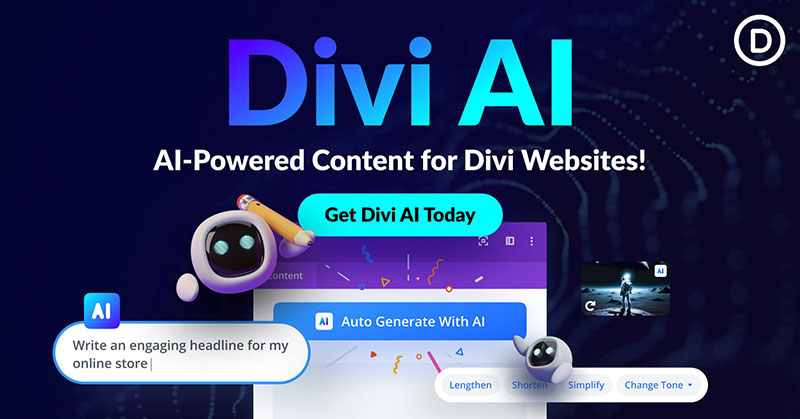
Bundled by default: Divi AI comes packaged with the Divi theme and builder from Elegant Themes, so a Divi license already includes access rather than requiring a separate purchase.
The tool works directly inside the Divi Visual Builder, generating both written content and images without leaving the live preview.
- Writes headlines, body copy, and calls to action inside the Visual Builder
- Generates and edits images directly within the page being built
- Suggests design and copy adjustments automatically as a page comes together
Limitation: Divi AI only works inside the Divi builder itself, so pages on a Divi-theme site built with a different builder lose access to it.
Best AI Plugins for Customer Support
Two AI chatbot plugins cover most WordPress customer support use cases: Tidio, built around its Lyro AI Agent, and MxChat, a dedicated support-only tool.
Tidio (Lyro AI Agent)
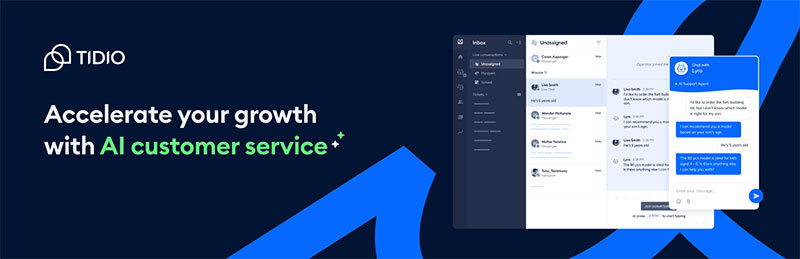
Tidio combines a live chat widget with the Lyro AI Agent, which answers common questions automatically before handing the conversation to a human operator.
- Reads a site’s help center and product pages to answer questions without manual scripting
- Escalates to a live operator automatically when the AI agent cannot resolve a question
- Generates suggested replies for human agents inside the same live chat widget
Pricing: a free plan covers basic live chat, while the Lyro AI Agent itself runs on a separate conversation-based pricing tier.
Limitation: the AI agent needs a populated help center or FAQ page to work well. A new site with thin content gets weaker automated answers until more material is added. This is one of the many reasons why users look for Lyro/Tidio alternatives.
MxChat
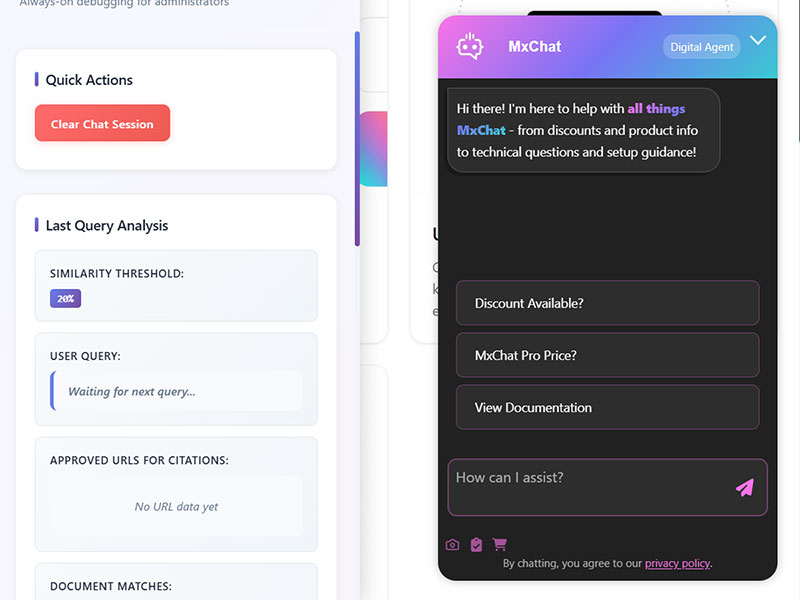
MxChat skips the live-chat-plus-add-on model and builds the entire plugin around AI-driven support from the start.
Retrieval-based accuracy: MxChat uses retrieval-augmented generation, pulling answers directly from a site’s own pages and documents rather than generating responses from general training data alone.
- Trains directly on WordPress pages, PDFs, and uploaded documents
- Connects to more than one AI model behind the same chat widget
- Follows WordPress coding standards closely enough to avoid the plugin conflicts common with heavier chat tools
- Keeps the conversational interface on a single dedicated support workflow, without a general chatbot layer bolted on
Limitation: because MxChat specializes in support, it has no built-in ticketing or CRM layer, so a team needing case tracking still pairs it with a separate helpdesk plugin.
How Much Do AI Plugins for WordPress Cost?
AI plugins for WordPress split into three pricing patterns: free with no separate AI charge, a flat subscription that includes AI, and a base plugin with AI billed as its own add-on.
Which pattern a plugin uses says more about its cost than its category does.
| Plugin | Category | Pricing model | Typical cost |
|---|---|---|---|
| Uncanny Automator | Workflow automation | Free core, AI included | $0, Pro upgrade optional |
| Easy MCP AI | Full site control (MCP) | Free, unmetered | $0 |
| WPForms | Forms | Flat annual subscription | $199.50/year (Pro) |
| Rank Math | SEO | Separate AI add-on subscription | From $4.99/month (Content AI, billed annually) |
| Elementor AI | Page design | Bundled subscription with credit pool | $15/month (Elementor One, 25,000 credits) |
- Uncanny Automator and Easy MCP AI both avoid a separate AI charge by folding the AI cost into the free plugin itself
- WPForms bundles AI into one flat Pro price, so usage does not change the bill month to month
- Rank Math and Elementor both meter AI use through a credit pool, so a heavy content month costs more than a light one
What Data Do AI Plugins Send to Third-Party AI Models?
Most content generation and SEO AI features send the page content being worked on to an external provider such as OpenAI, Anthropic, or Google, process it there, and return the result to WordPress.
That round trip is the default. Three plugins already covered here are built to avoid it entirely.
- Uncanny Automator states directly that plugin data stays on the site rather than being processed and stored by an outside service
- MxChat’s retrieval-based design, covered earlier, answers from a site’s own content instead of sending full conversations to a general-purpose model for every reply
- IvyForms masks entry field values, IP addresses, and user agents before an MCP response ever leaves the site
Full site control plugins raise the exposure question differently than a single-purpose writing tool does.
An MCP connection with a wide scope, like Easy MCP AI’s 243 tools, can expose customer names, order data, and analytics figures to whatever AI client holds the connecting credential, not only the text of a blog post.
What to check before connecting: whether the plugin’s privacy policy names the AI provider it uses, whether that provider retains submitted content for model training, and whether the connecting WordPress account is scoped no wider than the task actually requires.
How Do You Install and Configure an AI Plugin on WordPress?
Installing an AI plugin follows the same four steps regardless of category, whether it is a content generator or a full MCP server.
- Generate a credential: create a WordPress Application Password from the connecting administrator’s profile, or copy the plugin’s own API key from its settings screen
- Install and activate the plugin from the WordPress.org directory or an uploaded zip file, then complete any setup wizard it presents
- Connect the plugin to its AI provider or MCP client, pasting the credential into the plugin’s settings screen or the client’s own configuration file
- Run a read-only test action first, such as listing existing content or services, before attempting anything that creates or changes data
That last step catches most configuration mistakes early.
A failed read-only test usually means one of three things: the integration itself is still switched off in settings, the credential is a regular login password instead of an Application Password, or the connecting account lacks the manage_options capability altogether.
When Should You Not Use an AI Plugin on Your WordPress Site?
An AI plugin does not belong on a site handling regulated data without a data processing agreement covering the AI provider it connects to.
Healthcare, financial, and legal sites carrying protected client information fall into this group by default, regardless of how useful the specific plugin looks.
- No one on the team is available to review AI-generated content, bookings, or form changes before they go live
- The site runs on shared hosting with additional admin-level plugins already installed, each one widening the same attack surface
- The workflow depends on guaranteed customer notifications, since AI-created bookings and forms often skip them by default
- The traffic or task volume is too small for a credit-based AI subscription to pay for itself within a normal billing cycle
Plugins carry the overwhelming share of WordPress security risk industry-wide. Patchstack found that 91% of all new WordPress vulnerabilities in 2025 were located in plugins, not in WordPress core (Patchstack, 2026).
The practical takeaway: every additional AI plugin with administrator-level access is one more piece of software that needs to stay updated and reviewed, not a one-time setup cost.
A site already running several admin-capable plugins gets more value from auditing what is already connected than from adding another integration on top.
FAQ on the Best AI Plugins for WordPress
What Is the Difference Between an AI Plugin and a Regular WordPress Plugin?
A regular WordPress plugin runs fixed code every time. An AI plugin calls a large language model, so its output changes with each request.
Content generation, SEO drafts, and chatbot replies all come from that variable behavior.
Can a Non-Administrator Account Use an AI Plugin?
No. Every AI integration checks for the manage_options capability, the permission WordPress reserves for administrators.
Editors, authors, and subscribers cannot run AI tools, even in read-only mode, regardless of the plugin or category involved.
Is There a Free AI Plugin for WordPress That Works Well?
Yes. Uncanny Automator and Easy MCP AI both run their AI features on the free plugin, with no separate subscription.
WPForms and Rank Math offer free tiers too, though their deeper AI features sit behind a paid add-on.
Can an AI Assistant See Private Customer or Form Data?
It depends on the plugin. IvyForms masks entry values, IP addresses, and user agents before a response leaves the site.
Broader MCP integrations without that masking can expose customer names and order data to the connected AI client.
What Happens If You Install Multiple AI Plugins at Once?
Nothing breaks automatically, but AI features can overlap inside the same editor screen.
Two plugins adding AI panels to the block editor, or two SEO tools generating metadata at once, often produce duplicate or contradictory suggestions.
Can an AI Plugin Delete Content, Bookings, or Form Entries?
None of the MCP plugins covered here expose a delete action. wpDataTables, Amelia, and IvyForms all stop at create, read, and update.
Removing a table, a booking, or a form entry still requires a manual trip into WordPress itself.
Where Do You Start With the Best AI Plugins for WordPress?
The best AI plugins for WordPress reward a narrow starting point: match the first plugin to whichever single task already eats the most manual time, before adding a second AI integration anywhere else on the site.
Fix the highest-volume task first, add one single-purpose MCP plugin second, and reserve a full-site tool like Easy MCP AI for a site with an existing review routine.
That order breaks down once the same stack runs across multiple client sites, since Elementor’s per-site pricing multiplies with every additional install.
Paired with Rank Math’s separate Content AI subscription, an agency running client sites pays for AI twice over, a cost neither pricing page states alone.
A reader choosing a table-creation tool in that MCP category benefits from comparing the wider field of WordPress table plugins before settling on one AI-assisted option.