Bold text and neat column alignment mean nothing to a screen reader. It reads the markup, not the layout. So a table that looks perfectly organized can still announce a row of bare numbers with no indication of what any of them measure.
The fix is a programmatic link between each data cell and its header. Most of the work in table accessibility is picking which mechanism provides that link, then checking that it actually did. Government portals and financial dashboards are where this bites hardest, though a product catalog with a spec table has exactly the same problem.
The WHATWG HTML Living Standard defines ten table-related elements for this structure, including caption, colgroup, thead, tbody, tfoot, th, and td (WHATWG, 2024). You will use about six of them regularly.
Table of Contents
What Is an Accessible HTML Table?
See the Pen
Accessible Sortable Table by Bogdan Sandu (@bogdansandu)
on CodePen.
Start with what it isn’t. A tidy grid of text with borders and bold labels is a visual arrangement, nothing more. The browser has no way to tell which of those cells is a heading unless you say so in the code.
Once you do say so, using th, td and caption, a screen reader can announce which header belongs to which cell. That announcement is the whole point.
Sighted readers get the header-to-cell connection for free, from position on the page. Screen reader users get it only if the markup hands it over. That gap is why table accessibility ended up as its own skill instead of a footnote in general HTML.
- Bold text, borders and spacing carry no meaning for assistive technology
- A table styled to look exactly like a spreadsheet can still fail every screen reader test
- Column position implies nothing about header relationships to software
- Header association has to live in the code, not the design
WCAG and the HTML Living Standard both draw a line between a real data table and a table used for visual layout, and they do not ask the same things of each.
Table Structure Elements That Support Accessibility
caption, thead, tbody, tfoot, th and td each do something the others don’t. Drop one and a screen reader user loses a piece of context that a sighted user never had to ask for.
Caption Element
Caption gives the table its accessible name. It sits immediately after the opening table tag and works the way a heading works for a section, except it belongs to the table rather than the page.
Screen readers read it before the first row, so the user knows what they are walking into. It also replaced the old summary attribute, which the HTML Living Standard marked obsolete. Write it to say what the data shows, not what the table looks like.
“Quarterly Shipping Rates by Region” does that job. No caption at all leaves the user reverse-engineering the subject from the first few cells, which is slow and frequently wrong.
Header and Body Row Groups
thead holds the header row or rows, almost always the column labels. tbody holds the data, which is the bulk of the table. tfoot sits at the bottom for totals and summary rows.
The grouping is functional rather than visual. MDN Web Docs documents all three as part of the table content model, and browsers use that grouping to expose row roles correctly in the accessibility tree.
Header Cells and Data Cells
Once CSS has been applied, th and td are indistinguishable on screen. Underneath they are not remotely the same thing.
A th marks a heading for its row or column and can carry a scope attribute. A td holds a value and never takes scope.
Swap the two and nothing looks wrong. The table renders exactly as before, which is why this particular mistake sails through code review so reliably.
Column Groups With Colgroup
Colgroup exists mostly for shared styling and structural tidiness. It groups columns. It does not create header associations, and screen readers still need scope, or headers and id, to connect a data cell back to its header.
Use it to paint a background across a whole column, or to mark a set of columns as one logical unit such as a date range. Just don’t expect it to stand in for header markup on anything complex.
What WCAG and Legal Standards Require for Accessible Tables
WCAG 1.3.1, Info and Relationships, is the Level A success criterion that covers table headers. It asks for header relationships to be programmatically determinable rather than merely visible (W3C).
Several legal frameworks point back at that one requirement, each on its own schedule.
- WCAG 1.3.1 Info and Relationships sits at Level A and requires header context to be readable by software, not just by eye (W3C)
- Section 508 incorporates WCAG 2.0 Level AA by reference, with compliance required since January 18, 2018 (U.S. Access Board, 2017)
- ADA Title II requires WCAG 2.1 Level AA, with compliance dates of April 26, 2027 for larger public entities and April 26, 2028 for smaller ones under the DOJ’s 2026 interim rule (Department of Justice, 2026)
- EN 301 549, and the European Accessibility Act with it, has been enforceable since June 28, 2025 and references WCAG 2.1 Level AA for web content (European Accessibility Act, 2025)
None of them names tables as a separate line item. Table accessibility gets folded into the same info-and-relationships requirement that governs headings, lists and form labels.
WCAG Success Criteria for Tables
Two named failure patterns from the W3C attach directly to 1.3.1. F91 covers tables missing header markup entirely. F90 covers tables where headers and id attributes point at the wrong cells.
F91 is the blunt one. No th elements, no scope, just td cells arranged to look like a table. A screen reader reads that as one long unbroken list with no header context anywhere in it.
F90 is nastier, because the structure is right. Someone copy-pasted a row, the id references drifted, and now a data cell announces a header belonging to a different column. The user hears a confident, wrong answer.
Neither shows up on screen. Both take about ten seconds to catch in a screen reader.
Section 508, ADA and EN 301 549 Differences
The technical standard barely changes across the three. Who gets covered changes a lot.
- Section 508 applies to U.S. federal agencies and the contractors doing business with them
- ADA Title II applies to U.S. state and local government entities
- EN 301 549 casts a much wider net across the EU, reaching private companies selling into the market rather than only public bodies
Audits keep turning up the same gap regardless of jurisdiction. A 2025-2026 accessibility index from Silktide flagged council tax pages on Lancaster City Council’s and Rother District Council’s sites for missing scope attributes across a dozen or more data tables. Ordinary government content, direct WCAG 1.3.1 failure.
And enforcement is not theoretical. Seyfarth Shaw tracked 3,117 federal website accessibility lawsuits filed in the U.S. in 2025, a 27 percent jump from the 2,452 filed in 2024 (Seyfarth Shaw, 2026).
How Screen Readers Announce Table Data
Every time a user moves into a cell, the screen reader reads the header text tied to it. Column header, row header, sometimes both, depending on how the table was marked up.
Move sideways along a row and the column header changes with each step. Move down a column and the row header changes instead. All of it rests on scope, headers or id actually doing their job.
NVDA and JAWS on Windows
NVDA was reported in use by 65.6 percent of respondents in WebAIM’s tenth Screen Reader User Survey, edging past JAWS at 60.5 percent, with many respondents using both (WebAIM, 2024). That overlap matters more than the ranking, since plenty of users switch between them depending on the site.
Both build a dedicated table navigation mode into the screen reader. Ctrl plus Alt plus the arrow keys in NVDA, similar table commands in JAWS, and the header announcement updates as you move cell by cell.
- NVDA announces row header, then column header, then cell content, in that order by default
- JAWS can be set to read headers on every move, or only when the header actually changes
- With scope or headers missing, both fall back to raw cell content and nothing else
VoiceOver and TalkBack on Apple and Android
VoiceOver carries most mobile screen reader use on iOS. TalkBack covers the equivalent role on Android.
The VoiceOver rotor lets someone jump from table to table on a page, then move cell by cell using the same header announcement logic desktop screen readers use. TalkBack handles tables in a broadly similar way inside Chrome for Android, but the navigation gestures differ enough that I would not assume parity. Test on both.
A table that behaves perfectly in NVDA can still fall apart on a phone if nobody checked it there.
Scope, Headers, or ARIA: Choosing How to Associate Headers
Scope handles simple tables, meaning one level of row headers or column headers. Once a table has two or more header levels, or headers that apply diagonally across both rows and columns, you need headers and id pairs instead.
| Method | Best For | Screen Reader Support | Setup Effort |
|---|---|---|---|
| scope attribute | simple tables, one header level | strong, widely supported | low, one attribute per th |
| headers and id | complex tables, multi-level headers | strong when ids are unique | higher, manual id mapping |
| ARIA table role | custom widgets built without table elements | inconsistent across browsers | high, full role set needed |
Scope takes four values: col, row, colgroup and rowgroup. It goes straight on the th and needs no matching id anywhere else in the table, which is most of why it stays the default choice.
WebAIM’s own cross-browser testing found that table accessibility support stays uneven even when scope is implemented correctly, particularly on tables with a row header in the top-left cell or with only row headers and no column headers at all (WebAIM, 2024).
That isn’t an argument against scope. It’s an argument for opening the real table in a real screen reader instead of trusting that valid markup equals a good result.
This shows up in shipped code too. The open-source rc-table library behind Ant Design’s table component added colScope and rowScope props specifically to close WCAG 1.3.1 gaps, a change documented in the project’s public GitHub history.
When ARIA Table Roles Are Necessary
Native HTML tables need no ARIA. None. The browser already exposes table, row and cell roles on its own, and adding role=”table” to a real table element is redundant at best, actively confusing to assistive technology at worst.
ARIA earns its place where native markup cannot reach.
- Custom widgets built from div and span elements, styled to look like a table
- Virtualized data grids that render only the rows currently visible
- Interactive grid patterns from the ARIA Authoring Practices Guide, where individual cells accept keyboard focus
Outside those cases it mostly adds noise.
Designing Accessible Complex Tables With Merged and Multi-Level Headers
See the Pen
Accessible Table with Multi-Level Headers (headers + id) by Bogdan Sandu (@bogdansandu)
on CodePen.
The moment a header spans more than one row or column, or a data cell answers to two headers at once, scope alone stops being enough. headers and id pairs take over.
Merged Cells With Rowspan and Colspan
rowspan stretches a cell down through multiple rows. colspan stretches it sideways across columns. Neither breaks accessibility on its own.
What breaks is leaving scope on a merged header and assuming it covers everything that header visually sits above. Scope only ever points one direction at a time.
Take a grading table with a “Homework” header spanning two rows, and separate “Exam 1,” “Exam 2,” and “Final” headers spanning columns underneath it. Scope has no way to say that a single score cell belongs to both the top-level category and the specific sub-header below it. That is the exact failure pattern the W3C documents under technique F90.
Multi-Level Column Headers
Two stacked rows of column headers and headers and id becomes the only reliable option. The work is tedious and mechanical.
- Give every th a unique id
- List every applicable header id, space separated, in the headers attribute of each td
- Include the top-level category header alongside the specific sub-header in that list
Skip it and the table still looks fine. It just sounds broken, and sounding broken is a much easier thing to miss during a design review.
How to Build an Accessible Table Step by Step
The order below is worth following, since each step assumes the one before it.
- Write a caption stating what the table shows in one clear sentence
- Wrap the header row in thead and the data rows in tbody
- Mark heading cells with th and value cells with td, never the reverse
- Add scope=”col” or scope=”row” to every th on a single-level table
- Switch to headers and id pairs the moment a second header level appears
- Leave th, caption and summary out of any table used purely for visual layout
- Test the finished table with a screen reader, not just an automated checker, before publishing it
Step seven is the one people quietly drop when a deadline gets close. It is also the step that catches the most.
A table that passes an automated scan can still announce nothing useful when someone tabs into it. Manual testing exists to catch that gap.
Your beautiful data deserves to be online
wpDataTables can make it that way. There’s a good reason why it’s the #1 WordPress plugin for creating responsive tables and charts.
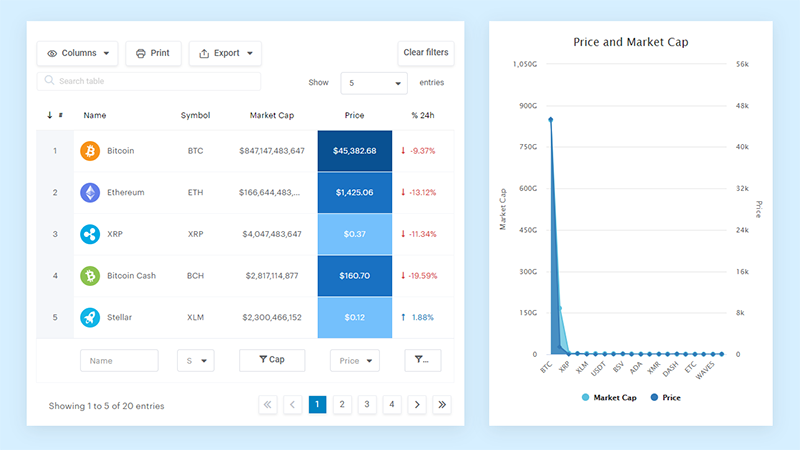
And it’s really easy to do something like this:
- You provide the table data
- Configure and customize it
- Publish it in a post or page
And it’s not just pretty, but also practical. You can make large tables with up to millions of rows, or you can use advanced filters and search, or you can go wild and make it editable.
“Yeah, but I just like Excel too much and there’s nothing like that on websites”. Yeah, there is. You can use conditional formatting like in Excel or Google Sheets.
Did I tell you you can create charts too with your data? And that’s only a small part. There are lots of other features for you.
How to Test an Accessible Table
Testing happens in two passes. First an automated scan with something like axe DevTools, WAVE or Lighthouse. Then a manual check with an actual screen reader, which is the part that gets skipped.
Automated testing scans hundreds of pages in minutes and reliably catches missing th elements, empty header cells and absent captions. What it cannot do is judge whether a scope value or a headers reference points at the right context. It reads syntax, not meaning.
Manual screen reader testing catches exactly those meaning-level failures, and confirms the announcement a real user hears, cell by cell. It’s slower, it needs someone who knows the tools, and it will never scale to every page on a large site.
Automated Accessibility Checkers
Deque’s axe-core engine, the rules library behind axe DevTools and a good chunk of Lighthouse’s accessibility audit, finds 57 percent of accessibility issues on average when measured by issue volume rather than by WCAG success criteria count, per Deque’s original coverage study (Deque Systems, 2021).
Read that as a best case rather than an average one. The number comes from Deque’s own dataset, from audits run with Deque’s own tool.
On tables specifically it will flag a th with no scope, and a table with no caption, every time. It has no opinion on whether the caption text describes the data underneath it, because it can’t.
A clean scan tells you the syntax is valid. It says nothing about whether the table makes sense out loud.
Manual Screen Reader Verification
Turn on NVDA or VoiceOver, tab into the table, move cell by cell and listen for the header context. That’s the test.
If the announced header matches the visual header every time, it passes. Silence, a repeated wrong header, or a jump straight to raw numbers means it fails, whatever the scanner reported.
This is where you catch markup that is syntactically valid but semantically wrong. Five minutes on one representative table usually surfaces the pattern before it gets copied onto a dozen others across the same site.
Responsive Tables: Horizontal Scroll or Stacked Layout
Horizontal scroll leaves row and column header associations untouched on a small screen. Stacked reflow breaks them, unless it has been built specifically to keep header context alive.
| Pattern | Preserves Header Association | Best For |
|---|---|---|
| horizontal scroll | yes, by default | wide tables, many columns |
| stacked reflow | only with extra markup work | narrow tables, independent rows |
Horizontal Scroll Pattern
Wrap the table in a scrollable container and every th, td, scope and headers relationship survives exactly as written, because the table structure never changes. That’s the appeal.
Making it genuinely usable takes one more step than most implementations bother with.
- Add tabindex=”0″ to the scrolling container so keyboard users can reach it
- Give it a visible focus outline, since the browser default tends to get suppressed by other styles
- Label it with aria-label or a nearby heading so its purpose gets announced
Adrian Roselli, who has published detailed technical breakdowns of this exact pattern, points out that a scrollable container with no keyboard-reachable focus target leaves the off-screen columns unreachable for anyone who cannot use a mouse.
Stacked Reflow Pattern
Stacked reflow turns each row into a vertical block of fields. On a phone it reads well, and designers like it for good reason.
The problem sits underneath. Applying display: block to table rows and cells strips out the browser’s native table semantics, something Smashing Magazine has documented directly. Once that CSS applies, screen readers stop treating the markup as a table at all.
Keep the real table and let it scroll. Reach for a definition list or a card layout only when the rows genuinely stand alone and nobody needs to compare values down a column.
Common Mistakes That Break Table Accessibility
The same handful of mistakes turns up in code review after code review, and not one of them looks wrong on screen.
- An empty th left blank for spacing still gets announced, so the screen reader reads nothing where a sighted user simply sees a gap
- scope=”col” on some header cells and nothing at all on others in the same table, leaving half of it silent
- An h3 above the table standing in for a caption inside it, which leaves the table with no accessible name of its own
- colspan or rowspan added to an existing table without rebuilding the headers and id pairs on the cells underneath
All four pass a visual design review without a word of comment.
And they share a cause. The table got styled, checked by eye, and shipped before anyone opened it in a screen reader.
When Accessible Table Design Does Not Apply or Fails
Native table markup stops being the right tool once a dataset is too large to render in full. It also struggles when a table gets edited live inside a rich text field, or when a third-party plugin rebuilds the markup with defaults that ignore WCAG entirely.
Large or Dynamically Loaded Datasets
Virtualized grids render only the rows currently on screen, which breaks the row and column counting a screen reader relies on. The DOM no longer matches the dataset the sighted user believes they are looking at.
- Infinite-scroll tables that load more rows as you go, with no way for a screen reader to report a total row count
- Spreadsheet-style grids running to thousands of rows, better served by search, filtering or an export than by one enormous table
- Tables edited live inside a rich text or contenteditable field, where header announcements can fail even with correct markup
NVDA’s public issue tracker documents that last case. Issue #14113 describes table row and column headers going unreported when a user navigates a table inside a contenteditable region in focus mode. That’s a Chromium interaction bug rather than a markup mistake, which is worth knowing before you spend an afternoon rewriting a table that was fine.
Third-Party Table Plugins and Grid Libraries
Bootstrap serves as the CSS framework on roughly 13.4 percent of all websites, and on close to 75 percent of the sites that use any CSS framework at all (W3Techs, 2026). Its table defaults therefore reach an enormous share of the web with no accessibility review attached to them.
wpDataTables is a documented case. The University of Wisconsin-Madison’s Center for User Experience ran a formal evaluation in May 2023 and found the plugin’s in-table search never announced itself to screen reader users, with no status update once a search had filtered the results.
DataTables, the jQuery plugin a lot of those Bootstrap sites layer on top, has been adapted more than once to close accessibility gaps. The Government of Canada’s Web Experience Toolkit (WET-BOEW) folds DataTables into its own accessible tables plugin and adds things like proper ARIA sort-direction labelling on top of the base library, documented in the project’s public GitHub history.
Neither case makes the underlying library unusable. Both mean the rules covered above still apply on top of whatever the plugin renders, not instead of them.
FAQ on How To Design Accessible HTML Tables
What is the difference between a data table and a layout table?
Header context decides it. If a reader needs the header to understand what a cell means, that’s a data table. If the table only arranges content visually and has no true headers, it’s a layout table. WCAG treats them differently, and th, scope, and caption belong only on data tables.
Is a table accessible if it just looks organized to a sighted user?
No. Visual alignment carries no meaning for assistive technology. A grid built with styled divs or CSS Grid can look identical to a real table and still announce nothing useful, because accessibility comes from markup, not from appearance.
How do you fix or remediate an existing inaccessible table?
Add a caption first, then correct the th and td usage, then apply scope or headers and id. Re-test with a screen reader after each change, because merged cells often need their header associations rebuilt from scratch rather than patched.
Do NVDA, JAWS, VoiceOver, and TalkBack behave differently when reading the same table?
Yes. NVDA and JAWS let users control how often headers repeat, while VoiceOver’s rotor and TalkBack rely on gestures instead of arrow keys. The browser matters too, since Chrome, Firefox and Safari can build different accessibility trees from identical markup.
Is a caption required, or can a table get an accessible name another way?
Not technically required, no. It’s still the strongest option, mainly because it stays visible on screen. aria-label and aria-labelledby can also supply an accessible name, but both stay invisible to sighted users, and caption doesn’t.
Does rowspan or colspan break screen reader announcements on its own?
No. NVDA and JAWS parse merged cells correctly as long as scope or headers is present. The real risk is verbosity, since a heavily merged table can force several header levels to repeat on every single cell.
Do third-party table plugins like DataTables come with accessibility built in?
Not by default. Most ship with sortable headers, search fields and pagination controls that need extra ARIA and keyboard work before they meet WCAG. The two cases documented above show that real fixes were needed even from popular libraries.
What Should You Fix First?
Fix header association before anything else. Captions, responsive layout and screen reader passes only start to matter once every data cell points back at the correct row or column header.
After that, the order below reflects audit priority rather than build convenience.
- Header association first, since a table with no header link announces nothing useful
- Caption and structural elements second, once the table can be understood at all
- Responsive pattern and a screen reader pass last, to confirm the fix holds outside a code editor
That order accepts a real trade-off. A table can pass a screen reader check while still missing a caption and a decent mobile layout, and it loses its accessible name and mobile usability until someone finishes the job.
The sensible next move is auditing the tables you already have against the same header-association standard before building any new ones.