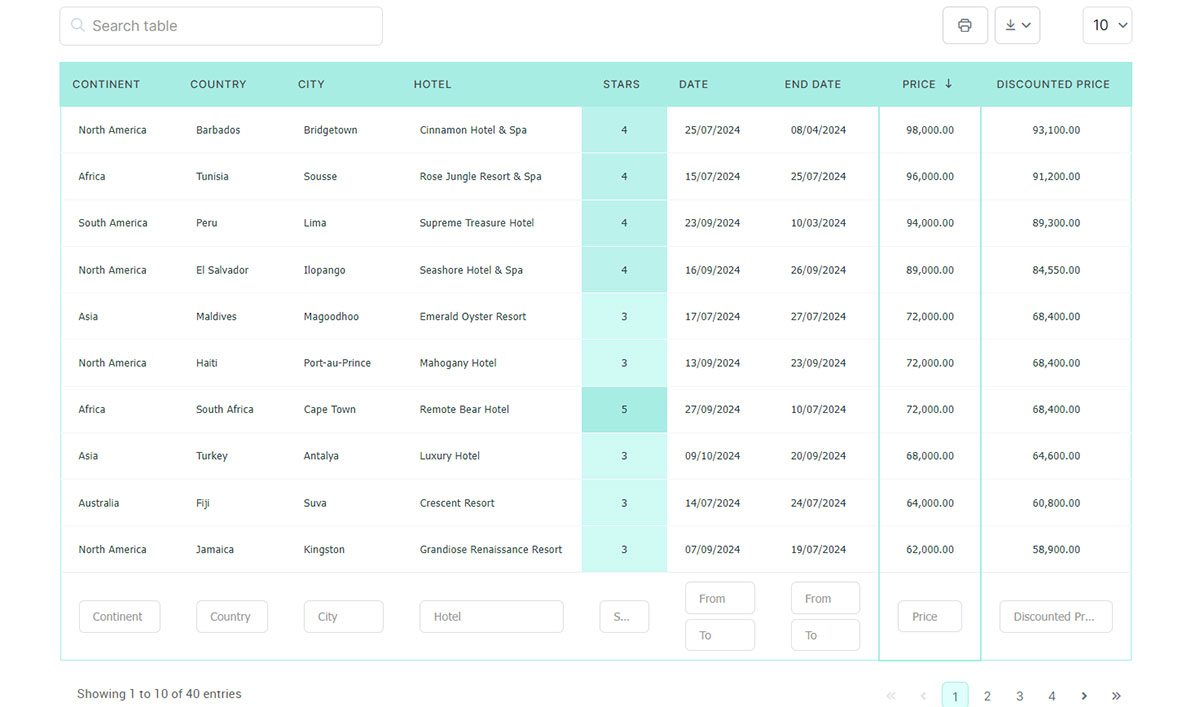
Getting a Google Sheet onto a WordPress page with wpDataTables mostly comes down to one setting in Google, Publish to web. Once the sheet is published, you copy the link Google gives you and paste it into a new table linked to an existing data source.
By default the plugin reads the sheet on every page load and renders it as a sortable, searchable table. Edit the sheet and the page follows, so there’s nothing to re-import.
The published link contains “2PACX” and needs no API key or service account. The address-bar URL that older tutorials still recommend now requires a Google service account, because of a Google security policy change in early 2025.
Table of Contents
How does a Google Sheets table work in wpDataTables?
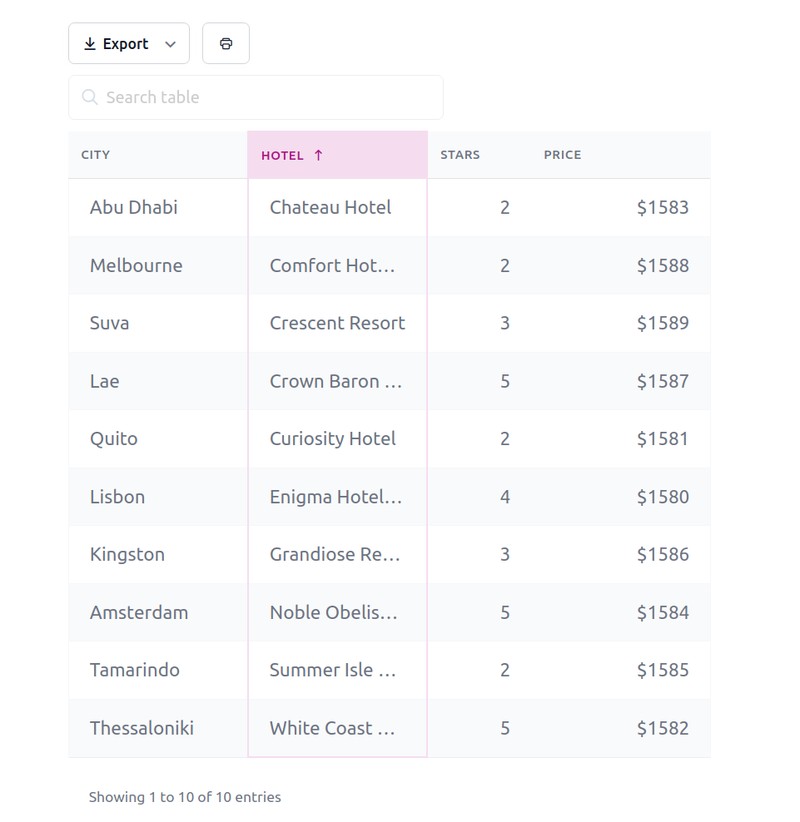
Rows come straight from the spreadsheet, and wpDataTables draws them on the page as a sortable, searchable grid. The sheet stays the place where the data is edited.
The setup is short. Publish the sheet, paste the published link under Create a Table, then put the table on a page with a shortcode, block or widget.
A linked table is read-only inside WordPress.
- The data stays in the sheet, not in the WordPress database
- Rows are fetched on every page load by default, or from a cache you refresh on a schedule
- Every change, from a new row to a corrected value, is made in Google Sheets
An imported Excel or CSV file behaves differently.
- It stays static until someone re-imports the file
- It is stored with the site
Google Sheets support has been part of wpDataTables since version 1.6. What changed more recently is how Google lets outside tools read a sheet, which is why the published link is now the recommended route.
Want a chart instead of a table? The guide on how to visualize your Google Sheets data covers that, and the same table can also feed a wpDataTables chart, as shown further down.
Choosing between a published link, a shared link and a service account
Use the published link when the data can be public. Set up a service account when the sheet has to stay private.
| Method | Sheet visibility | Google API setup | Update behavior |
|---|---|---|---|
| Published link | Published to the web | None | Google caches it, up to 15 minutes |
| Address-bar link | Anyone with the link can view | Service account required | Read through the Sheets API |
| Private sheet | Shared only with the service account email | Service account required | Read through the Sheets API |
The 15-minute delay sits on Google’s side. A published copy updates automatically, but new or edited data can take up to 15 minutes to reach the table. Reading the sheet through the Google Sheets API avoids that cache.
The two routes also see different sheets. A link-based connection can only read a sheet that is published or shared by link, so a private sheet stays invisible to it. The API route reads any sheet that has been shared with the service account.
Why the published link became the default
In March 2025, connections to newly created Google Sheets started failing. The cause was a Google security policy change that affected only new sheets, while existing sheets kept working.
The wpDataTables update released on April 29, 2025 restored the route for new sheets without a Google API account, through the Publish to web link. That’s why the current documentation points to the published link first.
If a public link still fails, check the plugin version. Versions 7.1 and earlier may not handle public links, so update to 7.2 or newer first.
Which plan covers which method
Public Google Sheets tables, including auto-sync, come with every premium plan, from Starter up.
Private Google Sheets read through the Google Sheets API are included in the Standard, Pro and Developer plans. The pricing page lists the current feature split for each plan.
The free wpDataTables Lite on WordPress.org works with Excel, CSV, JSON, XML and PHP array sources. Google Sheets as a source needs a premium license.
How to create a Google Sheets table in wpDataTables from a published sheet
The link you want is the one containing “2PACX”, and it comes from publishing the whole spreadsheet. Paste it into a new wpDataTables table with Google Spreadsheet as the input type.
Prepare the sheet first
- Put the column names in row 1 and keep the data directly below them, with no sub-headers or blank rows
- Stick to plain data. Fonts, colors and fills don’t carry over, so style the table inside wpDataTables
- Avoid merged cells, which wpDataTables does not support
- If the sheet relies on formulas, follow the separate guide for Google Sheets with formulas
Columns have to stay put as well. Renaming, reordering, deleting or adding a column after linking breaks the table, and the fix is to recreate it. Settle the layout before the first connection.
Create the table
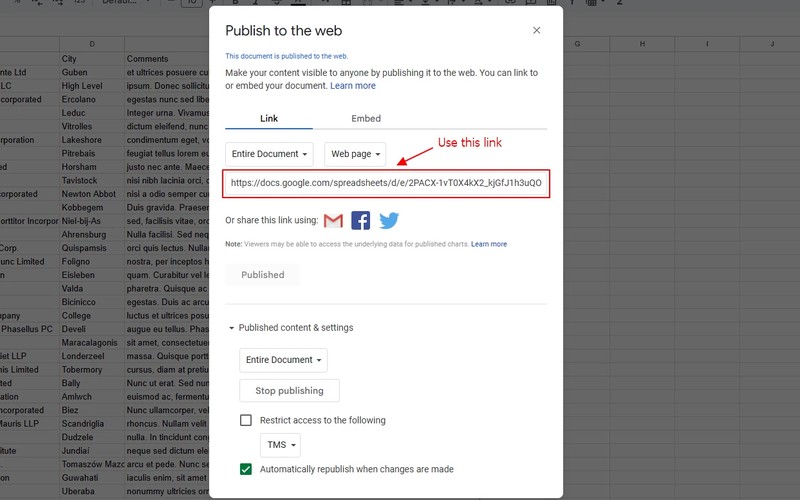
- In Google Sheets, open File, then Share, then Publish to web.
- Choose “Entire document”, keep “Automatically republish when changes are made” checked, publish, and copy the link.
- In WordPress, go to wpDataTables, then Create a Table, and pick “Create a table linked to an existing data source”.
- Name the table, set the input data source type to Google Spreadsheet, paste the link and click Save Changes.
- Check the column types wpDataTables guessed, then adjust filter types or responsiveness if needed.
Paste the published link, not the address-bar URL. The address-bar link ends in /edit#gid=0 and returns an “Unauthorized access” error unless a service account is connected.
Workbooks with several tabs have their own guide in the wpDataTables documentation, so read it before linking anything other than the first tab.
Connecting a private Google Sheet through a Google service account
Private sheets need a service account. Create the account and add its JSON key to wpDataTables once, then share each private sheet with the account’s email address.
Create the service account and add the key
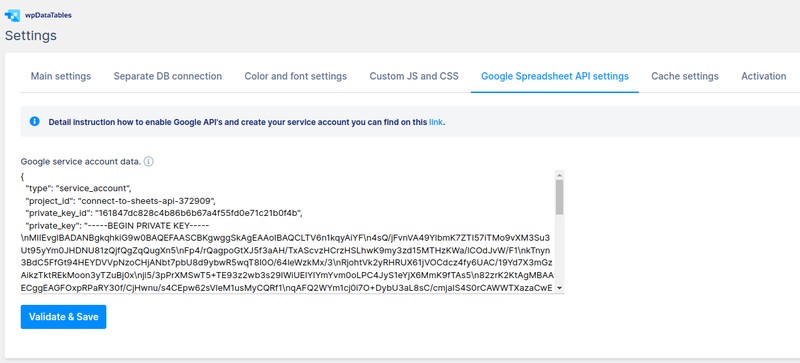
The steps below follow the Google Sheets API connection guide.
- Open the Google API dashboard and create a new project.
- Under APIs & Services, then Library, enable both the Google Drive API and the Google Sheets API.
- Under Credentials, create a service account with a name and ID, and give it the Editor role from the Basic group. The later “Grant users access” step is optional.
- Open the service account, go to the Keys tab, click Add key and choose JSON. The file downloads automatically.
- In WordPress, go to wpDataTables, then Settings, then the Google Spreadsheet settings tab. Paste the full JSON contents into the “Google service account data” field and click Validate & Save.
On success, the service account email appears in that tab. Treat the JSON file like a password, since it opens every sheet shared with that account.
Share each private sheet
This part gets repeated for every private sheet.
- Copy the service account email from the wpDataTables settings.
- Click Share in the Google Sheet and add that email.
- Uncheck “Notify people” and click Share.
- Paste the sheet URL from the address bar when you create a Google Spreadsheet table.
The sheet never has to be published or shared with everyone, and the table syncs with it through the API.
Google’s request quotas
The Sheets API has per-minute read quotas, 300 requests per project and 60 per user per project, according to Google’s usage limits page. Requests over the quota return a “Too Many Requests” error, and the quota recovers after a minute.
A few tables on a normal site stay far below that. Quotas start to matter on sites with many linked tables that refresh on the same schedule, which the troubleshooting section below covers. The wpDataTables help center also has separate articles for the “Bad Request” and “Too Many Requests” errors on this route.
Adding the table to a page and setting how it displays
The shortcode is the plainest way in, though the wpDataTables Gutenberg block and the Elementor widget work the same way. Sorting, filtering and responsive behavior are set afterward, on the table and its columns.
Insert the table
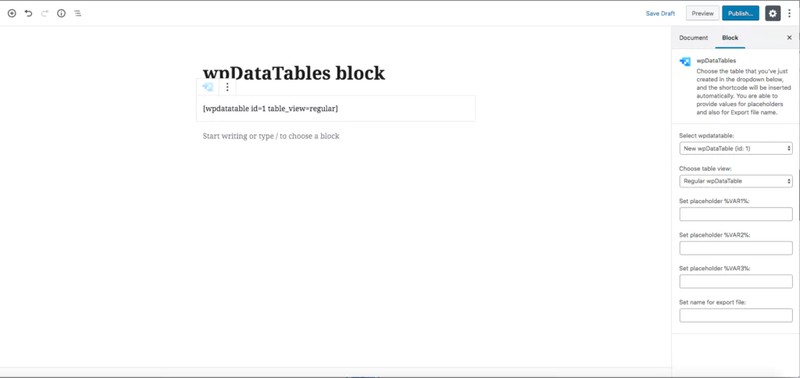
Copy the shortcode from the Shortcode column in the table list and paste it into a Shortcode block. The insert button inside the table editor does the same job.
- For the Gutenberg block, open the inserter, search for wpDataTables, then pick the table in the settings panel.
- The Elementor widget inserts tables that already exist, so build the table first. Then drag the widget into the page and choose the table.
The block and the widget offer the same options, including Regular or Excel-like view, placeholders and an export file name. The block panel shows the first three placeholders, %VAR1% to %VAR3%, and the shortcode accepts more. Changing any option rewrites the shortcode on its own.
For other source types, the guide on how to insert a table in WordPress with wpDataTables covers the same insertion paths.
Control the display
Regular view is the better fit for a Google Sheets table.
| Feature | Regular view | Excel-like view |
|---|---|---|
| Responsive view | Supported | Not yet supported |
| Per-column filters | Supported | Not yet supported |
| Pagination | Supported | Not yet supported |
| Sorting and search | Supported | Supported |
Excel-like view is still catching up, and this list gets shorter as those limitations are removed.
Each column’s type decides its sorting and filtering rules, so a date column read as a string sorts as text. Check the types wpDataTables guessed when it first read the sheet.
Responsive mode is a table-level setting. For phone layouts, the guide on making a table responsive goes deeper.
Visitors can also get table tools such as export to CSV, Excel or PDF and a print button, which you switch on in the table settings. Extras such as fixed headers, fixed columns and conditional formatting can be layered on top, and the pricing page shows which plan includes each one.
Building a chart from the Google Sheets table
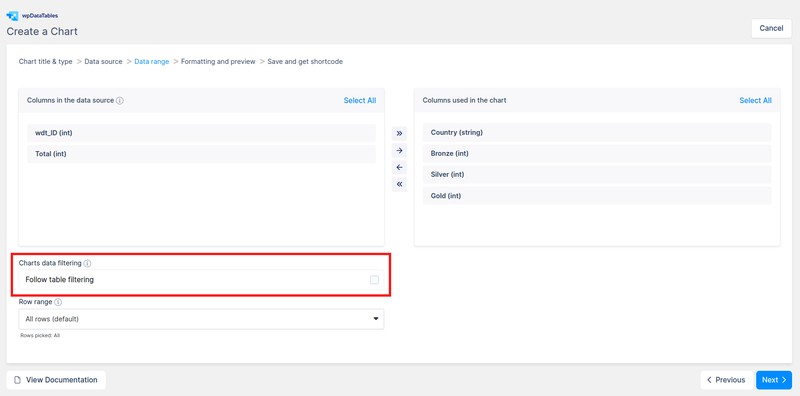
A Google Sheets table can feed a chart directly. The chart reads the same rows, so it follows the sheet without a second connection.
- Go to wpDataTables, then Create a Chart, name the chart and pick a rendering engine (Google Charts, Chart.js, Highcharts or ApexCharts).
- Choose the Google Sheets table as the data source.
- Select the columns the chart should use and, if needed, limit the row range.
- Format the chart, then save it and copy its shortcode.
Turn on “Follow table filtering” when the chart sits on the same page as the table. The chart then redraws as visitors filter, sort or page through the table.
Put the label column first and keep numbers stored as numbers in the sheet. A number with a currency symbol typed into the cell often comes through as text, and text can’t be plotted.
Why a Google Sheets table stops updating or shows no data
Most problems come down to caching, sheet size, the access setup or a structural edit to the sheet.
Data is stale
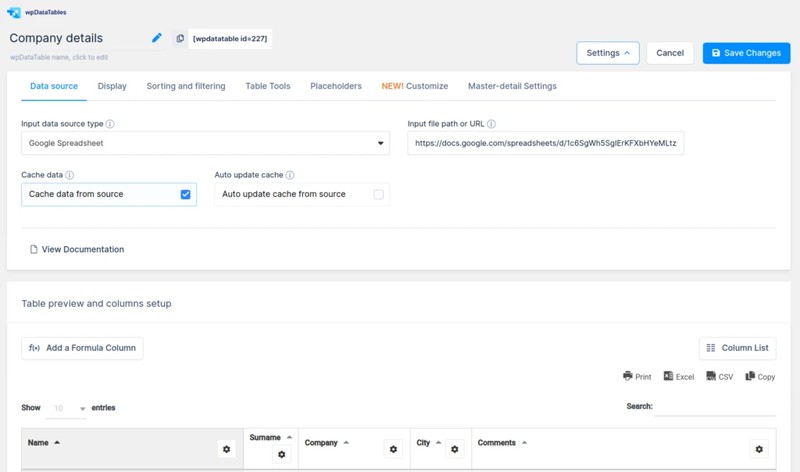
Stale rows are a caching question, not a connection problem.
wpDataTables can cache the sheet’s data and refresh it on a schedule. Go to wpDataTables, then Settings, then the Cache settings tab, and switch on “Auto update cache for tables” (off by default). Then, in the table’s settings, turn on Cache data and Auto update cache.
The schedule runs from a cron job on your server, so the refresh interval is whatever you set there. The caching tutorial’s example runs every 15 minutes.
Each scheduled refresh makes one Google Sheets API call per linked table when the API is connected. A site with many linked tables can exceed Google’s quota and see “Too many requests”. Three changes keep it in check.
- Turn off Auto update cache for tables whose sheets rarely change
- Run the cron job less often
- Request a higher quota from Google for the project
The table loads slowly
Two numbers from the documentation are worth keeping in mind.
- Without caching, linked tables of roughly 2,000 to 3,000 cells or more can load slowly, because the sheet is read on every page load
- With caching on, keep the source to around 5,000 rows
A sheet with 10 columns reaches 3,000 cells at 300 rows, so the cell figure arrives first. Turn on Cache data for any table near it, and hide columns visitors don’t need.
Access errors
| Message | Likely cause | Fix |
|---|---|---|
| Unauthorized access | Address-bar link with no service account, or sheet not shared with it | Use the published link, or connect the account and share the sheet |
| Bad Request | API setup or sheet sharing misconfigured | Update the plugin, recheck the service account, share the sheet with its email |
| Table in the data source has no rows | Merged cells, sub-headers, formulas, IMPORTRANGE, Workspace restrictions, missing ZipArchive | Put headers in row 1, simplify the sheet, ask the host to enable the PHP ZipArchive extension |
Older tutorials tell you to copy the address-bar URL. That only works with a connected service account now, so switch to the Publish to web link if a table built that way stops loading.
Sheets owned by a company Google Workspace account can be blocked from publishing or from outside access. If the table stays empty, ask the Workspace administrator what’s allowed.
The table broke after a sheet edit
Editing cell values and adding rows is normal use. Renaming, reordering, adding or deleting columns is a structural change, and it needs a replacement table built from the edited sheet.
A new table gets its own shortcode, so swap it on every page that used the old one. Test structural edits on a copy of the sheet first.
When a linked Google Sheets table is the wrong choice
A linked table suits data that people keep updating in the sheet while visitors only read it. It’s the wrong fit when editors need to change rows inside WordPress, when the dataset has outgrown a spreadsheet, or when the data barely changes.
Switching to another source makes sense in a few situations.
- Rows need editing inside WordPress
- The dataset is large and growing
- The data rarely changes
- Formulas, IMPORTRANGE or several tabs drive the output
For data that has to be edited on the site, import the sheet instead of linking it. wpDataTables can copy CSV, Excel or Google Spreadsheet data into an editable MySQL-backed table that users change on the front end or in the back end, and Google’s access rules no longer matter after the import.
Large datasets belong in a database. wpDataTables handles big MySQL tables with server-side processing, which loads rows page by page, and the guide on how to fetch data from a database in a WordPress page covers the query side.
A published link also lives only as long as the sheet stays published. Google’s help page says a file leaves the web when someone stops publishing it, so one click by the sheet owner can cut the table off from its source.
Pick the source by who edits the data and how big it will get.
Google Sheets Table in wpDataTables FAQ
Do new rows in the sheet show up in the table automatically?
Yes. Adding rows and editing values in the sheet is normal use, and the table shows them on the next read. With a published link, allow up to 15 minutes for Google’s cache. With caching on in wpDataTables, the rows arrive on the next scheduled refresh.
Can visitors export the table data?
Yes. Turn on the table tools in the table settings, and visitors get buttons to export the rows to CSV, Excel or PDF, copy them or print the table.
How do I fix the SSL certificate error on a Google Sheets table?
The error usually means the server can’t verify Google’s certificate, often because the server’s CA certificates are outdated. Ask the host to update them first.
The wpDataTables documentation also describes a cURL workaround that turns SSL verification off. It lowers security and can be overwritten by plugin updates, so treat it as a last resort and contact support if the error stays.
How do I disconnect a Google service account from wpDataTables?
Open wpDataTables, then Settings, then the Google Spreadsheet settings tab, and click Remove account.
Tables that read private sheets stop loading afterward. Tables linked through a published link don’t depend on the account.
Can I publish a single tab instead of the whole spreadsheet?
Google lets you publish individual sheets. The wpDataTables setup steps use “Entire document”, and workbooks with several tabs have their own guide in the documentation, so check it before publishing less than the full file.
Can a Google Sheets table open with specific rows already filtered?
Yes. Placeholders can set default filter values. Use %VAR1% and the following variables in a column’s Predefined Value field, and pass the values from the shortcode or the block panel.
Tables can also be searched through the URL, so a link can open the table with a search already applied.
Keeping a Google Sheets Table in wpDataTables Working
A Google Sheets table stays reliable with three habits. Make structural edits on a copy of the sheet, update wpDataTables when a new version ships, and recheck the table after each update.
- Test column changes on a copy of the sheet before touching the live one
- Keep the plugin updated, since Google’s access rules can change
- Keep a CSV export of the sheet as a fallback
The CSV fallback matters most when Google changes how outside tools read sheets, as it did in early 2025. A CSV-based table trades fresh data for a page that stays up until the link is fixed.