Table of Contents
How to create a table from Google Sheets in wpDataTables
Say your team keeps a contact list in Google Sheets and updates it every week. Instead of copying the data to your site, you can link a wpDataTables table to the sheet, so the table on your page shows the sheet’s latest data. You publish the sheet to the web once, then give its link to Tabella AI or to a new linked table.
How do I prepare a Google sheet for wpDataTables?
Publish the sheet to the web and copy the link Google gives you. A published link works without a Google API connection.
- Open the sheet. In Google Sheets, open the spreadsheet or create one. Put the column names in the first row.
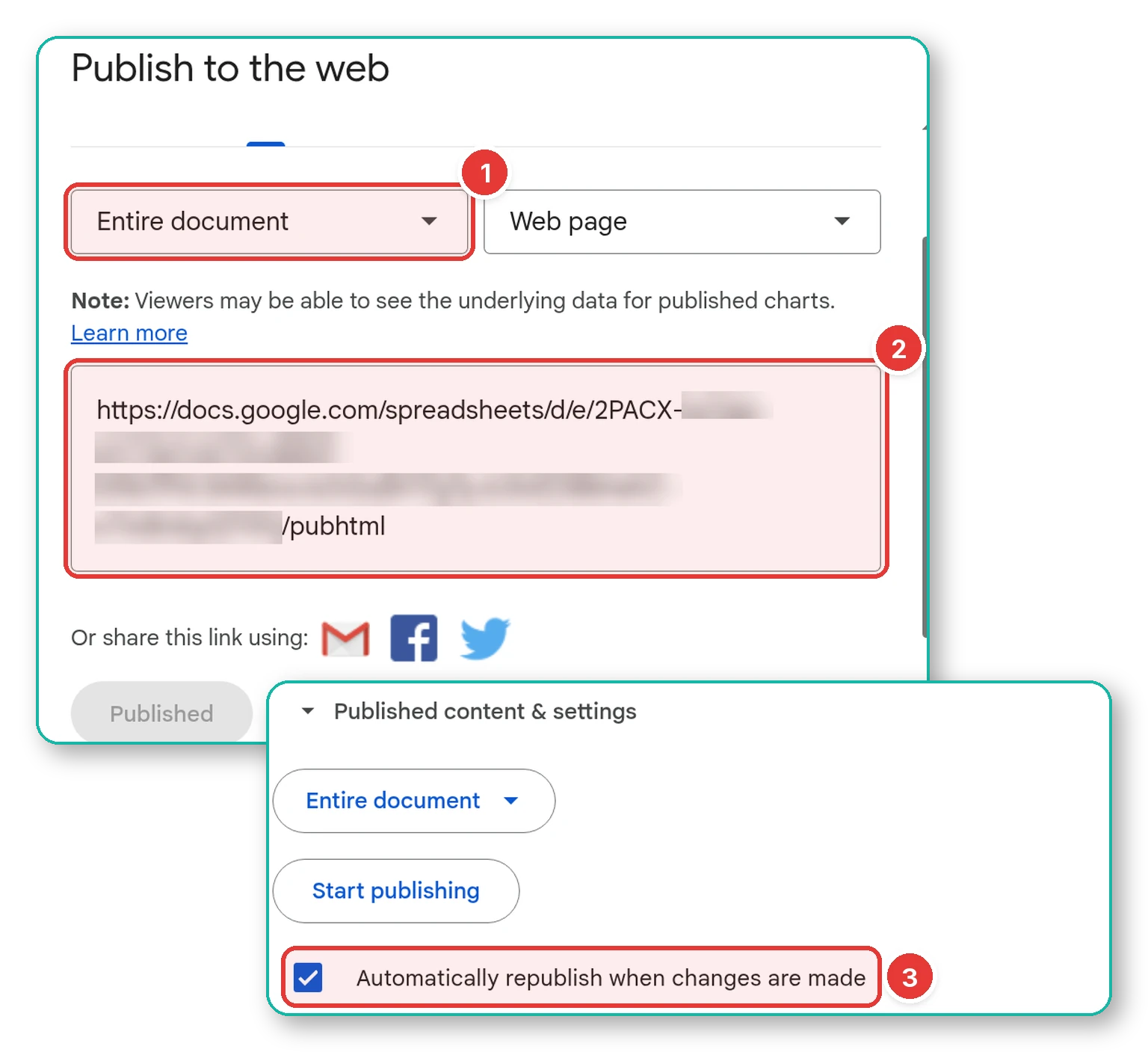
- Publish it. Click File → Share → Publish to web. On the Link tab, keep Entire document and Web page, click Publish and confirm with OK.
- Keep it up to date. Open Published content & settings and make sure Automatically republish when changes are made is checked, so your edits reach the table.
- Copy the link. Copy the link that appears in the dialog. It contains
2PACX, for examplehttps://docs.google.com/spreadsheets/d/e/2PACX-…/pubhtml.
How do I create a table from Google Sheets with Tabella AI?
Paste the published link in the Tabella AI chat, check the preview, and create a linked or an imported table.
- Open Tabella AI. Go to wpDataTables → Dashboard and click + Use a file or link.
- Paste the link. In the Add data panel, paste the published link in Public data URL and click Preview this source.
- Create the table. Check the sample of up to 20 rows, then click Create linked table to keep reading the sheet, or Import to database to create an editable copy that does not follow the sheet.
- Add it to a page. Click Copy shortcode and paste it into a Shortcode block.
The review card is the same as for CSV files; see how to create a table from a CSV file for a screenshot.
Video: creating a linked table from a published Google sheet with Tabella AI.
How do I create a table from Google Sheets by hand?
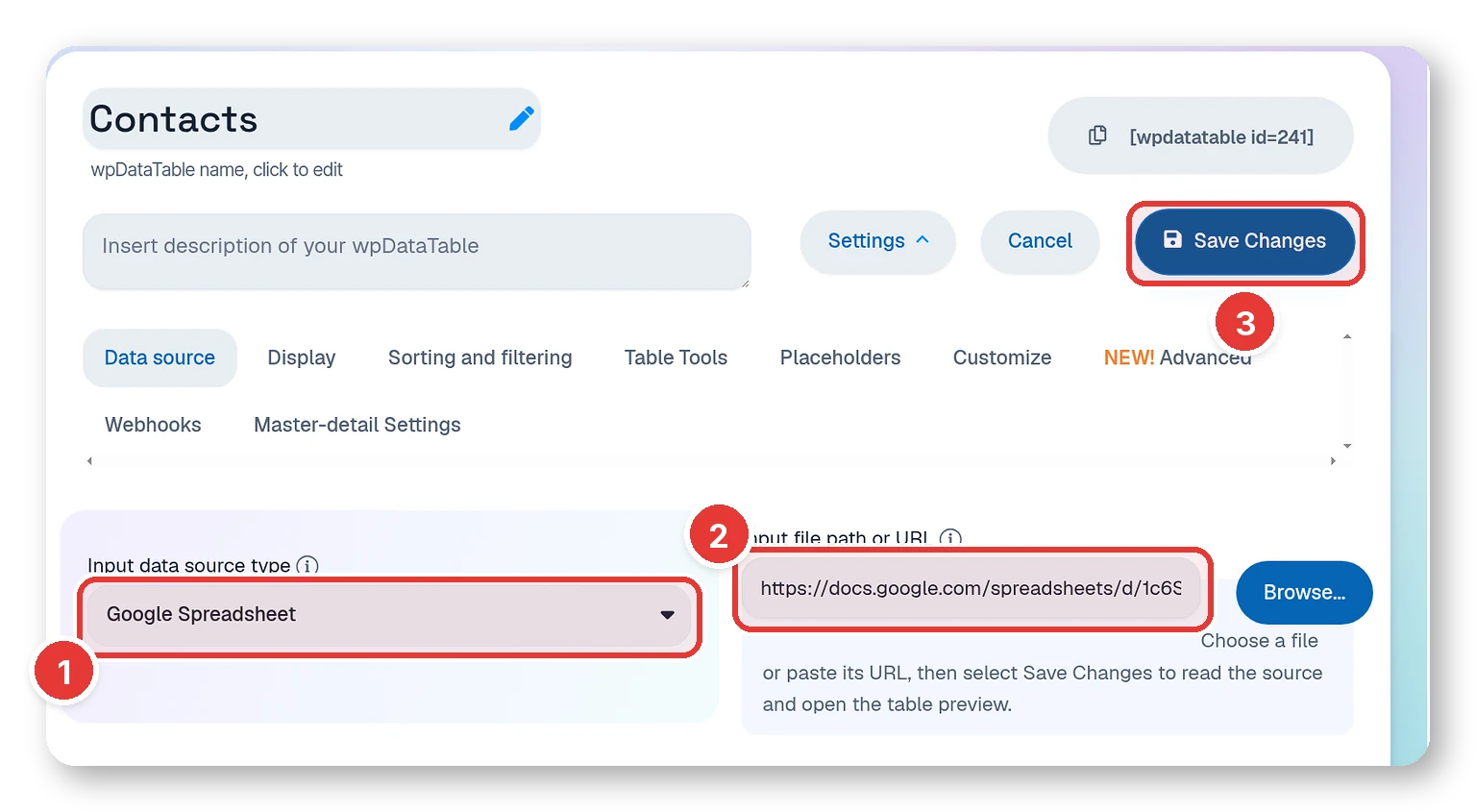
Create a table linked to an existing data source, choose Google Spreadsheet as the source type, paste the link and click Save Changes.
- Start a linked table. Go to wpDataTables → Create a Table and click Create a data table linked to an existing data source.
- Name the table. Click New wpDataTable and type a name, for example Contacts.
- Choose the source type. In the Data source tab, open Input data source type and choose Google Spreadsheet.
- Paste the link. Paste the published link in Input file path or URL.
- Save the table. Click Save Changes. wpDataTables reads the sheet, creates the columns and guesses their types.
How does the table follow changes in the sheet?
A linked table reads the sheet again every time the page loads, so new and edited rows show without any work in WordPress. Keep these limits in mind:
How do I set up the Google Sheets table after it is created?
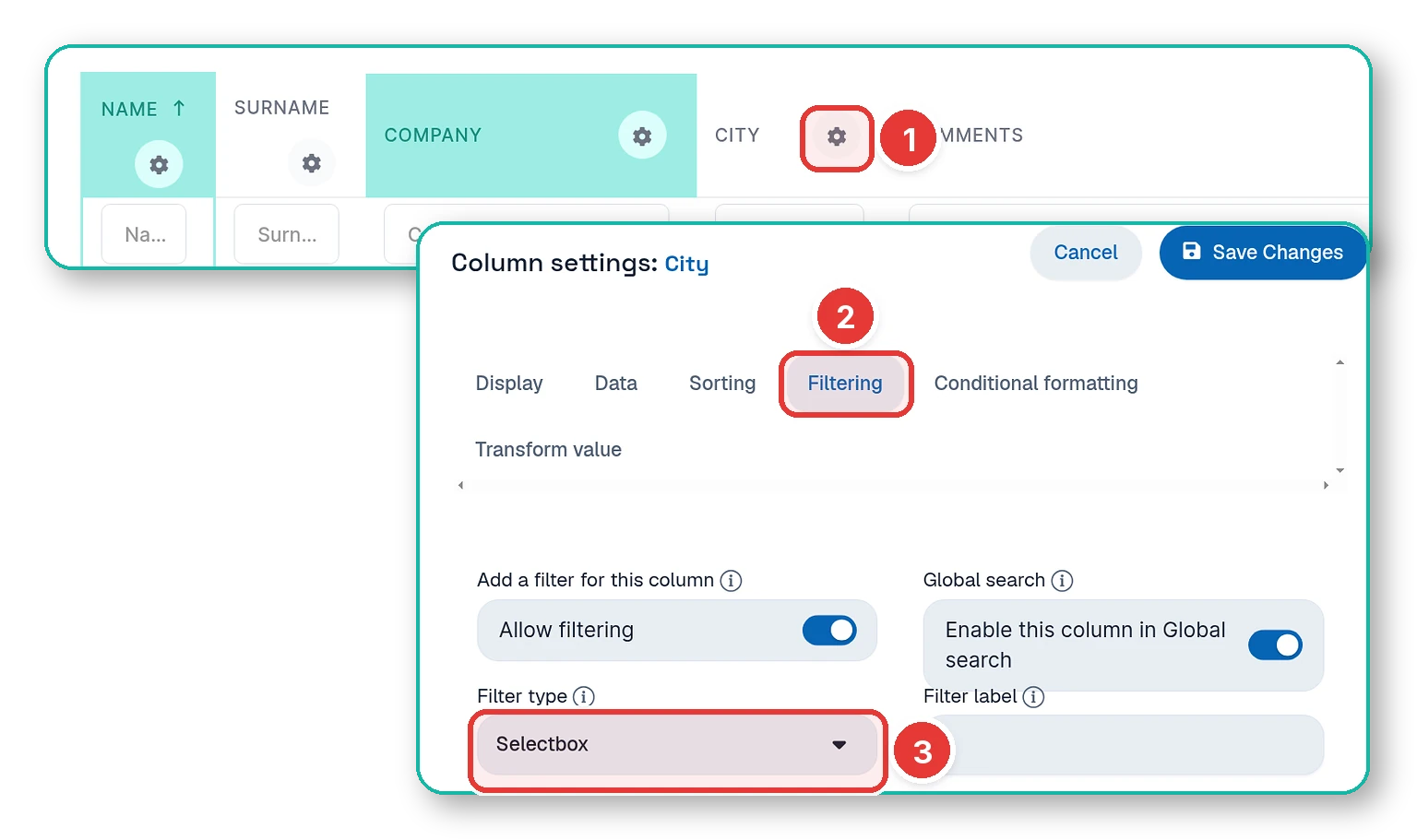
Open the table in the editor and check the column types first, then add filters, sorting and a design. For example, click the column settings icon of the City column, open the Filtering tab and set Filter type to Selectbox, so visitors can pick a city.
What should I remember about tables from Google Sheets?
Publish the sheet with File → Share → Publish to web, copy the 2PACX link, and paste it in Tabella AI or in a new table with Google Spreadsheet as the source type. The linked table follows the sheet with up to 15 minutes of delay, unless you connect the Google Sheets API. Keep the columns unchanged, avoid merged cells, and use a copy sheet for formulas.
Where can I read more?
These pages cover private sheets, formulas and the next steps: