Table of Contents
WordPress table plugin: an overview of wpDataTables
Say you manage a website for a car dealership and need a price list that buyers can filter by brand, a stock list that your team updates every day, and a chart of monthly sales. wpDataTables builds all three in WordPress without code: it creates interactive tables and charts from files, Google Sheets, databases or data you enter yourself, and keeps them in sync with their source. This page shows what the plugin can do and where each feature is explained.
What is wpDataTables?
wpDataTables is a WordPress plugin for tables and charts. You create a table once in the WordPress admin, add it to any page or post with a shortcode, and your visitors can then sort, search, filter and export it. wpDataTables comes in two editions: the free wpDataTables Lite on WordPress.org and wpDataTables Premium, which adds database tables, editing, advanced filters, more chart engines and add-ons.
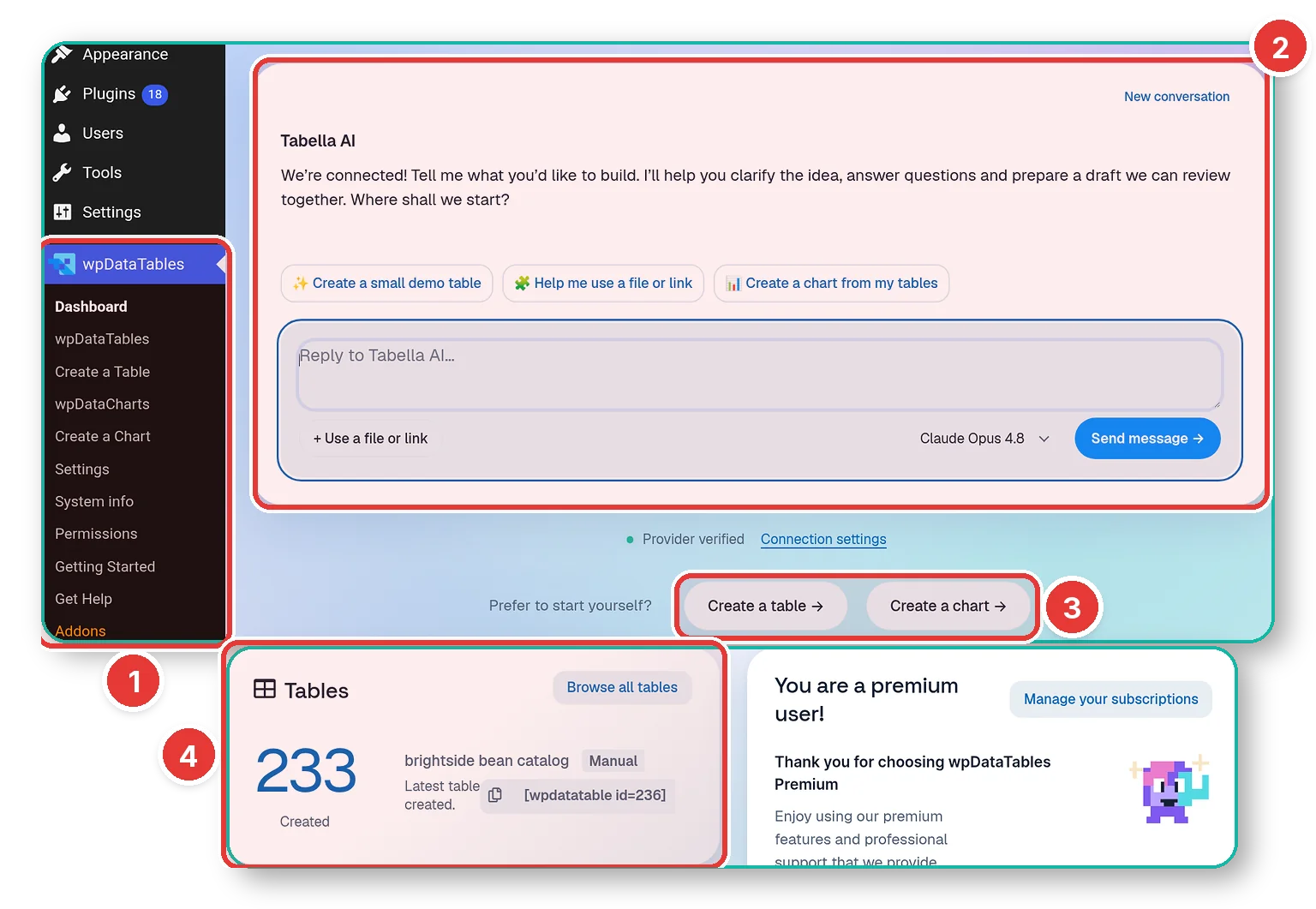
How do I create a table in wpDataTables?
The quickest way is to ask Tabella AI on the wpDataTables Dashboard, and the manual way is the Create a Table wizard. Tabella AI, the assistant built into wpDataTables, turns a description, a file or a link into a draft table that you review before it is created. Read How to use Tabella AI in wpDataTables.
In the table creation wizard you choose how the table gets its data:
| Table type | What it is | Read more |
|---|---|---|
| Simple table | A static table with merged cells and free styling, for pricing or comparison tables. | Simple table |
| Linked table | Reads a file or feed on every page load, so it always shows the current source. | Excel, CSV, Google Sheets, JSON, nested JSON, XML, PHP array |
| Database table (Premium) | Shows the result of a MySQL query, with server-side processing for large tables. | MySQL tables, server-side processing |
| Manual table (Premium) | You define the columns and enter the rows, and the data stays editable in the database. | Manual table, update from a file |
| Imported table (Premium) | An editable copy of an Excel, CSV or Google Sheets file in the database. | Import data |
| Query builder (Premium) | Builds a query to the WordPress or any MySQL database without SQL. | WordPress database, MySQL |
Can I and my visitors edit table data?
Yes, in wpDataTables Premium, manual, imported and MySQL tables can be edited in the WordPress admin and, if you allow it, on the front end. Editors can work in a pop-up form, edit cells inline or use a spreadsheet-like editor, and you choose which user roles may edit and whether users see only their own rows. Read how to create editable tables, inline editing, the Excel-like editor and table relations.
Can I create charts from my tables?
Yes, every chart in wpDataTables is built from a table, and it can redraw when visitors filter that table. You create charts with Tabella AI or in the chart wizard and choose one of these engines: Google Charts and Chart.js in Lite and Premium, and Highcharts, Highcharts Stock and ApexCharts in Premium. Highcharts needs a separate license for commercial use. Read how to create a chart and how charts follow table filtering.
Which features can I add to a table?
Every table can have its own set of features, which you turn on in the table editor or ask Tabella AI to change:
- Find data: sorting, column filters, search through a URL and the Powerful Filters add-on.
- Show data: conditional formatting, row grouping, totals and averages, formula columns and the single cell shortcode.
- Layout and design: responsive tables, scrolling, fixed headers and columns, word wrap and custom colors and fonts.
- Share data: export to Excel, CSV and PDF, copy and print.
Each column also has a type, such as string, integer, float, date, image or link, which sets how it sorts and filters. wpDataTables detects the type when it first reads the data, and you can change it in the column settings. See the column types overview.
Where can I add tables and charts?
You can add a table or chart anywhere WordPress accepts a shortcode, and with a block or widget in the most common page builders. Read about shortcodes, the Gutenberg block and the Elementor, Divi, Avada and WPBakery integrations.
What should I know before I start?
A few rules apply to every installation:
- wpDataTables can read and write your database, so its admin pages are for administrators by default. To let other roles or users work with tables and charts, set the rules in wpDataTables → Permissions.
- Formulas in source files are not read. Use a formula column instead, or follow Google Sheets with formulas.
- Tabella AI needs WordPress 7.0 or newer and your own AI provider account.
- Developers can connect an external AI client over MCP. Read the AI Assistant integration.
What should I remember about wpDataTables?
wpDataTables turns files, Google Sheets, databases and your own data into interactive tables and charts that you add with a shortcode or a page builder. Start with Tabella AI or the Create a Table wizard, then add sorting, filters, formatting, editing and charts per table. Lite covers Simple and linked tables with Google Charts and Chart.js, and Premium adds database tables, editing, advanced filters and more chart engines.