Table of Contents
How to use URL link columns in wpDataTables
Say your supplier list should link each supplier’s name to their website, and your HR table should let managers download each candidate’s CV. A URL link column turns each URL into a clickable link, whether it points to a web page or to a file. You can show your own link text, open links in a new tab, add nofollow and show the link as a button.
How do I make a column a URL link column with Tabella AI?
Open the table, click Ask Tabella AI and name the column and the type.
- Open the table. Go to wpDataTables → wpDataTables and click the table title.
- Ask Tabella AI. Click Ask Tabella AI and type, for example: Change the Website column type to URL link and open links in a new tab.
- Check and save. Tabella AI lists what it changed. Click Save Changes, or Undo table changes to go back.
How do I make a column a URL link column in the column settings?
Set the column type to URL link in the Data tab of the column settings and save the table.
- Open the column settings. Go to wpDataTables → wpDataTables, open the table and click the settings icon in the column header.
- Change the type. In the Data tab, set Column type to URL link.
- Save the table. Click Save Changes.
For downloadable files, use the same type with each URL pointing to the file, for example a PDF in your Media Library.
How do I show my own link text?
In the source, write the URL, two vertical bars and the text: everything before || is the link, everything after it is the text visitors see.
| Value in the source | What visitors see |
|---|---|
https://wpdatatables.com||Check out wpDataTables |
A link “Check out wpDataTables” |
https://example.com/files/report.pdf||Download report |
A link “Download report” to the file |
https://wpdatatables.com |
The URL itself as the link text |
Which link settings can I set?
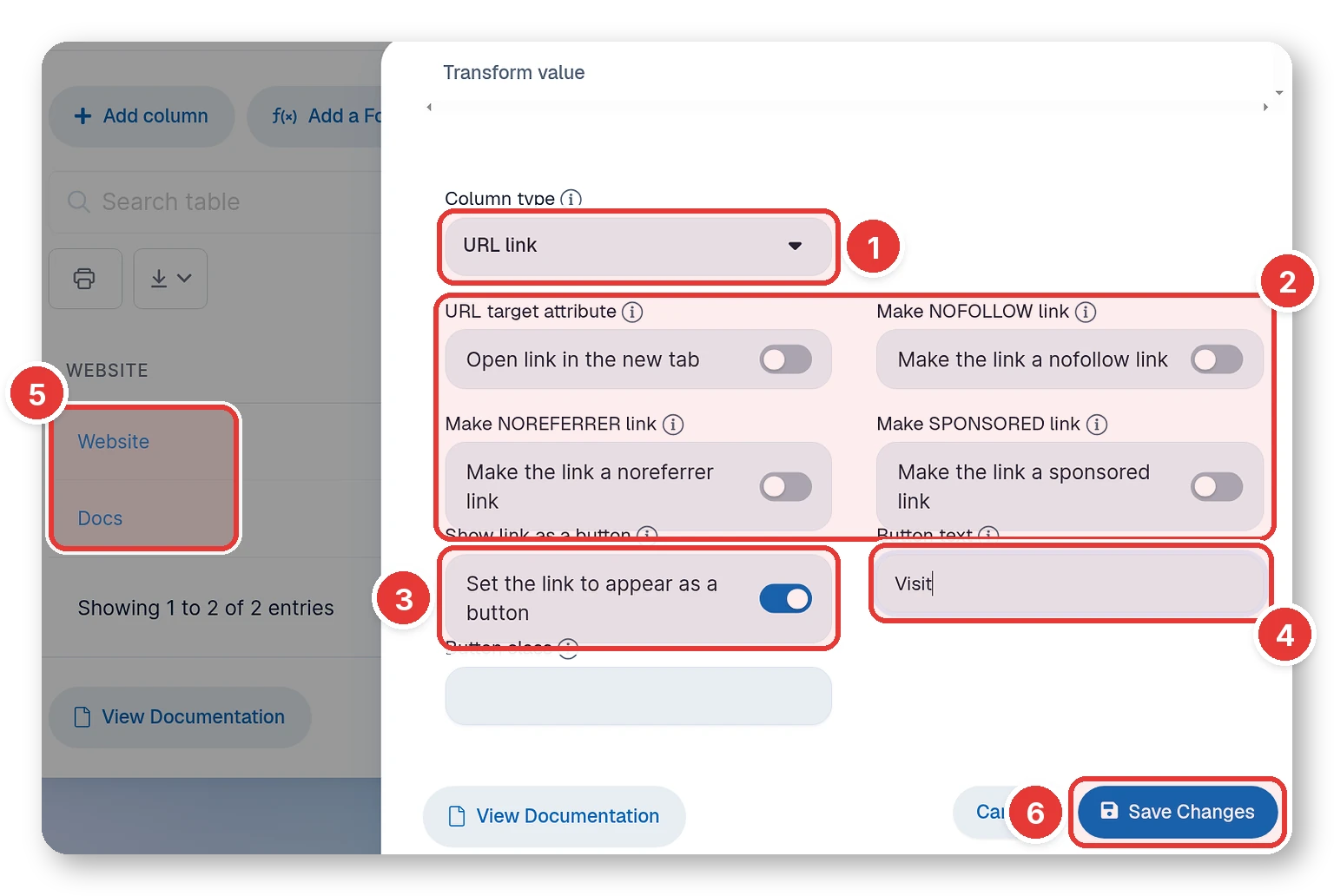
A URL link column has these settings in the Data tab of the column settings:
| Setting | What it does |
|---|---|
| URL target attribute: Open link in the new tab | Opens the link in a new tab instead of the same tab. |
| Make NOFOLLOW link: Make the link a nofollow link | Adds rel="nofollow", so search engines don’t follow the link. |
| Make NOREFERRER link: Make the link a noreferrer link | Adds rel="noreferrer", so the target site doesn’t see where the visitor came from. |
| Make SPONSORED link: Make the link a sponsored link | Adds rel="sponsored" for paid or affiliate links. |
| Show link as a button: Set the link to appear as a button | Shows a button instead of a text link. |
| Button text | The text on the button, the same for every row. Appears when the button is on. |
| Button class | A CSS class for styling the button. Appears when the button is on. |
The settings for a URL link column with a button look like this:
URL link columns sort alphabetically and use the Text filter. If the values contain complex HTML, sorting can give odd results. To stop visitors from sorting by the column, turn off Allow sorting for this column in its Sorting tab.
What should I remember about URL link columns?
Use URL link for links to web pages and files, and write URL||text in the source to show your own link text. In the Data tab, open links in a new tab, add nofollow, noreferrer or sponsored, or show the link as a button with your own Button text and Button class.
Where can I read more?
These pages cover other link columns: