


Table of Contents
You can color and style each column in a WordPress table with wpDataTables using the color picker in every column’s settings, and you can right-align numeric columns from the settings page. By default, each column in wpDataTables has the same CSS classes applied and the same look, but you can always style and color the columns as you need to.
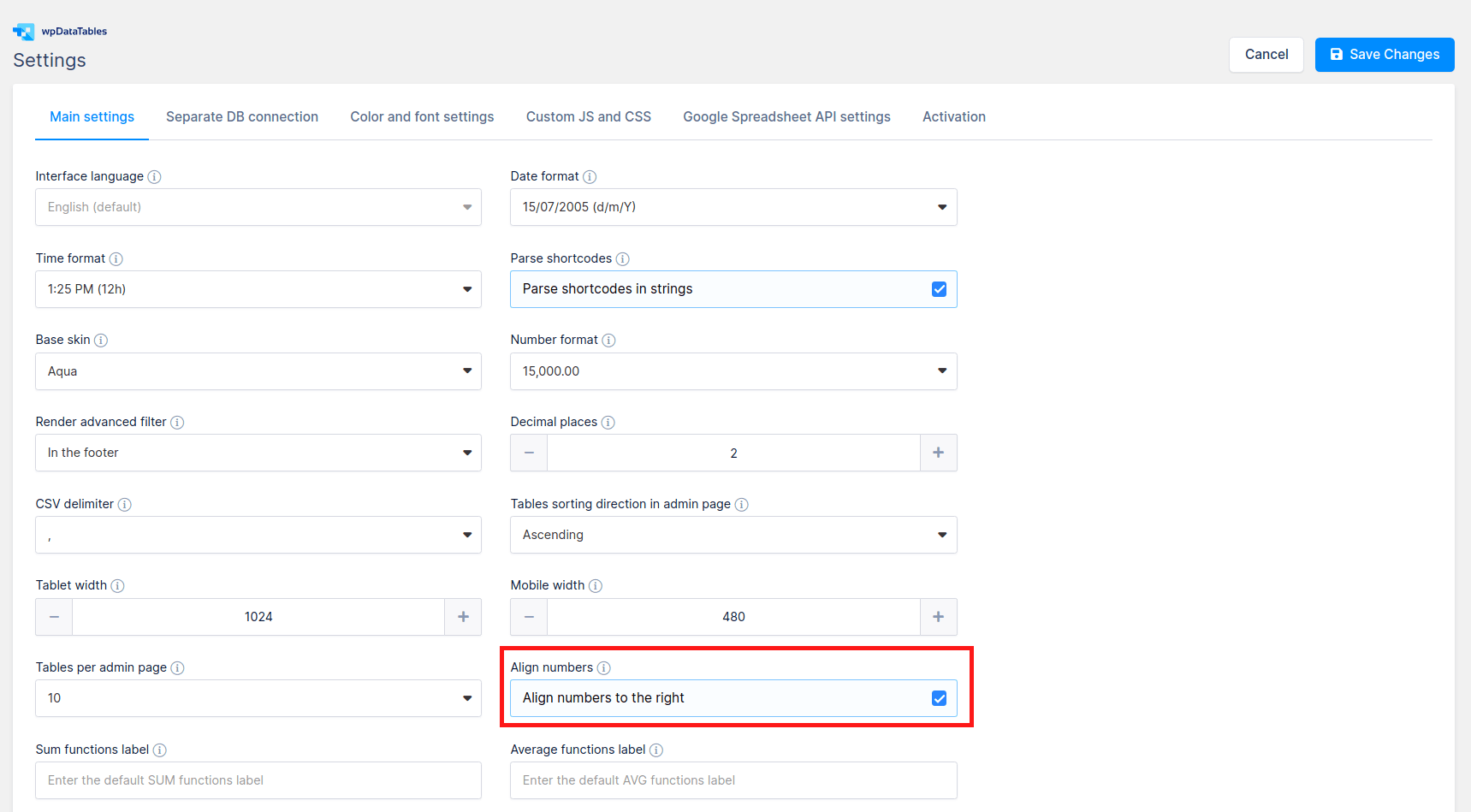
Basic styling covers right-aligning numbers and points you to the related row-coloring and design settings.
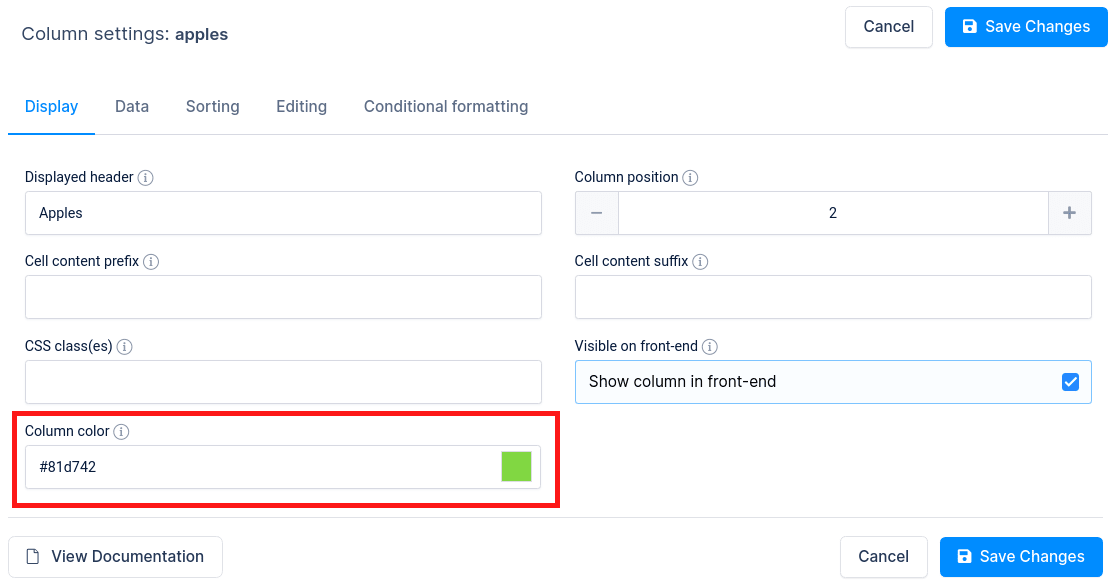
“Coloring columns” is also very simple – there is a color picker in each column settings panel. Just pick the color that you want in the colorpicker, save the table, and you will see the columns colored in the table front-end.
| wdt_ID | Name | Apples | Oranges | Bananas |
|---|---|---|---|---|
| 4 | Ringo | 5 | 3 | 8 |
| 5 | Pablo | 4 | 5 | 1 |
| 6 | John | 2 | 2 | 2 |
| 7 | Rick | 2 | 7 | 8 |
| 8 | Fisher | 9 | 9 | 3 |
You can see in this table on the left that we applied a different table color for each type of fruit. For the “Apple” column we set a green color, for “Oranges” an orange color, and for “Bananas” a yellow color.
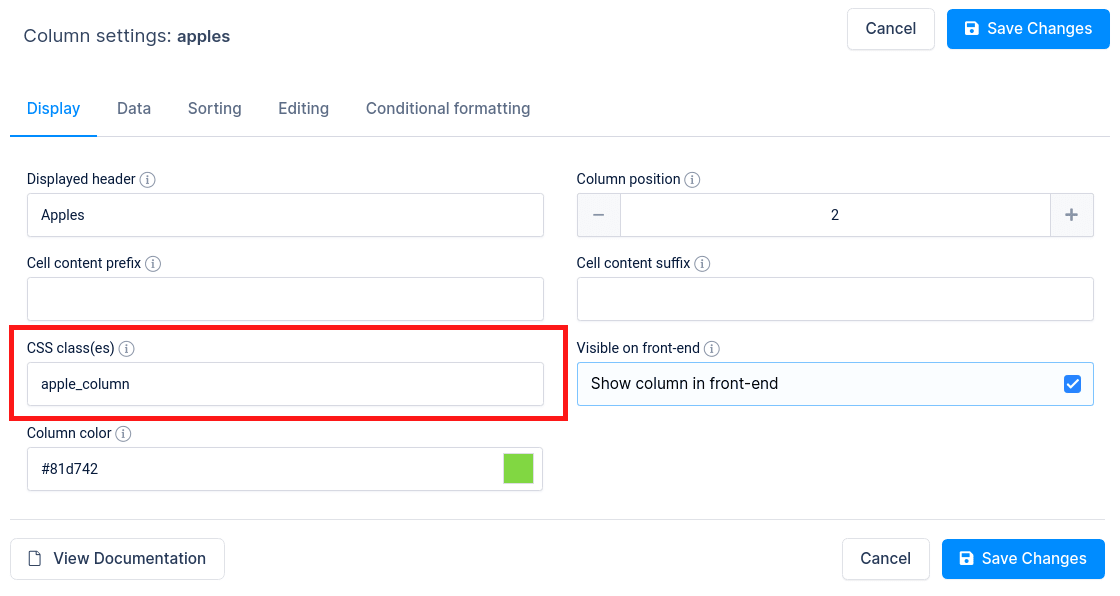
If you might want to change more than the color – it’s necessary to apply specific styling rules to some of the columns – e.g., different fonts, margins, etc. For this there is a “CSS class(es)” input for each column, where you can define one or more CSS classes, separated by a space. You can enter column configuration by clicking on the “Column settings” button  or by clicking on the “Column list” button above the table, from where you can open a column configuration for each column.
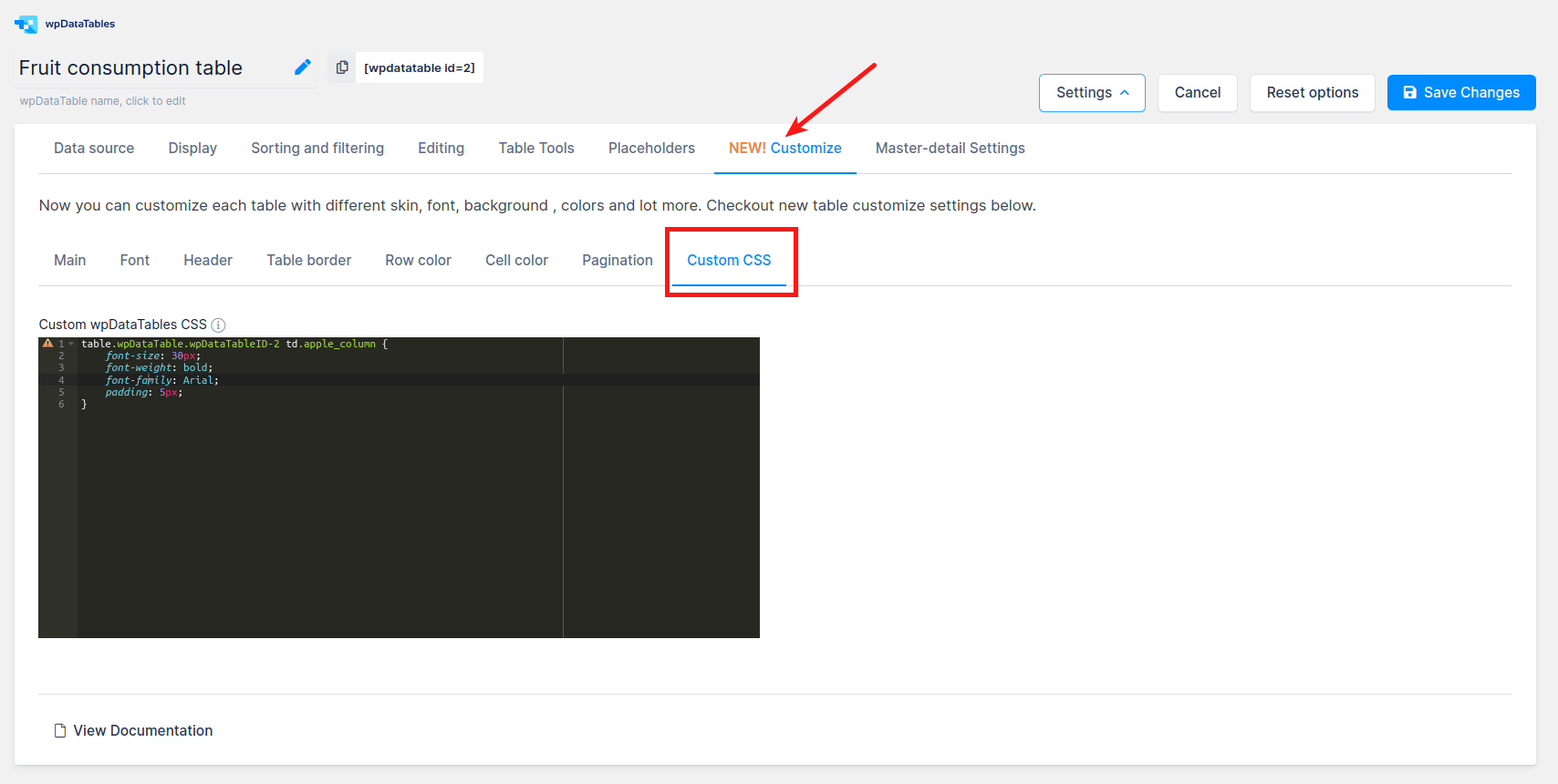
You can define any specific CSS rule for the columns for specific wpDatatables in “Custom wpDataTables CSS” filed for each table (each table have specific id in class e.g. if table id is 2 then that table will have class like wpDataTableID-2) which you can find on “Custom CSS” tab under “Customize tab” in table settings. More info about customize table on this link.
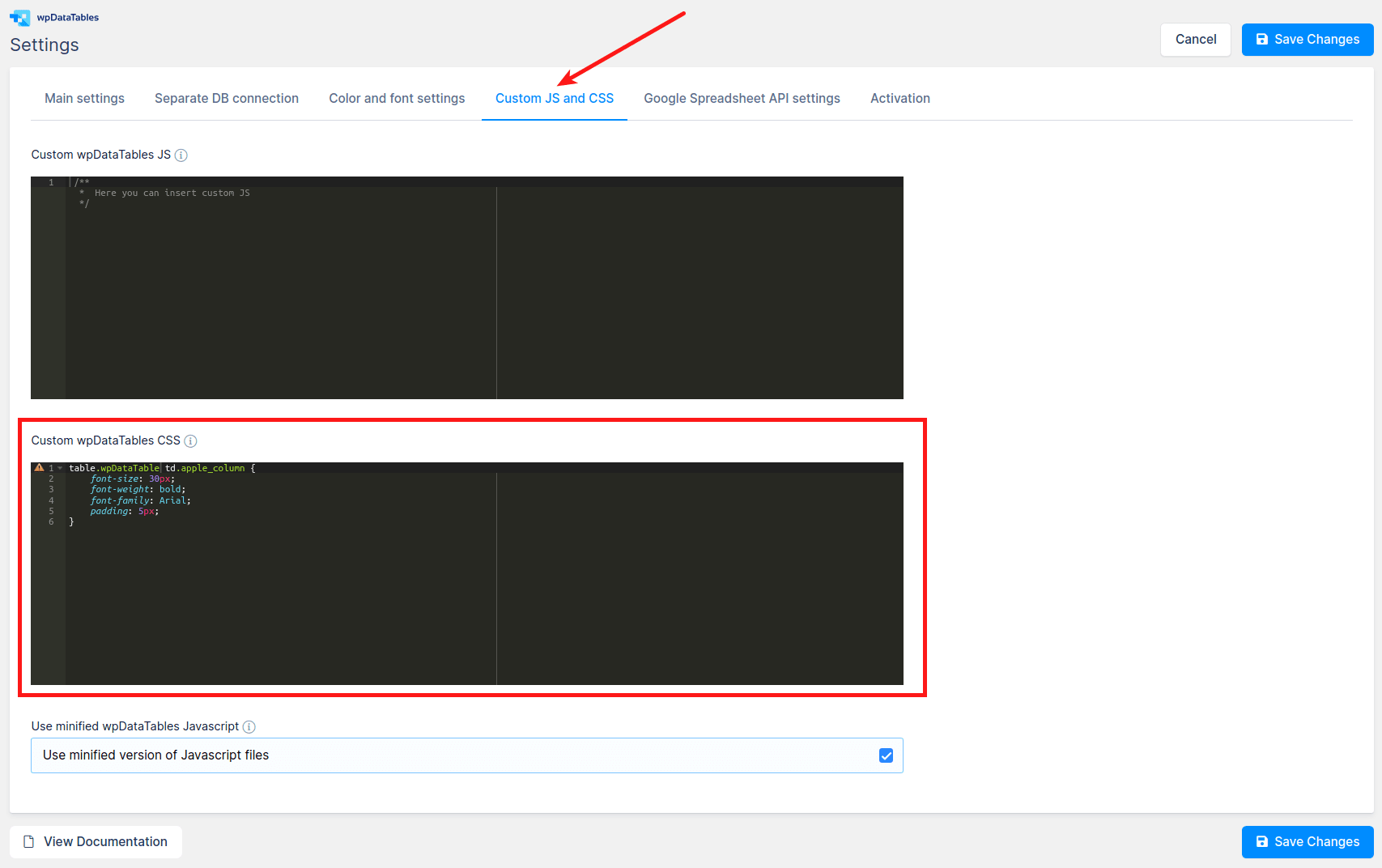
Also, you can define any specific CSS rules for the columns in the theme’s CSS (whether in files or theme settings), the page CSS (e.g. if you’re using Visual Constructor), or in the wpDataTables global Custom CSS block in the Settings page.
Then, when you insert this table in the front-end, you will see the styling applied.
To get your hands on wpDataTables Lite, please enter your email address below. We’ll send you a direct download link and keep you updated on existing features along with helpful tips and tricks!