Table of Contents
How to color cells and rows by their values in wpDataTables
Say your stock table lists 40 products, and you want to see at a glance which ones run low: stock under 10 in red, under 50 in yellow, and everything else in green. Conditional formatting checks the value of each cell against your rules and colors the cell, the whole row or the column, adds a CSS class or replaces the content. You can set the rules with Tabella AI or in the column settings.
How do I add a formatting rule with Tabella AI?
Open the table, click Ask Tabella AI and describe the condition and the color.
- Open the table. Go to wpDataTables → wpDataTables and click the table title.
- Ask Tabella AI. Click Ask Tabella AI and type, for example: Color the Stock cells red when the value is less than 10. Add more rules in new messages.
- Check and save. Read the reply of Tabella AI and check the preview. Click Save Changes to keep the rule, or Undo table changes to go back.
How do I add a formatting rule in the column settings?
Open the Conditional formatting tab of the column, click Add New Rule and fill in the four parts of the rule.
- Open the column settings. Open the table, then click the settings icon in the header of the column to check, for example Stock.
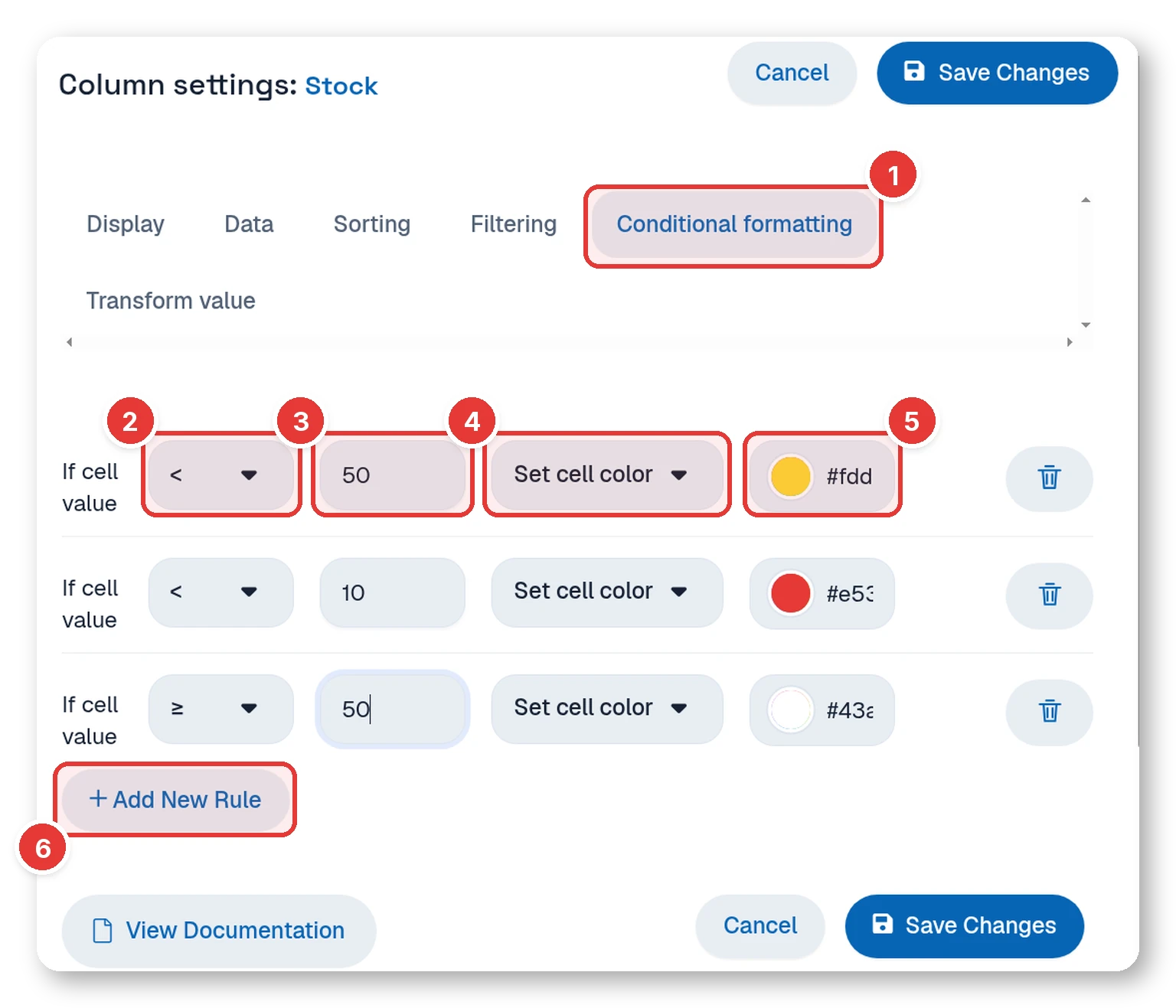
- Add a rule. In the Conditional formatting tab, click Add New Rule. A row that starts with If cell value appears.
- Set the condition. Choose how to compare, for example <, and enter the value to compare with, for example 10.
- Set the formatting. Choose what happens when a cell matches, for example Set cell color, and pick the color.
- Save the table. Click Save Changes. To delete a rule, click the trash icon at the end of its row.
Video: adding a conditional formatting rule that colors Done cells green.
For a number column, the comparison list has <, ≤, =, ≥, > and ≠. Text columns also compare with contains and does not contain.
Which formatting can a rule apply?
A rule can change the cell, the row or the column of a matching cell:
| Operation | What it does |
|---|---|
| Set cell color / Reset cell color to default | Colors the matching cell, or removes a color set by an earlier rule. |
| Set cell content | Shows your HTML instead of the value, for example an icon instead of a status. Sorting and filtering still use the original value. |
| Set cell CSS class / Remove cell CSS class | Adds or removes one or more CSS classes on the matching cell. |
| Set row color / Reset row color to default | Colors the whole row of the matching cell, or removes that color. |
| Set row CSS class / Remove row CSS class | Adds or removes CSS classes on all cells of the row. |
| Set column color | Colors the whole column if at least one cell matches. It overrides all other color rules. |
| Add column CSS class | Adds a CSS class to all cells of the column if at least one cell matches. |
With server-side processing, the column operations check only the rows on the current page.
In which order do rules apply?
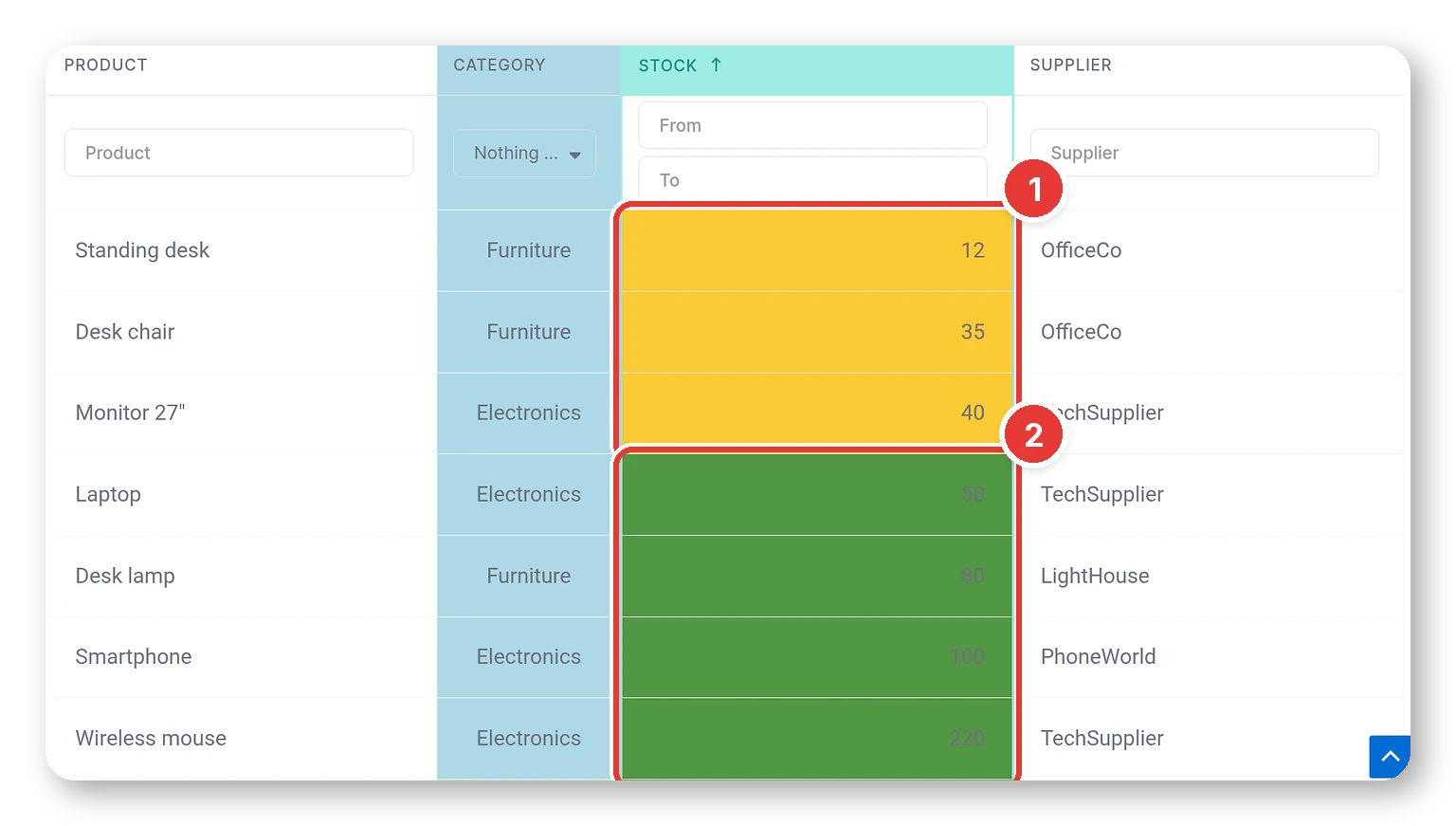
Rules apply from top to bottom, and a lower rule overrides the ones above it. You can use this to build ranges. For the stock example, add the rules in this order:
- Stock less than 50: Set cell color yellow.
- Stock less than 10: Set cell color red.
- Stock greater than or equal to 50: Set cell color green.
Rule 2 overrides rule 1 for values under 10, so cells between 10 and 49 stay yellow. In the opposite order, rule 1 would color everything under 50 yellow, including the values under 10.
How do I format cells by date, such as today or this week?
In Date and DateTime columns, use a date placeholder as the comparison value. The placeholders are below the date picker: %TODAY%, %LAST_WEEK%, %THIS_WEEK%, %NEXT_WEEK%, %LAST_30_DAYS%, %THIS_MONTH%, %LAST_MONTH% and %NEXT_MONTH%. With equal and %TODAY%, the rule colors the cells with today’s date.
The placeholders for a period, such as %LAST_WEEK% or %THIS_MONTH%, need no comparison: every date in that period matches. Use them to highlight, for example, all tasks due this week.
What should I remember about conditional formatting?
Ask Tabella AI for a rule, or add rules with Add New Rule in the column’s Conditional formatting tab: a comparison, a value, an operation and a color or class. Lower rules override higher ones, which lets you build ranges, and date placeholders such as %TODAY% or %THIS_WEEK% keep date rules up to date.
Where can I read more?
These pages cover other ways to style table data: