Table of Contents
How to show row details with the Master-Detail Tables add-on
Say you have a car catalog with 30 columns, but only five of them fit on the page. With the Master-Detail Tables add-on you show the five most useful columns, and visitors click a row or a button to see every detail of that car, in a popup or on a separate page. You can also link two tables, so a click on a product shows all of its orders from another table.

Want to try it first? Every feature of the add-on is available on the sandbox site.
What do I need for Master-Detail tables?
You need wpDataTables Premium and the Master-Detail Tables add-on. The add-on doesn’t work with wpDataTables Lite. To install it:
- Download the add-on. Log in to the store with the account you bought it with, and download the Master-Detail Tables ZIP file.
- Upload it. In WordPress, go to Plugins → Add Plugin, click Upload Plugin, click Choose File, choose the ZIP file and click Install Now.
- Activate it. Click Activate Plugin. You can check that it’s active on the wpDataTables → Addons page.
How do I turn on Master-Detail for a table?
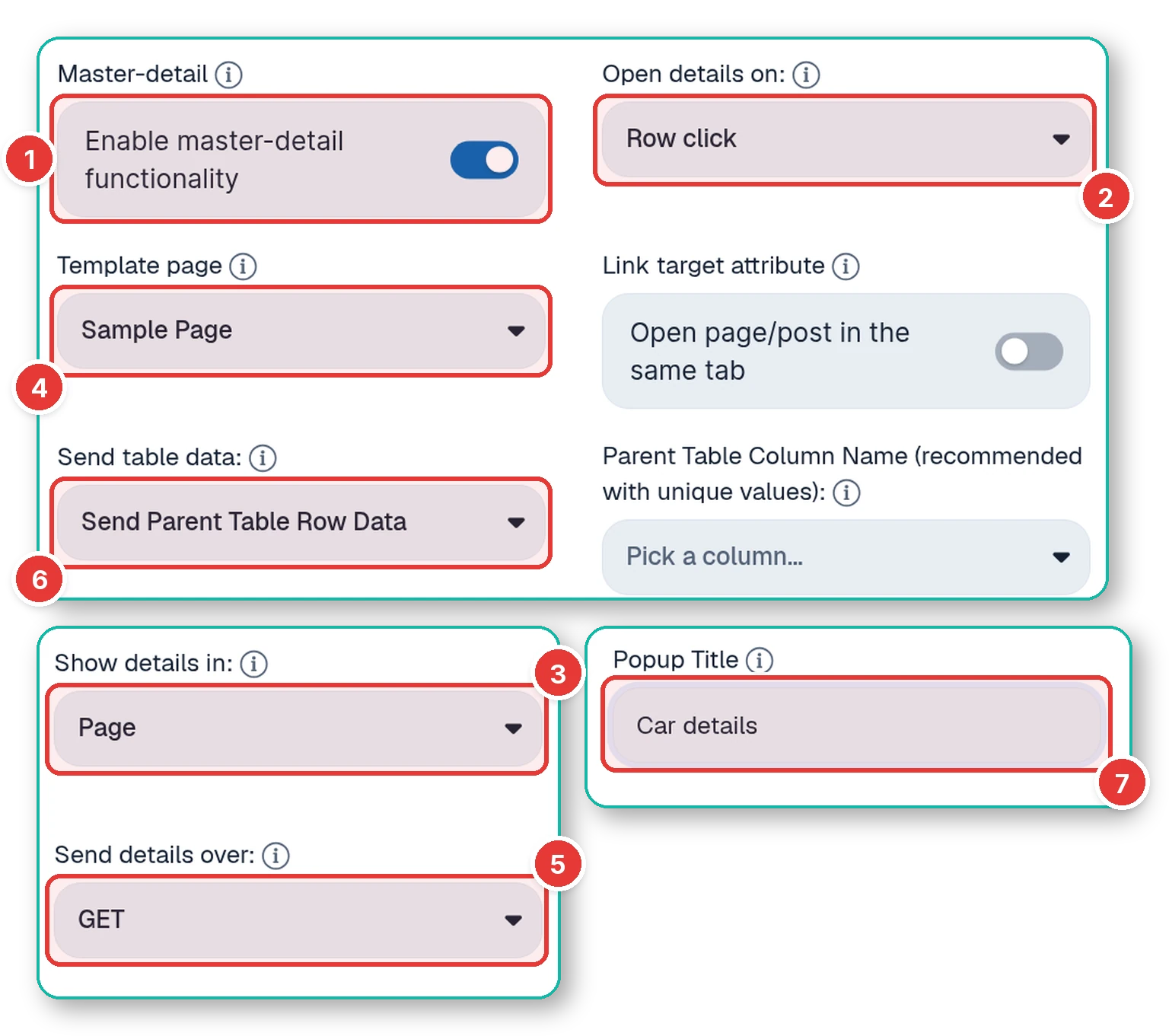
Open the table in the editor, open the Master-detail Settings tab and turn on Enable master-detail functionality under Master-detail. The options below appear. The add-on works with any table type, and the details can include visible and hidden columns, so you can hide the less important columns and still show them in the details.
Which Master-Detail options can I set?
| Option | What it does |
|---|---|
| Open details on | Row click opens the details when a visitor clicks a row. Button click adds a Details column with a More details link in every row. |
| Show details in | Popup shows the details on the same page. Page or Post opens a template page or post filled with the row’s data. |
| Popup Title | The title of the popup. Empty means “Row details”. |
| Template page / Template post | The page or post with placeholders that shows the details. Appears when you choose Page or Post. |
| Link target attribute | Open page/post in the same tab. Off (default): the details open in a new tab. On: they open in the same tab. |
| Send details over | Appears when you choose Page or Post. POST (default) sends the row data in the background, so the template shows data only after a click in the table. GET puts the data in the URL, so every row gets its own link that works on its own. |
| Send table data | Appears with GET: Send Parent Table Row Data, Send Child Table Row Data or Send Child Table Data. See below. |
| Child table list, Parent Table Column Name (recommended with unique values), Child Table Column Name | The child table and the two columns with matching unique values that link the tables. The lists show Pick a child table… and Pick a column… until you choose. |
How do I show row details in a popup?
Set Open details on to Row click, Show details in to Popup, type a Popup Title and save the table. On the front end, a click on a row opens the popup with that row’s details.
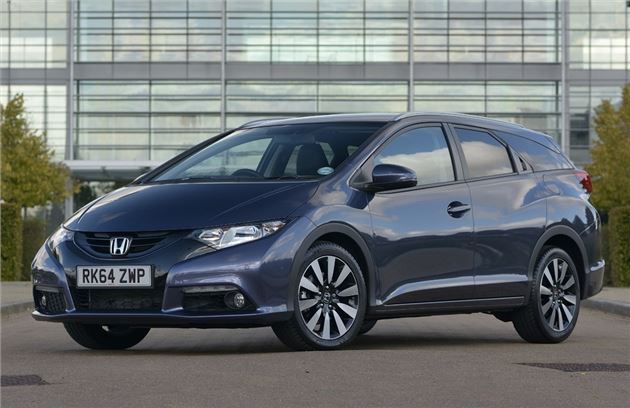
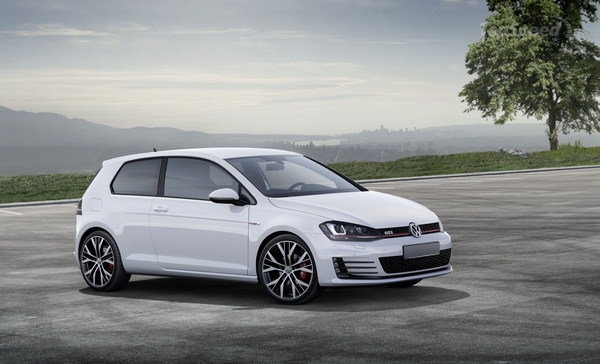
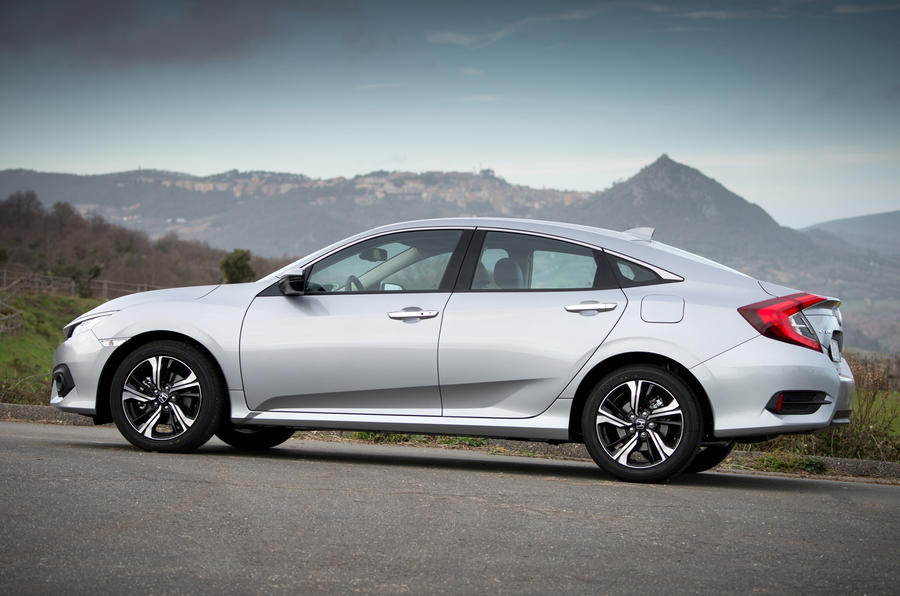
Click a row in this car table to see its full description in a popup. It was created from this Excel file, with Row click, Popup and the title “Car description”.


In editable tables, a click selects the row instead, so the details open from a Details button next to the New, Edit and Delete buttons (and in the popover, if you use popover editing). Tables linked to a data source open the details right away.
Video: opening row details in a popup.
How do I open the details with a button?
Set Open details on to Button click. wpDataTables adds a Details column with a More details link in every row, in editable and read-only tables alike.
Click More details in any row of this table to open the popup.
The Details column has its own column settings. In the Display tab you can change its header, position, CSS class and visibility on mobile, like any other column. In the Data tab, turn on Show link as a button to show a button instead of a link, then set the Button text and a Button class for your own style. For example, add this CSS for a md-button class in wpDataTables → Settings → Custom JS and CSS:
.md-button{background-color:#0083c2 !important;color:#fff !important;border:1px solid transparent;border-radius:28px;padding:.75rem 2rem;font-size:18px;line-height:1.75;box-shadow:0 2px 6px 0 rgba(122,122,122,.5);transition:all .3s ease;}
.md-button:hover{cursor:pointer;background:#008cff !important;}
How do I choose which columns show in the details?
Every column (except the Details column) has the option Add to the details section in its column settings, under Master-detail column. It’s on by default. Turn it off for columns that shouldn’t appear in the details. You can change it for all columns at once in the Column list above the table. Hidden columns can still show in the details.
How do I show the details on a page or post?
Create a template page or post with placeholders, then choose it in the table’s settings:
- Find the column names. Use the original header of each column you want to show, the column name from your data source, for example Make.
- Create the template. Create a page (or post) and design it as you like, with any blocks or page builder. Where a value should appear, type the original header between percent signs, for example
%Make%. - Choose the template. In the table’s Master-detail Settings, set Show details in to Page (or Post) and choose the template in Template page.
- Save the table. A click on a row or button now opens the template filled with that row’s data.
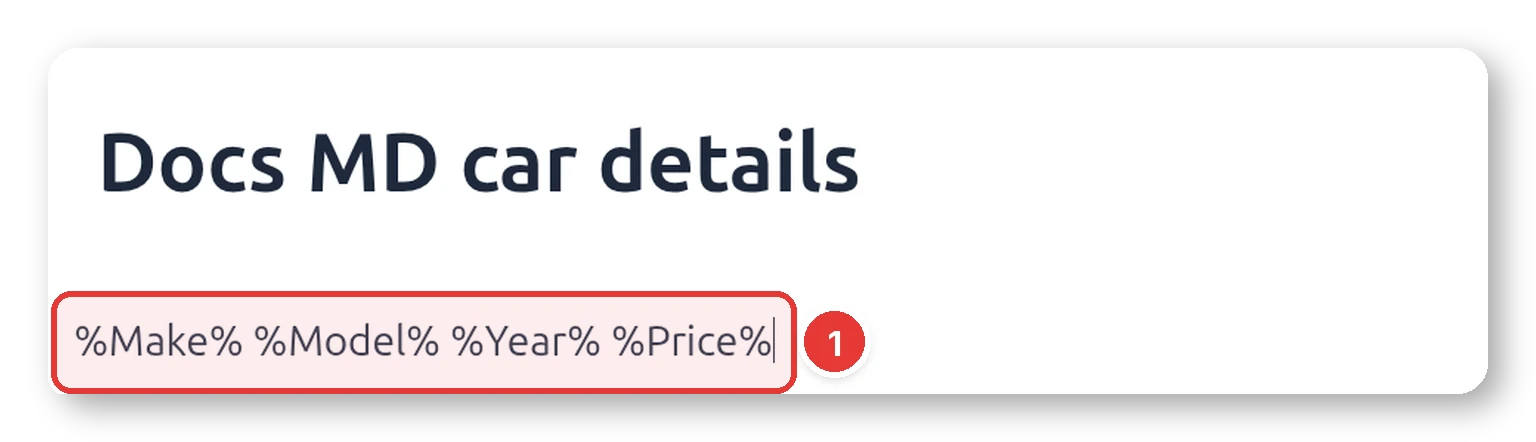
A placeholder only shows data if its column has Add to the details section on. With POST, a template page that someone opens directly shows empty placeholders. With GET, each row’s link works on its own and can be shared.
This car table opens a template page built with WPBakery. Click Tech details in any row.
How do I link a parent table and a child table?
Set Send details over to GET, then choose what to send in Send table data:
| Send table data | What the template shows | Template needs |
|---|---|---|
| Send Parent Table Row Data | The clicked row from this table. | Column placeholders, for example %Model%. |
| Send Child Table Row Data | The one matching row from the child table (one-to-one). | Placeholders for the child table’s columns. |
| Send Child Table Data | All matching rows from the child table, as a table (one-to-many). | The placeholder %wpdatatables_md_child_table%. |
For the two child options, choose the child table in the child table list (Pick a child table…), and choose the linking columns in Parent Table Column Name and Child Table Column Name. Both columns need matching unique values, for example an ID. With Send Child Table Row Data, only the first matching child row shows.
How does one row open on its own page?
With Send Parent Table Row Data and GET, each row opens on the template page with a link you can share. This table was created from this Excel file with Button click, Page, GET, Send Parent Table Row Data and wdt_ID as the Parent Table Column Name. Click More details, then copy the page URL: it opens the same car any time.
How do details come from a child table?
With Send Child Table Row Data, a click shows the matching row of a second table. The parent table lists universities (University.xlsx) and the child table holds their descriptions (University-details.xlsx), linked by wdt_ID. Click a row to open the description from the child table.
| wdt_ID | wdt_created_by | wdt_created_at | wdt_last_edited_by | wdt_last_edited_at | FacultyID | FacultyName | Location | EstablishedYear | StudentCount | ProgramsOffered |
|---|---|---|---|---|---|---|---|---|---|---|
| 1 | Sara | 18/07/2024 02:48 PM | Sara | 18/07/2024 02:48 PM | 1 | Faculty of Engineering | New York, NY | 1,854 | 5,000 | 10 |
| 2 | Sara | 18/07/2024 02:48 PM | Sara | 18/07/2024 02:48 PM | 2 | Faculty of Medicine | Los Angeles, CA | 1,900 | 4,000 | 8 |
| 3 | Sara | 18/07/2024 02:48 PM | Sara | 18/07/2024 02:48 PM | 3 | Faculty of Business | Chicago, IL | 1,920 | 3,000 | 12 |
| 4 | Sara | 18/07/2024 02:48 PM | Sara | 18/07/2024 02:48 PM | 4 | Faculty of Arts | Boston, MA | 1,870 | 2,000 | 15 |
| 5 | Sara | 18/07/2024 02:48 PM | Sara | 18/07/2024 02:48 PM | 5 | Faculty of Sciences | San Francisco, CA | 1,930 | 3,500 | 20 |
| 6 | Sara | 18/07/2024 02:48 PM | Sara | 18/07/2024 02:48 PM | 6 | Faculty of Law | Washington, D.C. | 1,800 | 1,000 | 5 |
| 7 | Sara | 18/07/2024 02:48 PM | Sara | 18/07/2024 02:48 PM | 7 | Faculty of Education | Austin, TX | 1,950 | 2,500 | 7 |
| 8 | Sara | 18/07/2024 02:48 PM | Sara | 18/07/2024 02:48 PM | 8 | Faculty of Computer Science | Seattle, WA | 1,980 | 4,000 | 10 |
| 9 | Sara | 18/07/2024 02:48 PM | Sara | 18/07/2024 02:48 PM | 9 | Faculty of Architecture | Miami, FL | 1,850 | 1,500 | 6 |
| 10 | Sara | 18/07/2024 02:48 PM | Sara | 18/07/2024 02:48 PM | 10 | Faculty of Social Sciences | Philadelphia, PA | 1,890 | 3,000 | 10 |
| FacultyID | FacultyName | Location | EstablishedYear | StudentCount | ProgramsOffered |
How do all related rows show as a table?
With Send Child Table Data, a click shows every matching row of the child table. The parent table lists products (Product-details.xlsx) and the child table lists orders (Order-details.xlsx), linked by productid. Click a product to see all of its orders in a table.
| wdt_ID | wdt_created_by | wdt_created_at | wdt_last_edited_by | wdt_last_edited_at | ProductID | ProductName | Category | Price | Stock | Supplier | SupplierContact | Description | Weight | Dimensions | Warranty | Rating | ManufactureDate | ExpiryDate | Discount | SKU | Color | Material | OriginCountry | Brand | PackageType |
|---|---|---|---|---|---|---|---|---|---|---|---|---|---|---|---|---|---|---|---|---|---|---|---|---|---|
| 1 | Sara | 18/07/2024 11:10 AM | Sara | 18/07/2024 11:10 AM | 1 | Laptop | Electronics | 1,200 | 50 | TechSupplier | 123-456-7890 | High performance laptop | 2.5 kg | 30x20x2 cm | 18/07/2026 | 4.50 | 15/01/2023 | 15/01/2026 | 10% | LTP1200 | Black | Metal | USA | TechBrand | Box |
| 2 | Sara | 18/07/2024 11:10 AM | Sara | 18/07/2024 11:10 AM | 2 | Smartphone | Electronics | 800 | 100 | PhoneWorld | 987-654-3210 | Latest model smartphone | 0.5 kg | 15x7x0.8 cm | 18/07/2025 | 4.80 | 01/03/2023 | 01/03/2025 | 5% | SM800 | Silver | Metal | China | PhoneCo | Box |
| 3 | Sara | 18/07/2024 11:10 AM | Sara | 18/07/2024 11:10 AM | 3 | Office Chair | Furniture | 150 | 200 | OfficeGear | 456-789-0123 | Ergonomic office chair | 10 kg | 60x60x120 cm | 18/07/2029 | 4.20 | 20/11/2022 | 20/11/2028 | 15% | OC150 | Black | Fabric | Germany | Comfort | Box |
| 4 | Sara | 18/07/2024 11:10 AM | Sara | 18/07/2024 11:10 AM | 4 | Coffee Maker | Kitchen | 100 | 75 | KitchenPro | 321-654-9870 | Automatic coffee maker | 3 kg | 25x25x35 cm | 18/07/2027 | 4.00 | 10/05/2023 | 10/05/2026 | 20% | CM100 | White | Plastic | Italy | BrewMaster | Box |
| 5 | Sara | 18/07/2024 11:10 AM | Sara | 18/07/2024 11:10 AM | 5 | Headphones | Electronics | 200 | 150 | SoundTech | 789-012-3456 | Noise-cancelling headphones | 0.3 kg | 20x15x5 cm | 18/07/2025 | 4.70 | 25/02/2023 | 25/02/2024 | 10% | HP200 | Black | Plastic | Japan | AudioMax | Box |
| 6 | Sara | 18/07/2024 11:10 AM | Sara | 18/07/2024 11:10 AM | 6 | Gaming Console | Electronics | 500 | 60 | GameZone | 654-321-0987 | Next-gen gaming console | 4 kg | 40x30x10 cm | 18/07/2026 | 4.90 | 01/06/2023 | 01/06/2026 | 5% | GC500 | Black | Plastic | USA | GameTech | Box |
| 7 | Sara | 18/07/2024 11:10 AM | Sara | 18/07/2024 11:10 AM | 7 | Microwave Oven | Kitchen | 250 | 80 | HomeAppliances | 098-765-4321 | Convection microwave oven | 15 kg | 50x50x30 cm | 18/07/2027 | 4.40 | 15/04/2023 | 15/04/2026 | 10% | MO250 | Silver | Metal | South Korea | HomeCook | Box |
| 8 | Sara | 18/07/2024 11:10 AM | Sara | 18/07/2024 11:10 AM | 8 | Vacuum Cleaner | Home | 180 | 90 | CleanUp | 123-789-4560 | High-power vacuum cleaner | 8 kg | 35x35x50 cm | 18/07/2026 | 4.30 | 20/01/2023 | 20/01/2025 | 10% | VC180 | Red | Plastic | UK | CleanMaster | Box |
| 9 | Sara | 18/07/2024 11:10 AM | Sara | 18/07/2024 11:10 AM | 9 | Smartwatch | Electronics | 250 | 120 | GadgetWorld | 432-987-6543 | Multi-function smartwatch | 0.1 kg | 5x5x1 cm | 18/07/2025 | 4.60 | 10/03/2023 | 10/03/2024 | 5% | SW250 | Black | Metal | China | TechWear | Box |
| 10 | Sara | 18/07/2024 11:10 AM | Sara | 18/07/2024 11:10 AM | 10 | Air Conditioner | Home | 600 | 30 | CoolAir | 321-123-6547 | Energy-efficient AC unit | 20 kg | 70x50x25 cm | 18/07/2029 | 4.20 | 01/12/2022 | 01/12/2027 | 15% | AC600 | White | Plastic | Japan | AirCool | Box |
What are the limits of Master-Detail tables?
What should I remember about Master-Detail tables?
Turn on Enable master-detail functionality in the table’s Master-detail Settings tab, choose Row click or Button click, and show the details in a popup or on a template page with %column% placeholders. Use GET to give every row its own link, and Send table data to show one row or all related rows from a child table. Choose the columns for the details with Add to the details section.
Where can I read more?
These pages cover the next steps: