


Table of Contents
Formula (calculated) columns are columns whose values wpDataTables computes “on the fly” from other numeric columns, so you can show results such as tax or a difference that do not exist in your source data. From version 5.7, the calculation functions can also be used in Formula Columns.
Use a formula column whenever your dataset is not comprehensive and you need a value calculated from other columns’ cell values.
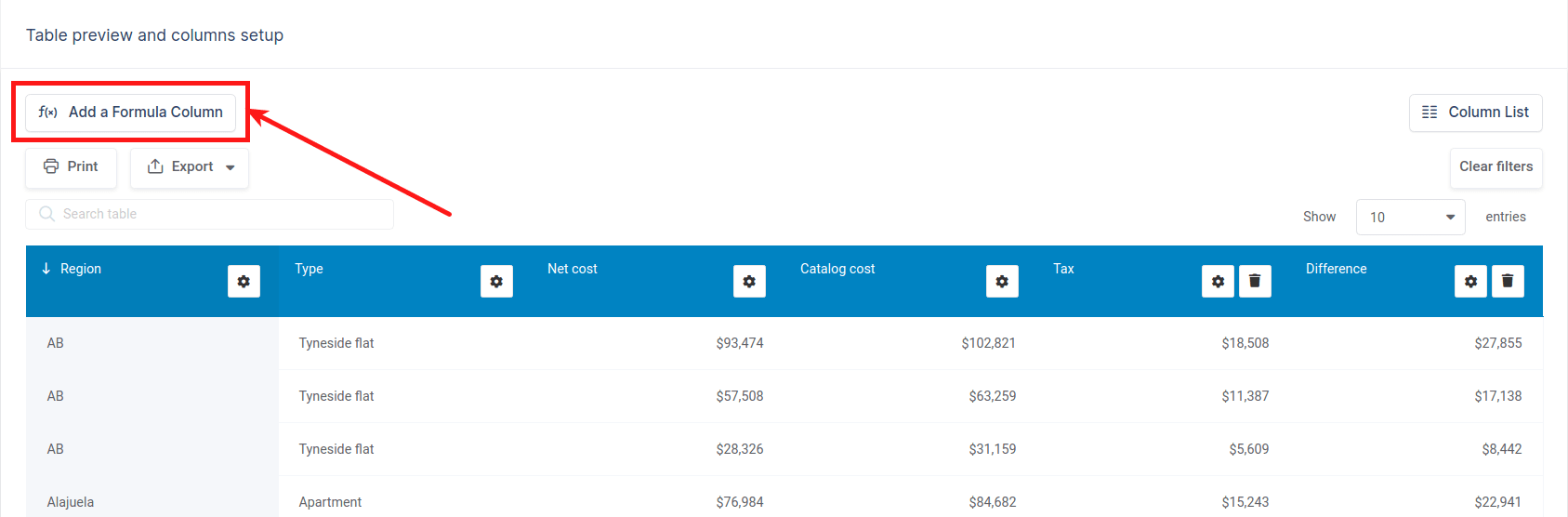
Any table can have a formula column. To add one, you can click the “Add a formula column” button:
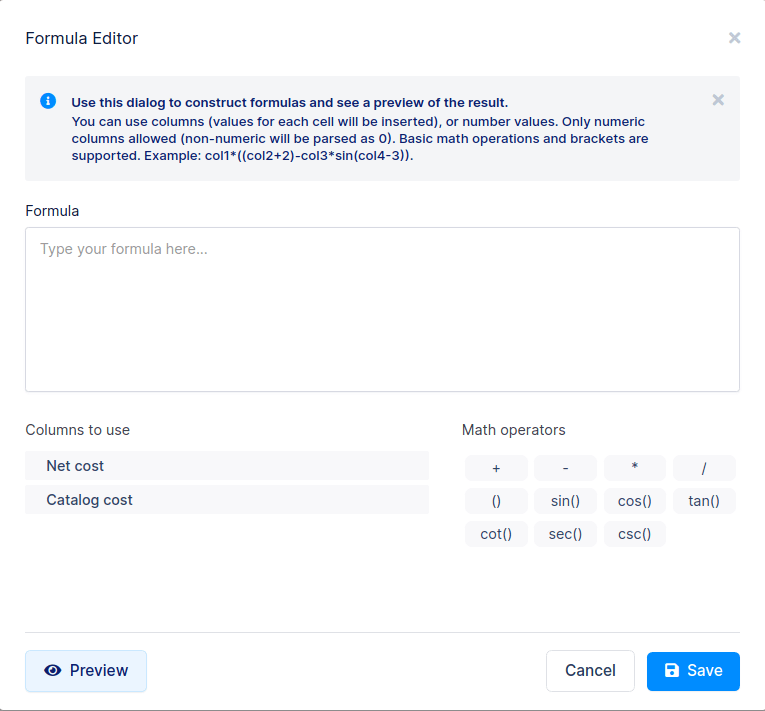
After you click the “Add formula a column” button, you will see a popup formula constructor. It has a fixed name ‘formula_1’, ‘formula_2’, etc. – depending on the amount of formulas that you added.
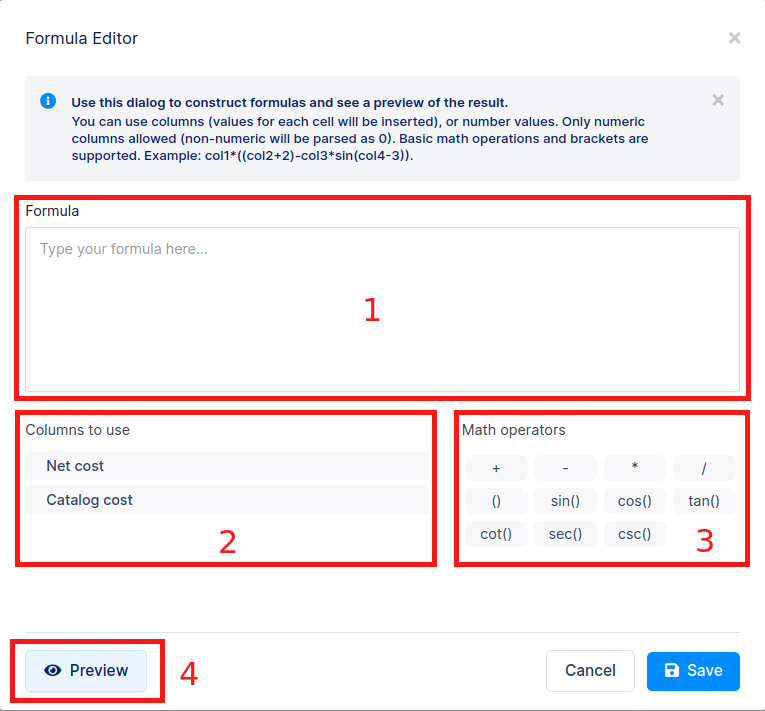
The formula constructor popup has several main elements:
Additionally, there is an explanation text on the top.
You can use columns (values for each cell will be inserted), or number values. Only numeric columns are allowed (non-numeric will be parsed as 0). Basic math operations and brackets are supported. Example: col1*((col2+2)-col3*sin(col4-3)).
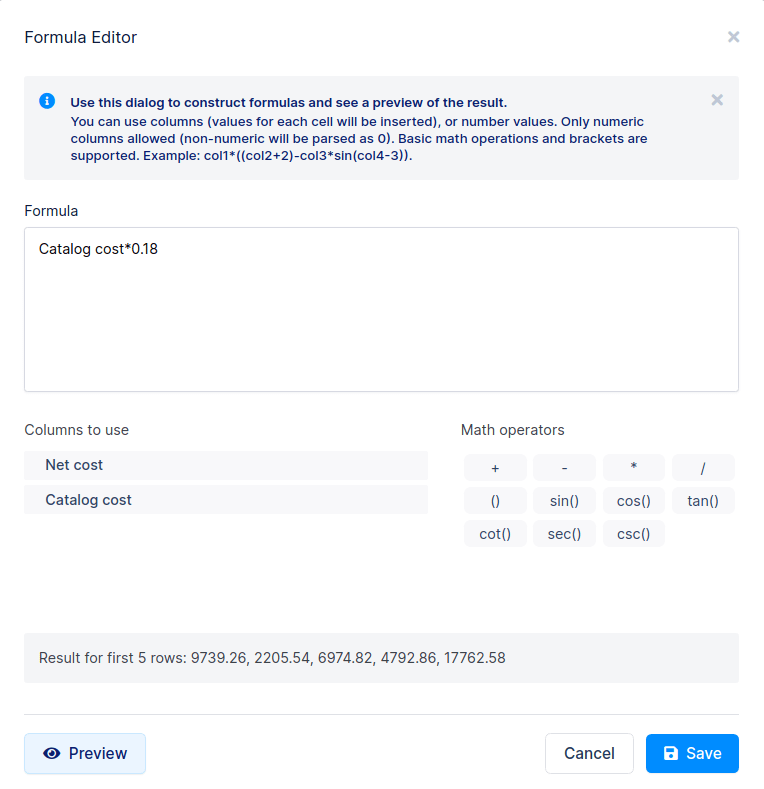
To calculate the “Tax” column in the above example, we can simply use the catalog cost column value, multiply it by some number, and click “Save“.
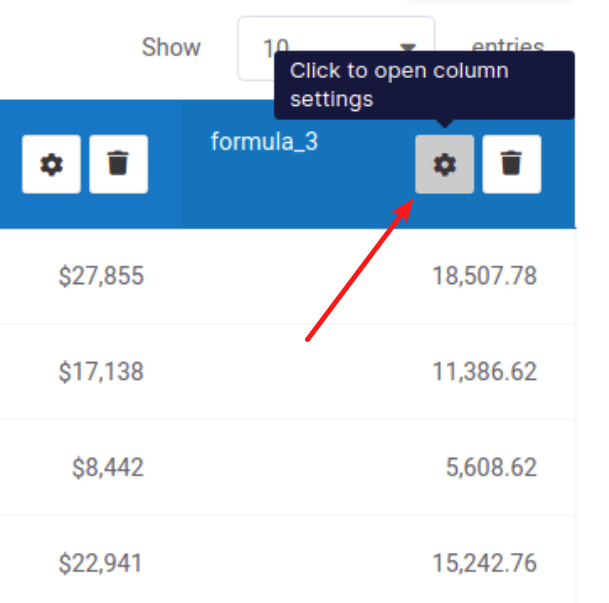
Now let’s change the displayed header of the formula column. To do that, click the button for column settings.
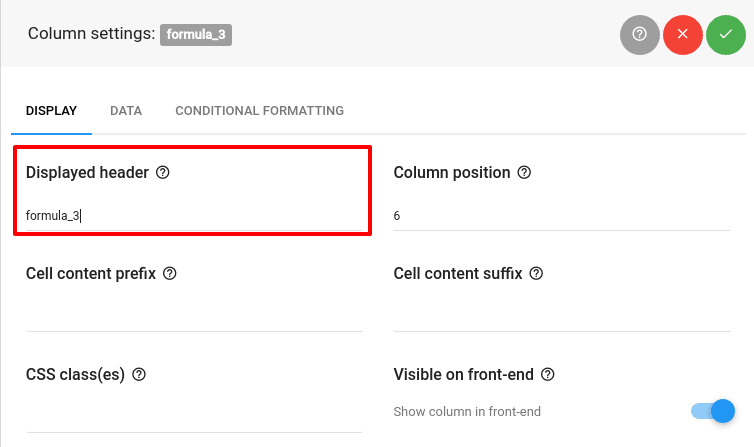
Enter the new value in the “Displayed header” input in the first tab column setting and click apply.
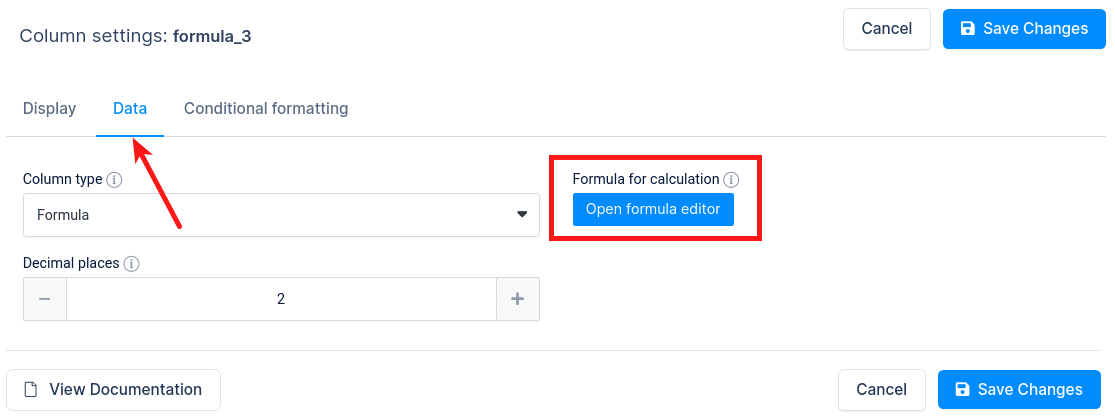
If you want to change the formula for a calculation you can go to the “Data” tab and click on the “Open Formula Editor” button.
After you click on THE “Open Formula Editor” button, the formula constructor popup will appear. You can use it to adjust the formula that is used for calculation.
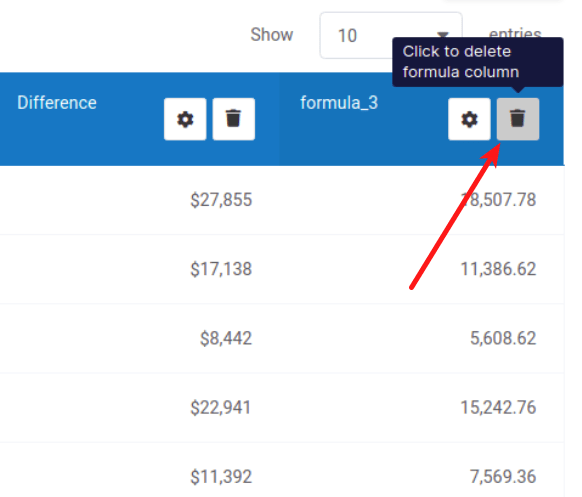
Formula columns can be easily deleted by clicking the “Delete” button in the column header area in the live table preview.
There are several limitations to keep in mind when using formula columns in wpDataTables.
Click here to see this table in our sandbox site or here to play around with back-end configuration.
The documentation below covers the data sources and column types most often used with formula columns.
To get your hands on wpDataTables Lite, please enter your email address below. We’ll send you a direct download link and keep you updated on existing features along with helpful tips and tricks!