Table of Contents
How to update the wpDataTables plugin
Say WordPress shows that a new wpDataTables version is out, and you want the new features without losing the tables on your live site. You can let WordPress update the plugin automatically once your purchase code is saved, or replace the plugin by hand with a ZIP file. Either way, your tables stay in the database.
How do I turn on automatic updates?
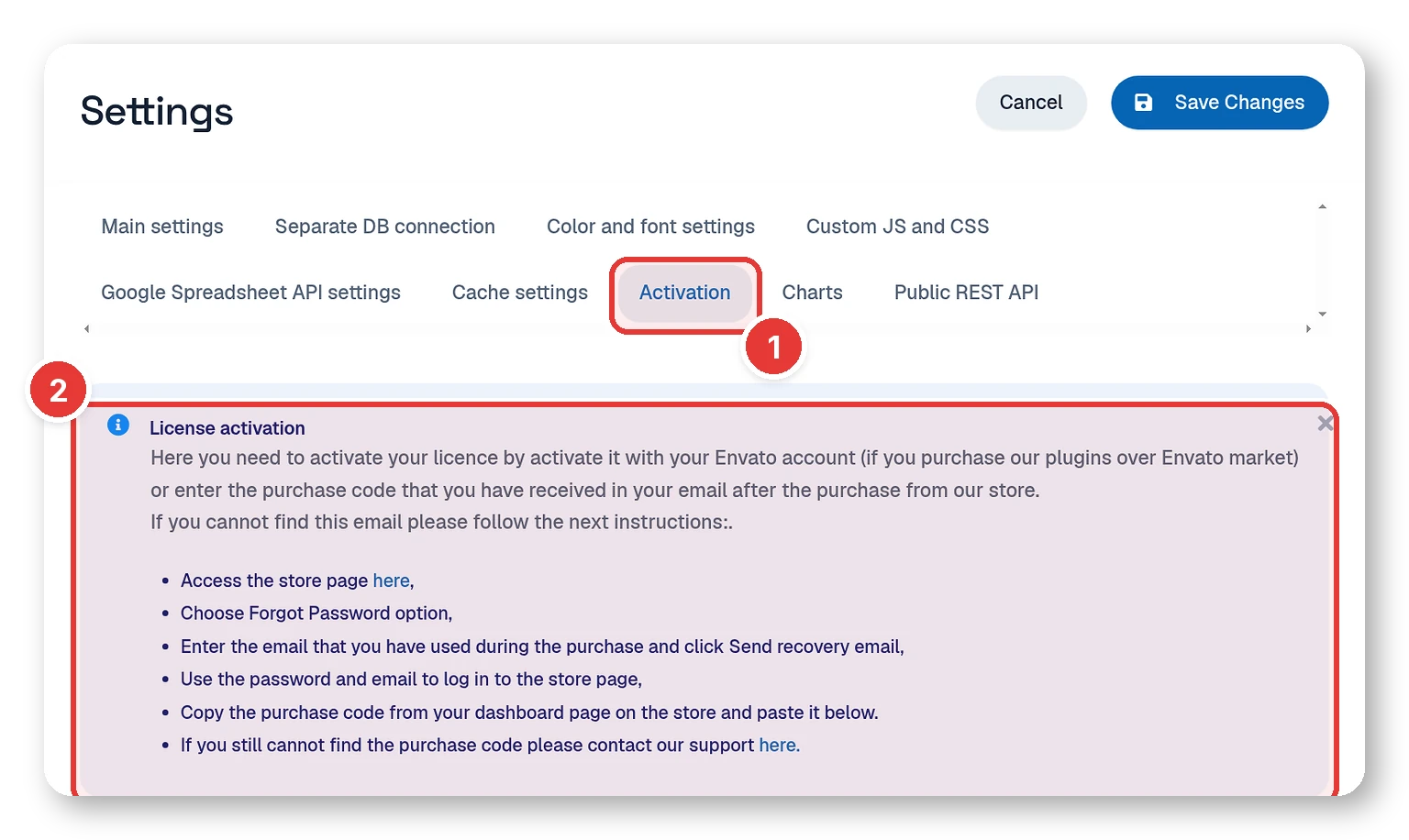
Paste your purchase code in wpDataTables → Settings → Activation, and WordPress then shows and installs new versions like for any other plugin.
- Find your purchase code. It is in the email you got after the purchase and on your dashboard page in the Melograno store. If you can’t find the email, open the store page, choose Forgot Password, enter the email you used for the purchase and click Send recovery email, then log in and copy the code from your dashboard page.
- Open the Activation tab. Go to wpDataTables → Settings and open the Activation tab. The License activation box at the top repeats these steps.
- Activate the plugin. Paste the code in the field below the License activation box and activate it. If you bought wpDataTables on Envato, leave the field empty and click Activate with Envato, then log in with the Envato account you used for the purchase.
- Update the plugin. When a new version is available, click update now in Plugins or Dashboard → Updates.
How do I update wpDataTables by hand?
Download the new ZIP file, delete the old plugin and upload the new one. Before you start, check that Prevent deleting tables in database is on in wpDataTables → Settings → Main settings.
- Download the new version. Get the ZIP file from the Melograno store, or from CodeCanyon if you bought the plugin on Envato.
- Delete the old version. In Plugins, deactivate wpDataTables and click Delete.
- Upload the new version. Go to Plugins → Add Plugin → Upload Plugin, choose the ZIP file and click Install Now.
- Activate and clear the cache. Click Activate Plugin, then clear your server and browser cache.
If you prefer FTP, open wp-content/plugins/, replace the wpdatatables folder with the unzipped new version, then deactivate and activate the plugin again in Plugins and clear the cache. If the upload fails, see why the plugin upload fails.
How do I move from wpDataTables Lite to Premium?
Delete wpDataTables Lite and install Premium, and your Lite tables carry over as long as Prevent deleting tables in database is on.
- Protect your tables. In wpDataTables → Settings, check that Prevent deleting tables in database is on.
- Remove Lite. In Plugins, deactivate wpDataTables Lite and click Delete.
- Install Premium. Download the ZIP file from the Melograno store, upload it in Plugins → Add Plugin → Upload Plugin and activate it.
- Add the purchase code. Paste it in wpDataTables → Settings → Activation to get automatic updates.
What should I remember about updating wpDataTables?
Save your purchase code in wpDataTables → Settings → Activation, or use Activate with Envato, and WordPress updates the plugin for you. For a manual update or a move from Lite to Premium, keep Prevent deleting tables in database on, delete the old plugin, upload the new ZIP file and clear the cache.
Where can I read more?
These pages cover the steps around an update: