Table of Contents
How to group rows in a wpDataTables table
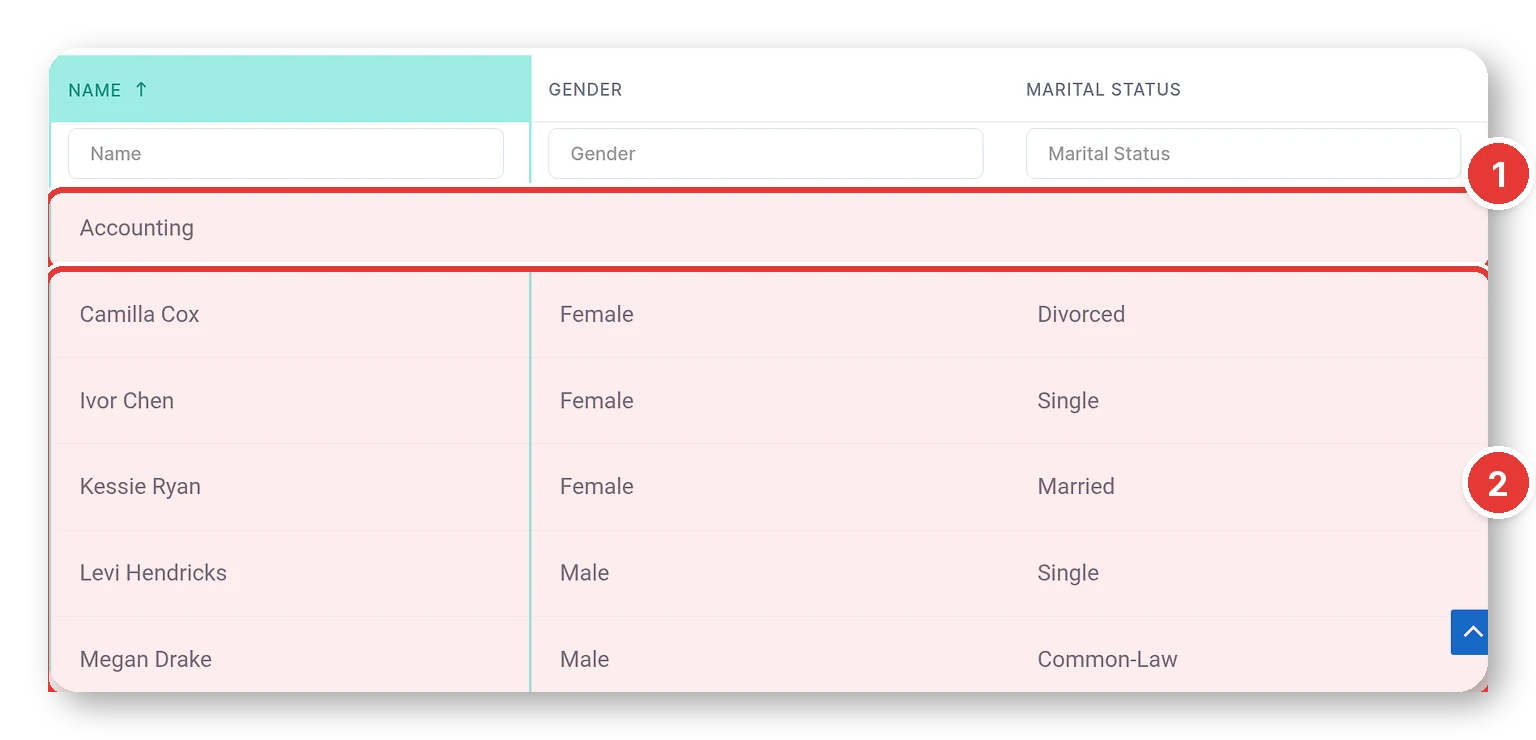
Say your staff table lists 100 employees with their name, gender, marital status and department. Visitors mostly want to see who works in which department, but the department repeats in every row. With row grouping, the Department column becomes a header row above each group: “Accounting” with its employees below it, then “Human Resources”, and so on. The grouping column itself is no longer shown as a column. You can group rows with Tabella AI or in the column settings.
How do I group rows with Tabella AI?
Open the table, click Ask Tabella AI and name the column to group by.
- Open the table. Go to wpDataTables → wpDataTables and click the table title.
- Ask Tabella AI. Click Ask Tabella AI and type, for example: Group the rows by Department.
- Check and save. Read the reply of Tabella AI and check the preview. Click Save Changes to keep the change, or Undo table changes to go back.
How do I group rows in the column settings?
Turn on Group column in the Display tab of the column you want to group by, and save the table.
- Open the table. Go to wpDataTables → wpDataTables and click the table title.
- Open the column settings. In the table preview, click the settings icon in the header of the column with the repeating values, for example Department.
- Turn on grouping. In the Display tab, under Group column, turn on Toggle column grouping.
- Save the table. Click Save Changes. The column disappears from the preview, and its values become group rows.
Because the column is no longer shown in the preview, open its settings later from Column List above the preview, for example to turn grouping off.
What should I remember about row grouping?
Ask Tabella AI to group the rows by a column, or turn on Group column in that column’s Display tab. The column turns into group rows, so reach its settings through Column List. Grouping works only without server-side processing and doesn’t carry over to exports.
Where can I read more?
These pages cover other ways to organize table data: