


You connect an AI assistant to wpDataTables by generating a WordPress application password and pointing your MCP client at the wpDataTables endpoint. Once connected, the assistant discovers the plugin’s tools and can build tables and charts for you from your own machine.
You switch the integration on once under wpDataTables → Settings → Main Settings, and the rest of the setup happens in your WordPress profile and in the client. For background on the technology behind the connection, refer to the AI Assistant integration documentation.
Table of Contents
Have these ready before you begin.
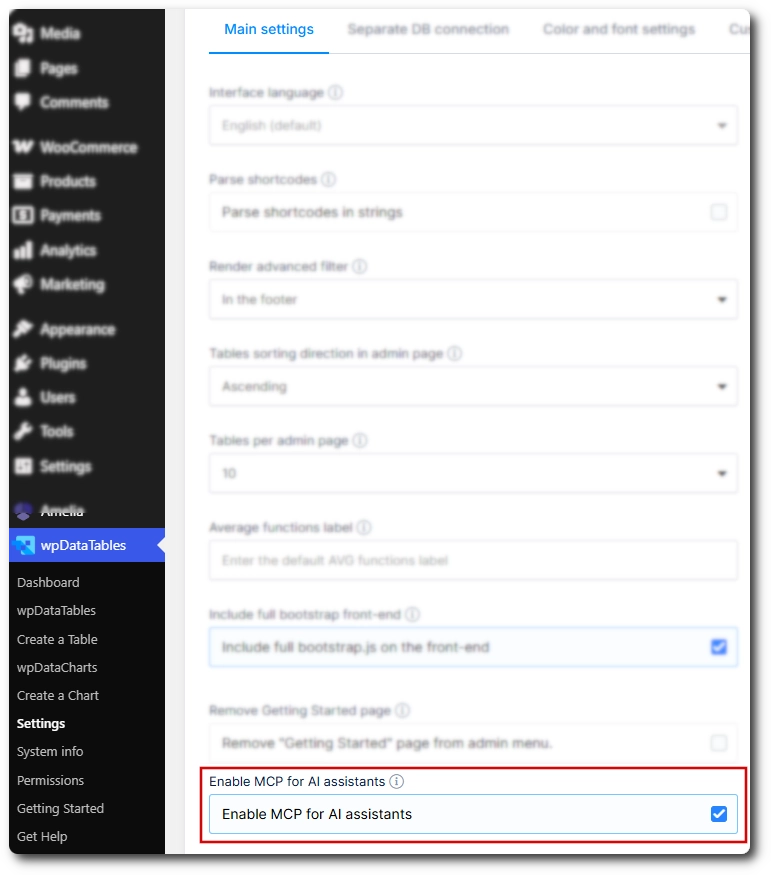
npx command used belowYou enable it once, in the plugin’s own settings. Go to wpDataTables → Settings → Main settings, scroll to Enable MCP for AI assistants, tick it, and save. Until this is saved, the endpoint does not exist, so a client pointed at it gets a 404 no matter how correct the rest of the configuration is. You only do this once per site, not once per client.
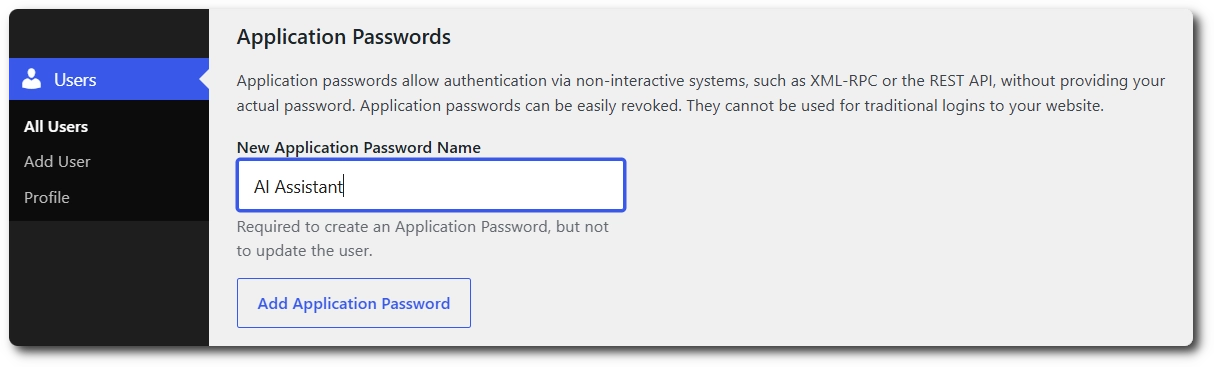
You create it from the WordPress profile of the account that will authorize the connection. Using a separate account just for the connection is a good idea, because you can revoke it without disturbing anyone’s day-to-day login and give it only the wpDataTables permissions the assistant actually needs. Go to WP Admin → Users → All Users, open that user, and scroll down to Application Passwords; for your own account, WP Admin → Users → Profile takes you to the same place. Enter a recognizable name like wpDataTables MCP, and click Add New Application Password. If you are creating a new account for this connection, add the user and save it first, then reopen it, because the Application Passwords section only appears once the account exists.
Copy the value right away; WordPress only shows it once, and keeping the spaces inside it is fine. For the username in your client config, use the WordPress login name shown at the top of the profile, not the label you gave the password, and not your email address.
Most clients speak stdio locally while WordPress speaks HTTP, so the connection runs through the @automattic/mcp-wordpress-remote proxy. In every client, you point that proxy at the wpDataTables endpoint, https://YOUR-SITE/wp-json/mcp/wpdatatables-mcp-server and pass your username and application password as environment variables.
Replace YOUR-SITE with your real domain and the credentials with the ones from the previous step, and keep the rest of the path exactly as shown.
Add the following block to claude_desktop_config.json. If the file already contains other MCP servers, add only the wpdatatables entry inside the existing mcpServers object instead of replacing the whole file.
{
  "mcpServers": {
    "wpdatatables": {
      "command": "npx",
      "args": ["-y", "@automattic/mcp-wordpress-remote@latest"],
      "env": {
        "WP_API_URL": "https://YOUR-SITE/wp-json/mcp/wpdatatables-mcp-server",
        "WP_API_USERNAME": "your-wp-login-username",
        "WP_API_PASSWORD": "xxxx xxxx xxxx xxxx xxxx xxxx",
        "OAUTH_ENABLED": "false"
      }
    }
  }
}
Run the following from the command line, and the server is registered without editing a configuration file by hand.
claude mcp add wpdatatables \
  --env WP_API_URL=https://YOUR-SITE/wp-json/mcp/wpdatatables-mcp-server \
  --env WP_API_USERNAME=your-wp-login-username \
  --env WP_API_PASSWORD='your-application-password' \
  --env OAUTH_ENABLED=false \
  -- npx -y @automattic/mcp-wordpress-remote@latest
Add the same mcpServers block shown for Claude Desktop under Cursor’s MCP settings, either in Cursor → Settings → MCP or in a project .cursor/mcp.json file, depending on your setup. The structure matches Claude Desktop’s format exactly, so the block can be copied across without changes.
Fully quit and reopen your client so the proxy starts with the new environment variables, then check that the wpDataTables server shows as connected and lists its tools. You should see 25 entries, named after the actions they perform, such as wpdatatables-list-tables, wpdatatables-get-system-info, wpdatatables-create-simple-table, and wpdatatables-create-chart.
Ask the assistant a read-only question first, such as to list the tables on your site or to report the plugin’s system info; if it returns data that matches your wpDataTables → Browse screen, the endpoint, credentials, and tool discovery are all working. Only test an action that creates something after the read-only request has succeeded.
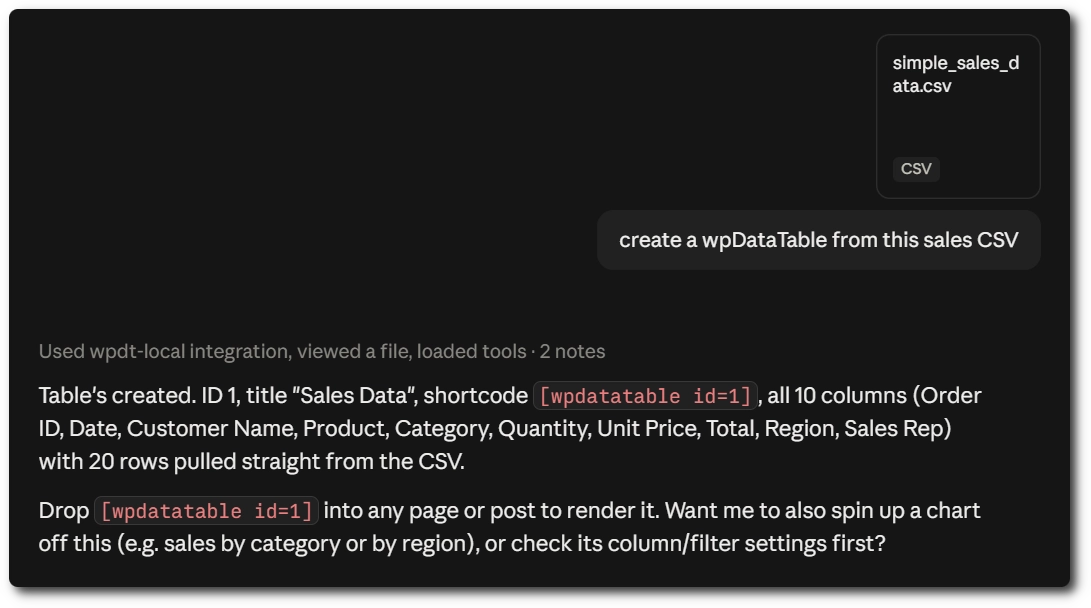
You ask in plain language, for example, “create a wpDataTable from this sales CSV”, and the assistant chains the actions itself. It typically starts by checking system info to learn your license tier and available connections, uploads the data file to the media library, and then either creates a live table that reads the file on every render or imports it once into MySQL as an editable table.
For database data, it inspects the schema first, listing and describing database tables, before creating a table from a SELECT query. The result comes back as a table ID and a shortcode, and the table appears under wpDataTables → Browse exactly as if you had built it in the wizard. wpDataTables also ships a built-in workflow prompt for the file upload path, so a client that supports MCP prompts can follow the recommended sequence without you spelling it out.
An empty tool list or a server error almost always comes down to one of the causes below.
/wp-json/mcp/wpdatatables-mcp-server, not just /wp-json/incorrect_password errornpx, which means Node.js is missing or was installed after the client was last started403 Forbidden page can mean the web server is stripping the Authorization header before the request reaches WordPress; ask your host to confirm that the header is passed throughConnecting an AI assistant to wpDataTables takes three things: the MCP integration enabled in the plugin’s settings, an application password from an account with the right wpDataTables permissions, and an MCP client pointed at /wp-json/mcp/wpdatatables-mcp-server through the WordPress remote proxy. Everything the assistant can then do runs through the same permission and license checks as the plugin’s own interface, so it is a second way into wpDataTables rather than a way around it.
To get your hands on wpDataTables Lite, please enter your email address below. We’ll send you a direct download link and keep you updated on existing features along with helpful tips and tricks!