


Hidden (dynamic) columns let you automatically populate values in wpDataTables manual tables. Available from version 6.3, they apply only to manual tables and stay hidden by default while filling in data for you.
Table of Contents
They are columns that auto-populate a value when a row is added, and they stay concealed by default. This feature applies exclusively to manual tables and lets you customize the auto-population settings for specific columns. You can add hidden columns during table creation or afterward.
By default, hidden columns remain concealed, but you can toggle visibility through the Column Display settings or the Column List. For each hidden field, define the “Dynamic editor predefined value” as needed; when new rows are added, the columns auto-populate accordingly. Hidden fields cannot be edited manually and will not appear as Editor Input Types during editing — they exist solely for auto-population.
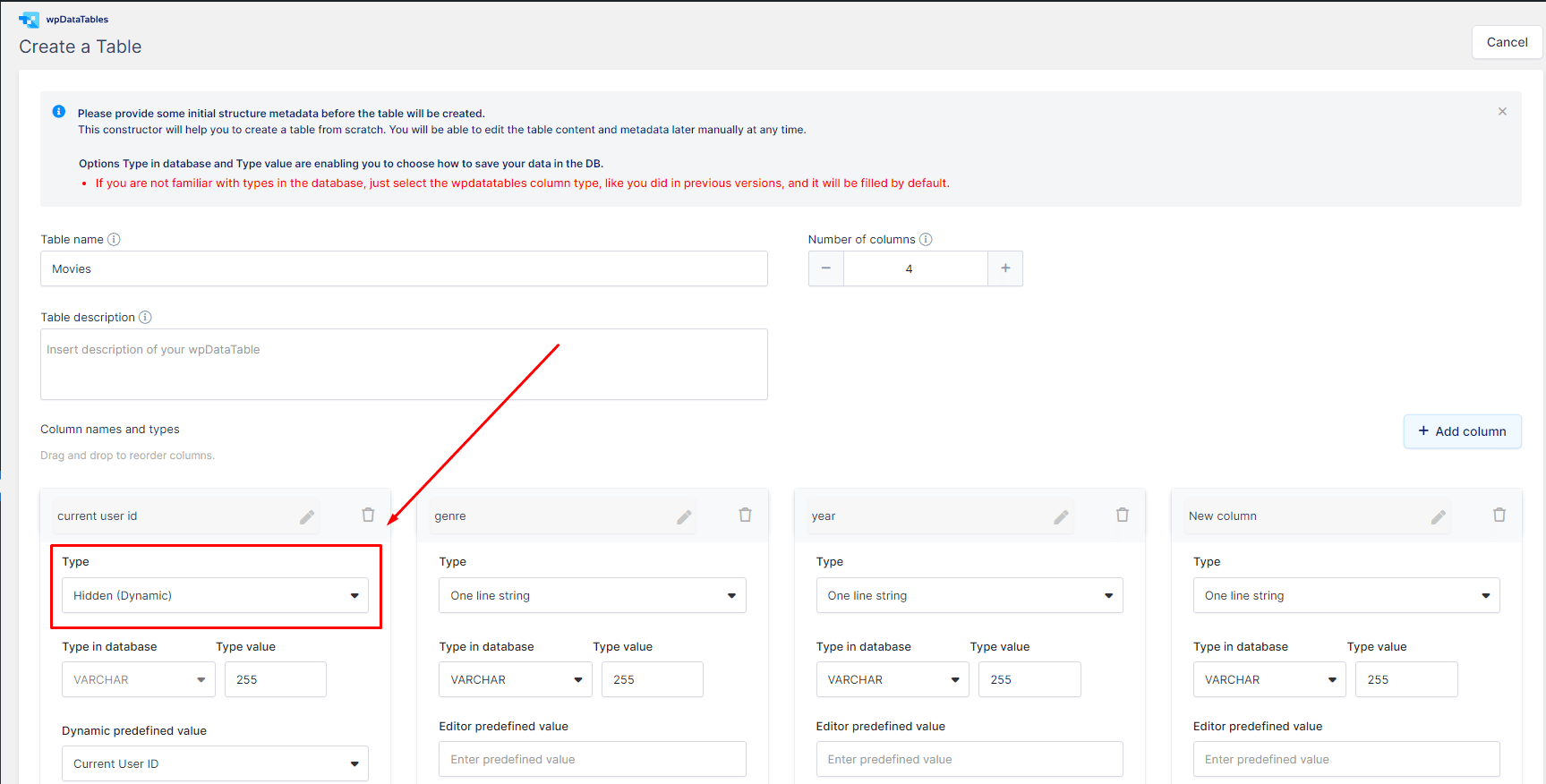
We will go over the types of ‘Dynamic editor predefined values’ you can choose from.
You can auto-populate from the current user, the current date and time, variable placeholders, post data, or Advanced Custom Fields.
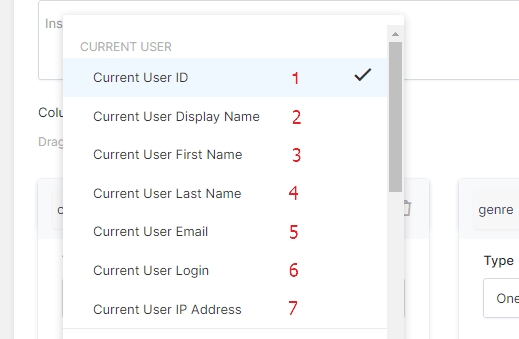
Under the “CURRENT USER“, you can find the following selections :
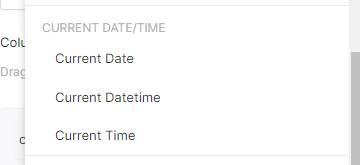
The options are Current Date (auto-populates when the row is edited), Current Datetime, and Current Time.
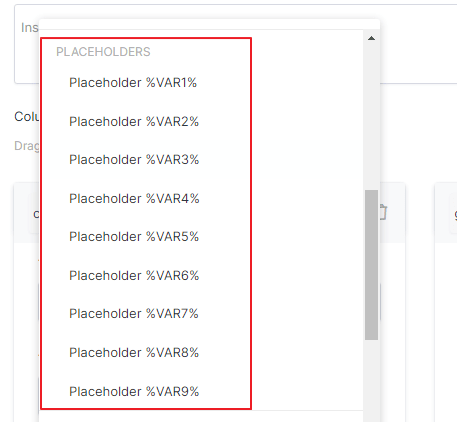
%VAR1%, %VAR2%, %VAR3%, %VAR4%, %VAR5%, %VAR6%, %VAR7%, %VAR8%, %VAR9% – these are the ‘variable’ placeholders.
You can provide a default value in the Table’s Placeholder settings that will be used for table generation, and when a different one is not defined in the shortcode.
You can check more on how our ‘variable’ placeholders are configured in tables here.
In the Post Data selection, all of these hidden field types can only be populated from the front-end. For example, Post ID auto-populates only when users create rows on the front-end and stays blank if added via the back-end Table Editor.
All Post Meta renders as a string on the front-end only; input the appropriate Post Meta Key to render Post Meta Values.
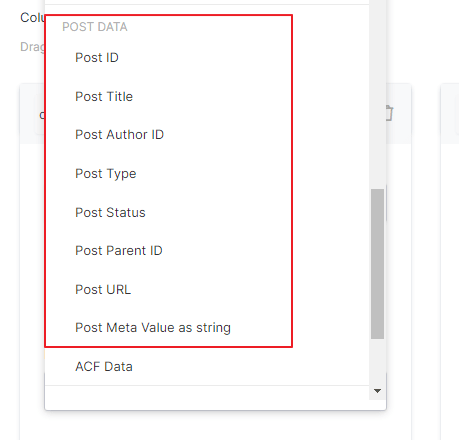
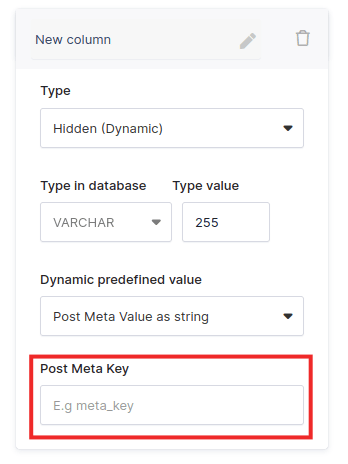
In order to render the Post Meta Value as string, you need to input the appropriate Post Meta Key.
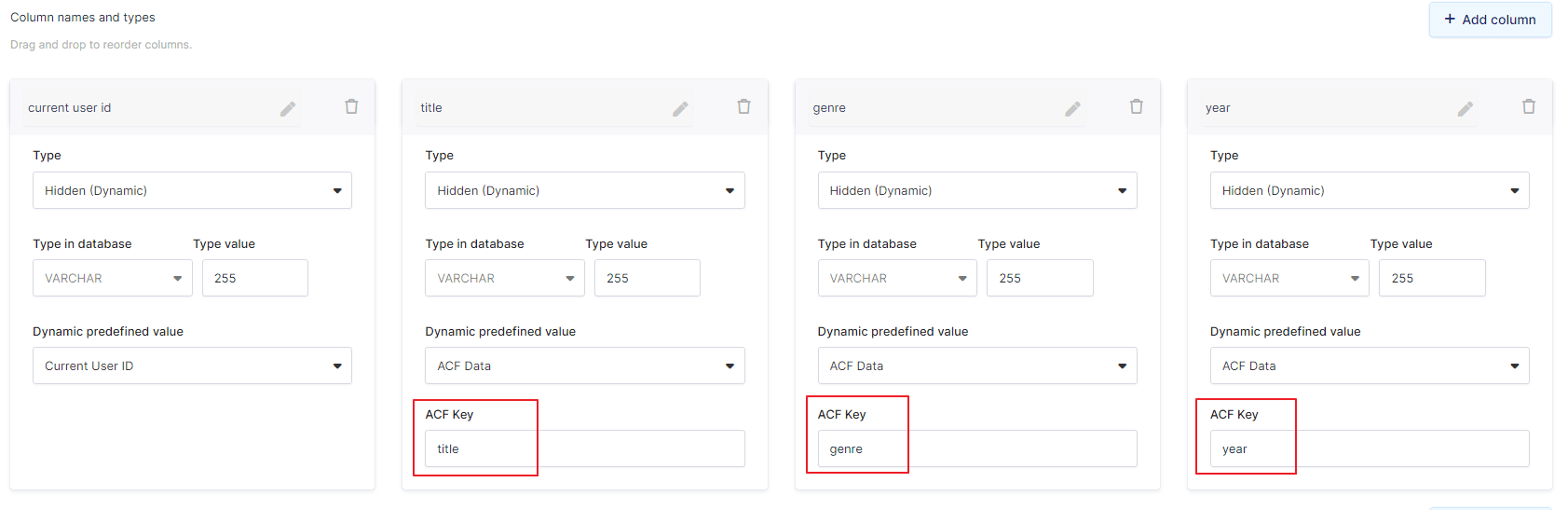
You can pull Advanced Custom Field (ACF) data by inserting your desired ACF Key and the table will store the value which matches from that specific WP Page where its shortcode is placed on.
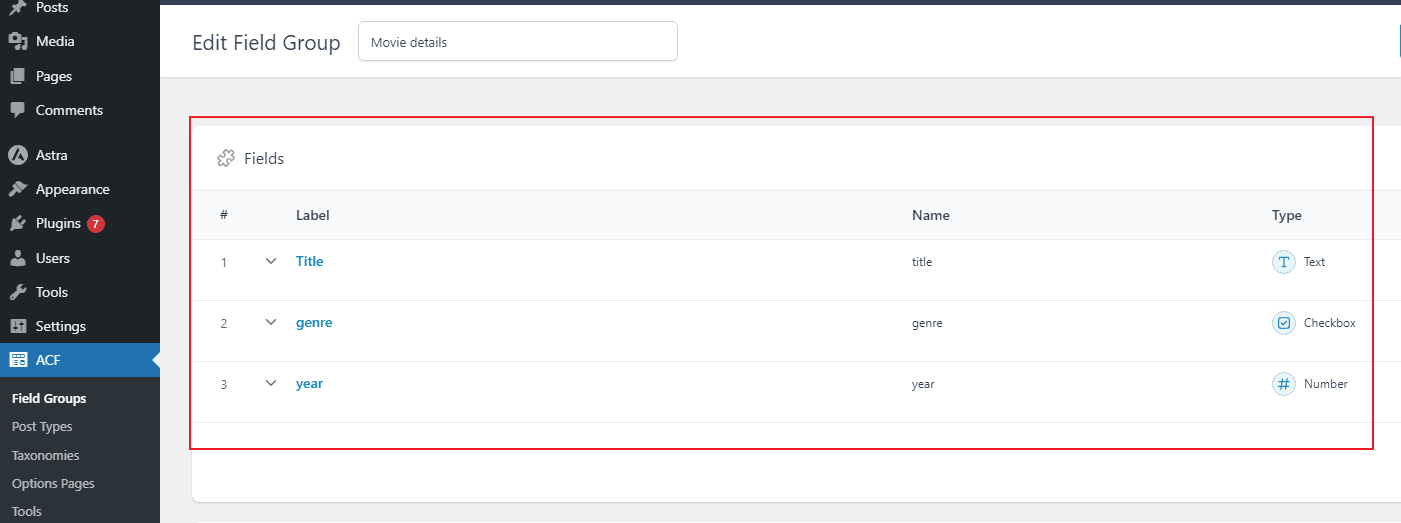
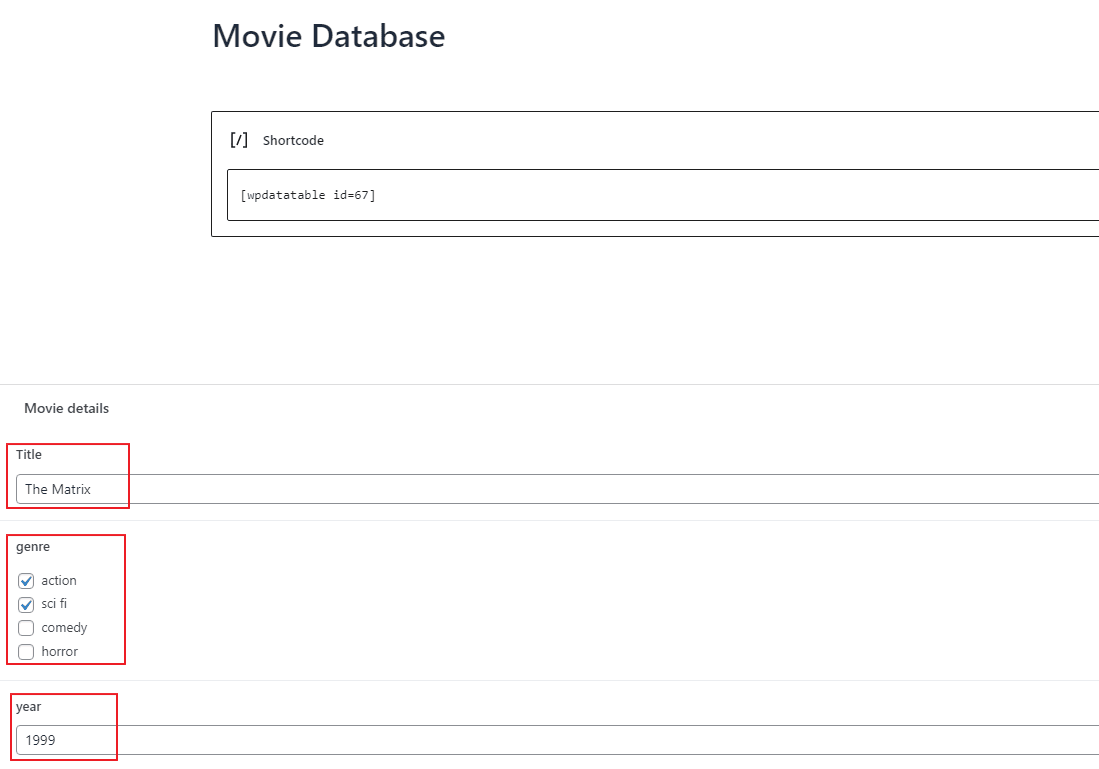
In this example, we created a Page about specific movie details and inserted a custom field group via ACF.
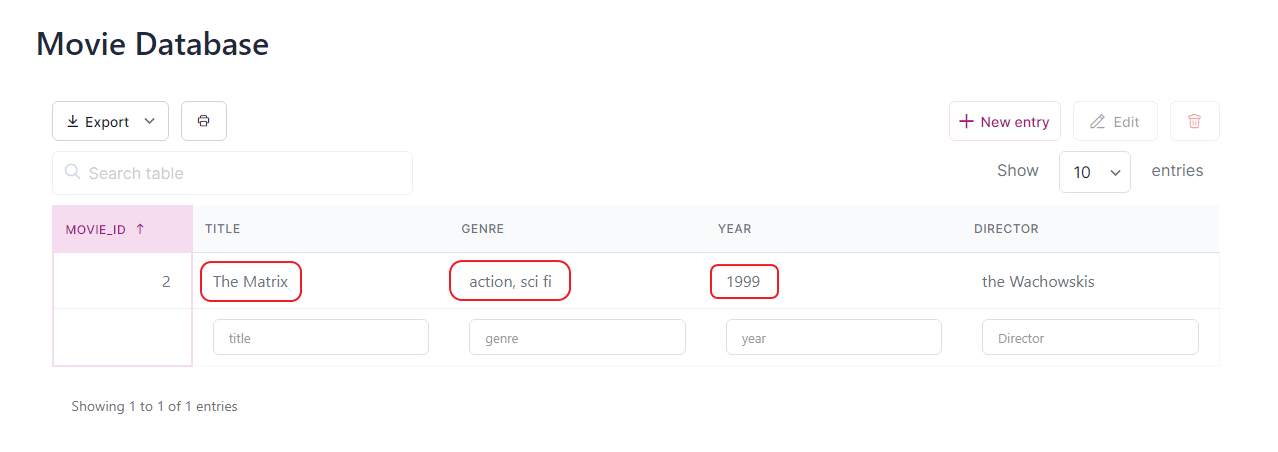
Let’s say we populate it on the Page Back-End Editor as Admin and set the custom field ‘title’ as “The Matrix”, the ‘genre’ is a checkbox of ‘action’ and ‘sci fi’ and the year is set as number 1999.
We need to have at least one editable Column in our Manual Table in order to be able to add new rows, so let’s set the ‘director’ as ‘One Line Editor’.
We can choose the hidden Columns ACF keys as ‘title’ along with other Custom fields from this Group.
Then we set our Manual Table shortcode on this Page and create a new row, the hidden ‘ACF Data’ fields will auto-populate the correct values matching their ACF key.
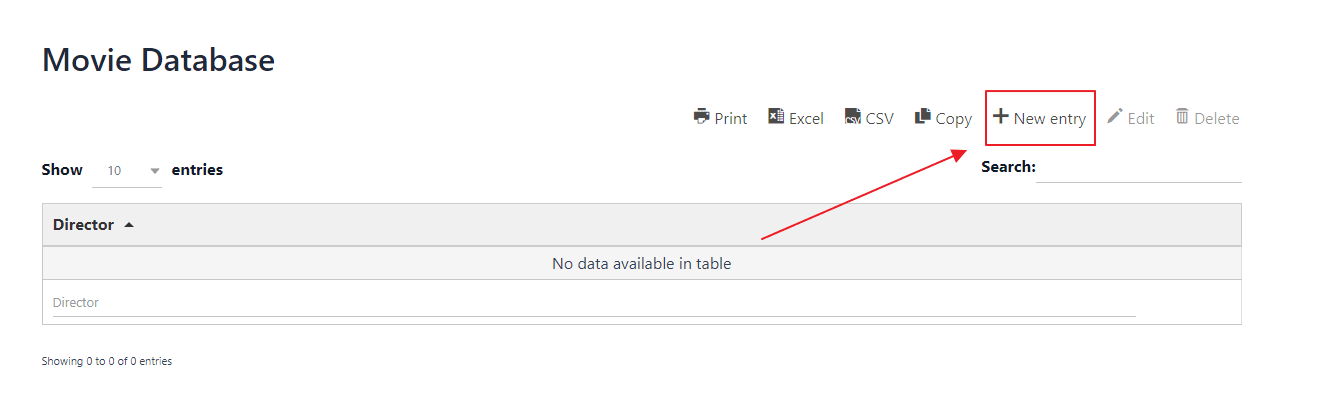
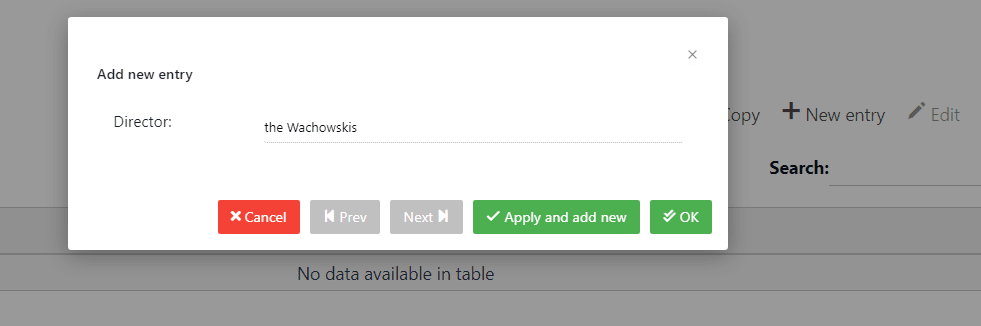
When we add a new row, the Table will only show us the columns which have an editor input type selected ( in this case, we will just insert the director as ‘the Wachowskis’).
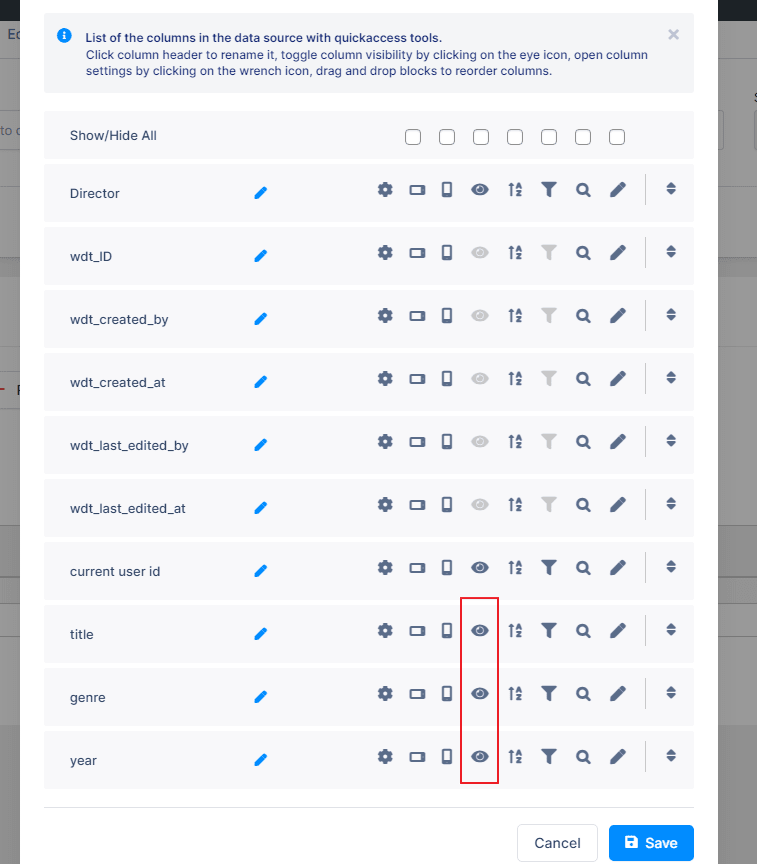
All the hidden Columns will auto-populate in the ‘background’ and we will then reveal them from the Column List to check how they look in the end.
To get your hands on wpDataTables Lite, please enter your email address below. We’ll send you a direct download link and keep you updated on existing features along with helpful tips and tricks!