Table of Contents
How to update a manual table from a CSV, Excel or Google Sheets file in wpDataTables
Say your team tracks tasks in an editable wpDataTables table, and every Friday the project lead sends an updated task list as a CSV file. Instead of editing every row, you point the table at the new file and choose what to do with it: replace the rows, add the new rows, or replace the whole table. The update works for manual tables, the editable tables stored in your database.
Which update option should I choose?
Choose the option by what the new file holds. The first two keep your table’s columns and settings, the third starts the table again from the file:
| Option | What happens | What the file needs |
|---|---|---|
| Replace rows with source data | Deletes all rows in the table and adds the rows from the file. Column settings stay. | The same number of columns, the same column headers, and at least one row. |
| Add rows to the current table data | Keeps the rows in the table and adds the rows from the file below them. | The same number of columns, the same column headers, and at least one row. |
| Replace the entire table with the source | Deletes all rows and all column settings, and creates the table again from the file with default column settings. | Any structure. |
How do I update a manual table from a file?
Open the manual table, choose the update option and the file in the Data source tab, and click Save Changes.
- Open the table. Go to wpDataTables → wpDataTables and open your manual table.
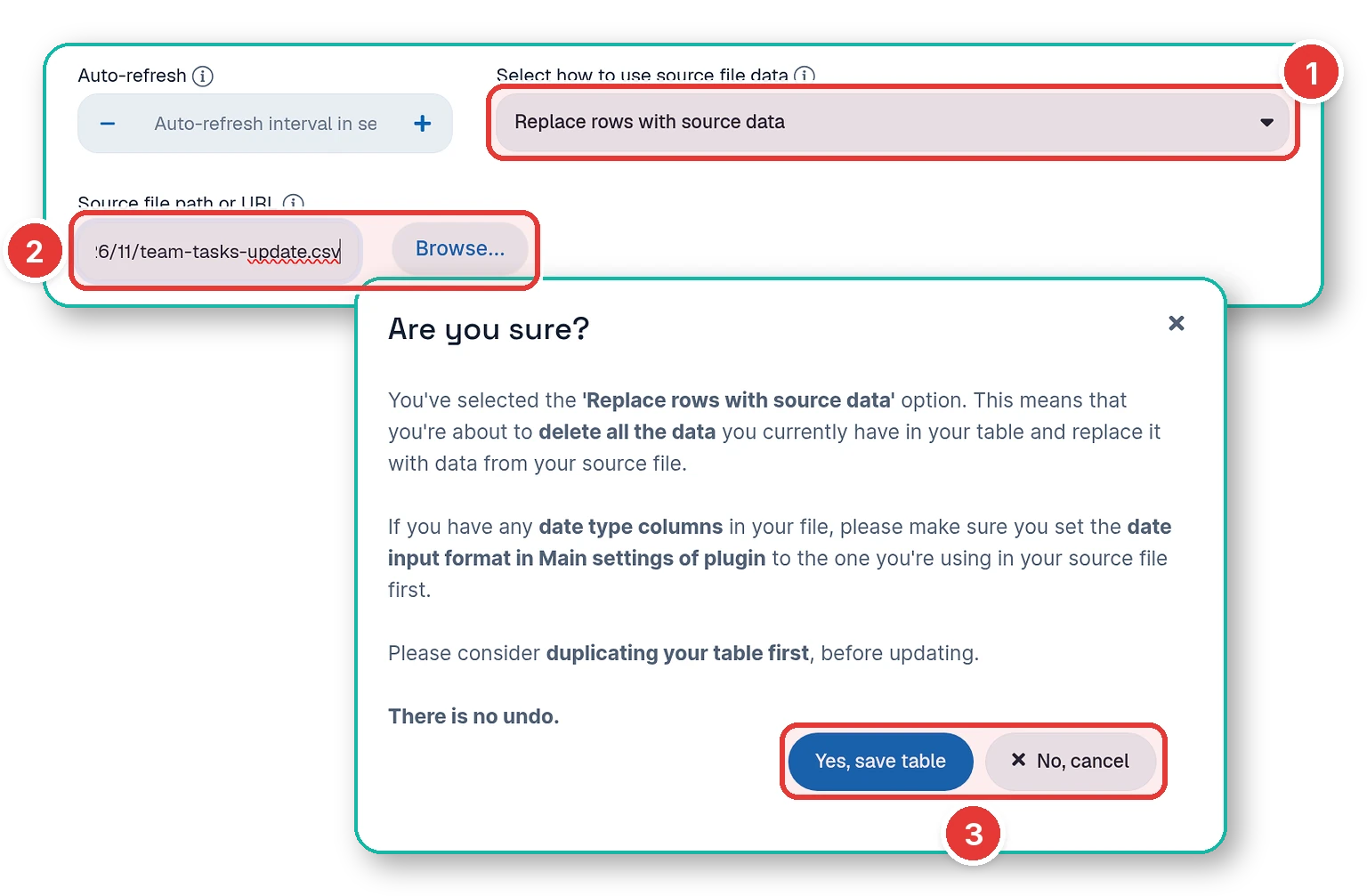
- Choose the option. In the Data source tab, open Select how to use source file data and choose one of the three options.
- Pick the file. In Source file path or URL, click Browse… to choose a CSV or Excel file from the Media Library, or paste the URL of a file or a published Google sheet.
- Save and confirm. Click Save Changes. The Are you sure? window explains what will happen to your data. Click Yes, save table to run the update, or No, cancel to go back.
How do I prepare the file for the update?
Export the file with the same column headers as the table, in the same order, and check the date format. For the first two options, the headers must match the table exactly.
- Dates. Write the dates in the file in the format set in Date format in wpDataTables → Settings → Main settings. If the formats differ, dates are not added correctly.
- Google Sheets. Publish the sheet to the web and use the published link, as in how to create a table from Google Sheets.
- Empty files. A file without rows is not accepted.
What should I remember about updating manual tables from files?
In the Data source tab of a manual table, choose Replace rows with source data, Add rows to the current table data or Replace the entire table with the source, pick the file in Source file path or URL and click Save Changes. The first two need the same columns and headers. Match the date format, and duplicate the table first, because there is no undo.
Where can I read more?
These pages cover manual tables and file sources: