Table of Contents
How to create a table with the wpDataTables table creation wizard
Say you run a small online shop and want to show your opening hours on one page, a price list from a spreadsheet on another, and your latest orders from the database on a third. Each of these starts in the same place: the Create a Table wizard. The wizard asks where your data comes from and then takes you to the right setup, or hands the job to Tabella AI if you would rather describe the table in plain words.
How do I start a table with Tabella AI?
Click Open Tabella AI at the top of the wizard and describe the table you need, or share a file or a link. Tabella AI suggests the right table type, prepares a draft with a preview, and creates the table only after you click Create this reviewed table.
- Open the wizard. Go to wpDataTables → Create a Table.
- Open Tabella AI. In the Start with Tabella AI card, click Open Tabella AI.
- Describe your table. The side panel opens with “Let’s create something new”. Type your request in Reply to Tabella AI…, for example: Create a Simple table with our opening hours for Monday to Sunday. To use your own data, click Add data and paste a public link to a CSV, Excel or JSON file, or pick a file from the Media Library.
- Review and create. Check the draft and click Create this reviewed table. The table opens in the editor, where you can change it further.
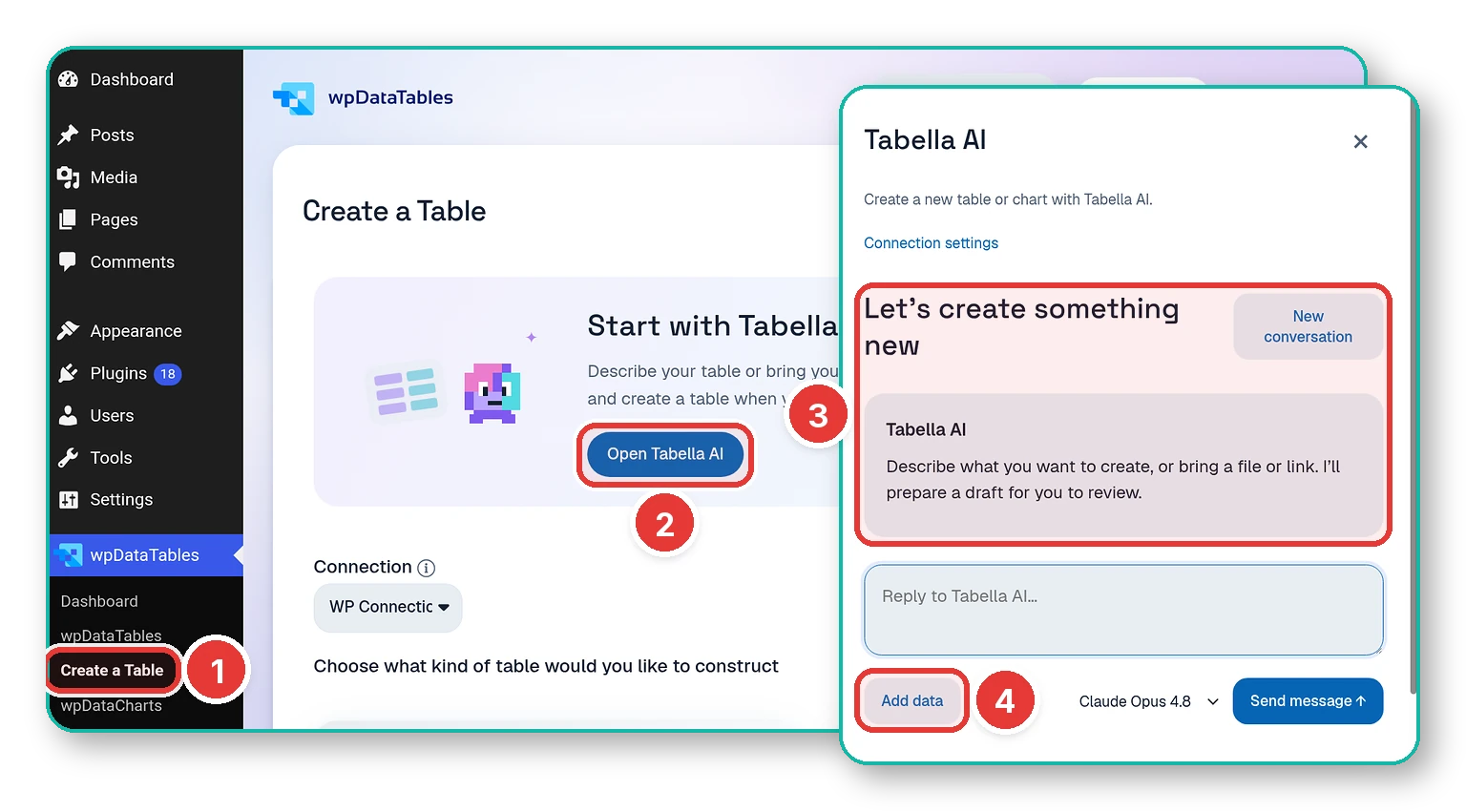
Video: starting a table with Tabella AI in the Create a Table wizard.
Which table types can I choose in the wizard?
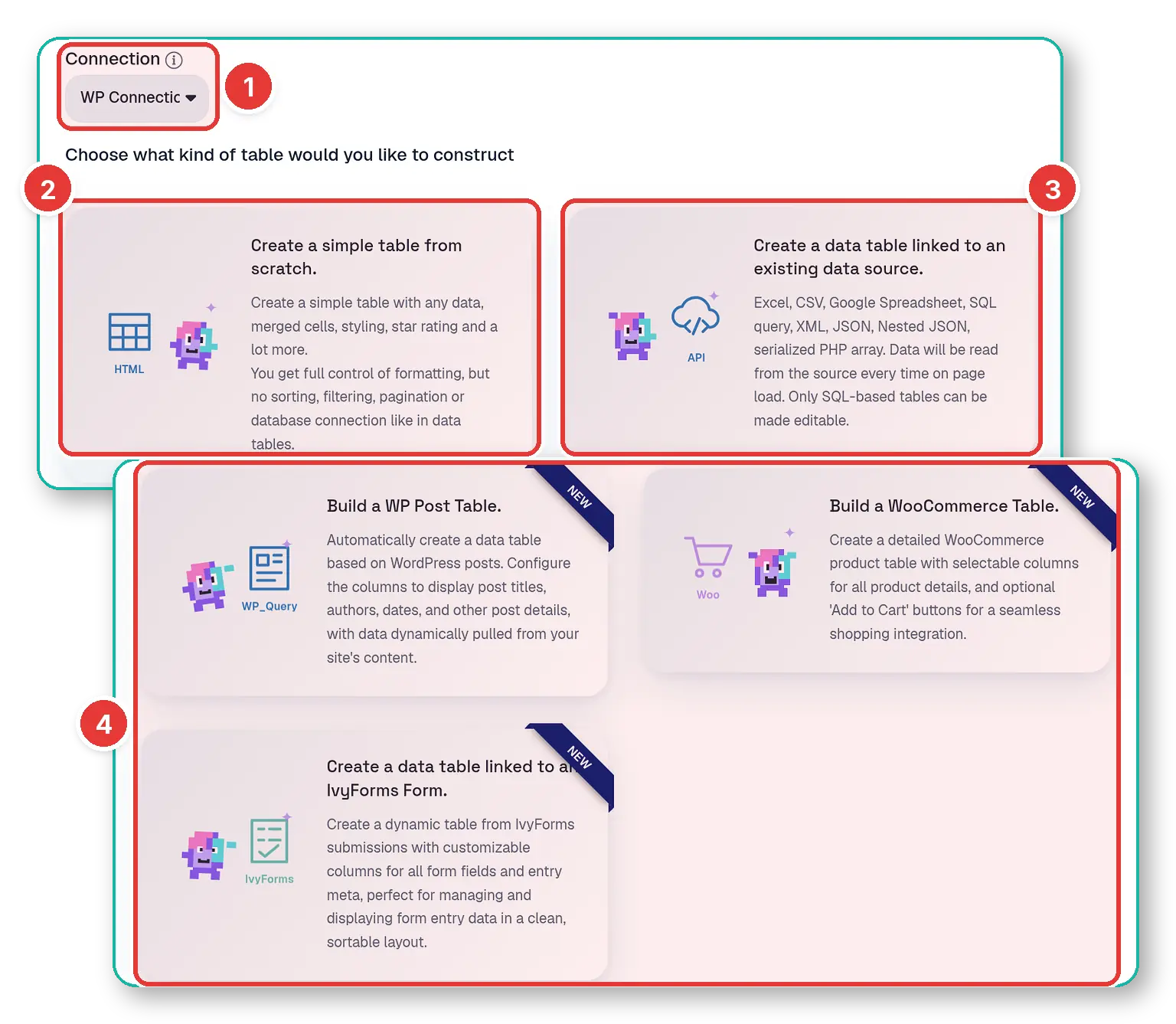
The wizard offers one card per way of building a table, and the right one depends on where your data lives and whether you want to edit it in WordPress. Below the Tabella AI card, under Choose what kind of table would you like to construct, click one of these cards:
| Option | Use it when | Read more |
|---|---|---|
| Create a simple table from scratch | You want a static table with merged cells, styling, star rating and any data in a cell, such as a pricing or comparison table. It has no sorting, filtering, pagination or database connection. | Simple table |
| Create a data table linked to an existing data source | Your data is in Excel, CSV, a Google Spreadsheet, an SQL query, XML, JSON, nested JSON or a serialized PHP array. The data is read from the source on every page load, and only SQL-based tables can be made editable. | CSV, Excel, Google Sheets |
| Create a data table manually | You want to define the columns and fill in the data in the WordPress admin. The table is stored in the database and can be edited in the admin or on the front end. | Manual table |
| Create a data table by importing data from a data source | You have an Excel, CSV or Google Spreadsheet file and want an editable copy of it in the database. | Import data |
| Generate a query to the WordPress database | You want to show posts, taxonomies or post meta with a query that a visual tool builds for you. | WordPress database query |
| Generate a query to the MySQL database | You want to build a query over any MySQL database with the same visual tool. | MySQL query |
| Build a WP Post Table | You want a table of WordPress posts with the columns you choose, such as titles, authors and dates, filled in from your site’s content. | WP Post table |
| Build a WooCommerce Table | You want a product table with the product details you choose and optional Add to Cart buttons. | WooCommerce table |
| Create a data table linked to an IvyForms Form | You want a table of IvyForms submissions with columns for the form fields and entry details. | IvyForms table |
If your site uses several databases, choose the database first in the Connection list at the top of the wizard. The options above then work with that database. Read more about multiple database connections.
How do I create a table in the wizard by hand?
Click a card, and the wizard opens the setup screen for that table type. The steps for every type follow the same pattern:
- Choose the table type. Go to wpDataTables → Create a Table and click a card. If your site has several databases, choose one in Connection first.
- Point to your data. For a Simple table, set the name, description and number of columns and rows. For a linked table, the setup opens as New wpDataTable: click the name to rename it, add a description if you like, and in the Data source tab choose the Input data source type, such as SQL query, CSV file, Excel file, Google Spreadsheet, XML file, JSON file, Nested JSON, Serialized PHP array or a form from Formidable Forms or Forminator. Then upload the file or paste its URL. For an import, upload the file. For a manual table, name the table and set the number of columns and their types. For a query, build the query.
- Save the table. Click Save Changes for a linked table, Generate table for a Simple table, or Create the table for a manual table. wpDataTables reads the data and opens the table in the editor.
- Adjust the table. Set column types, filters, sorting and design in the editor, then click Save Changes.
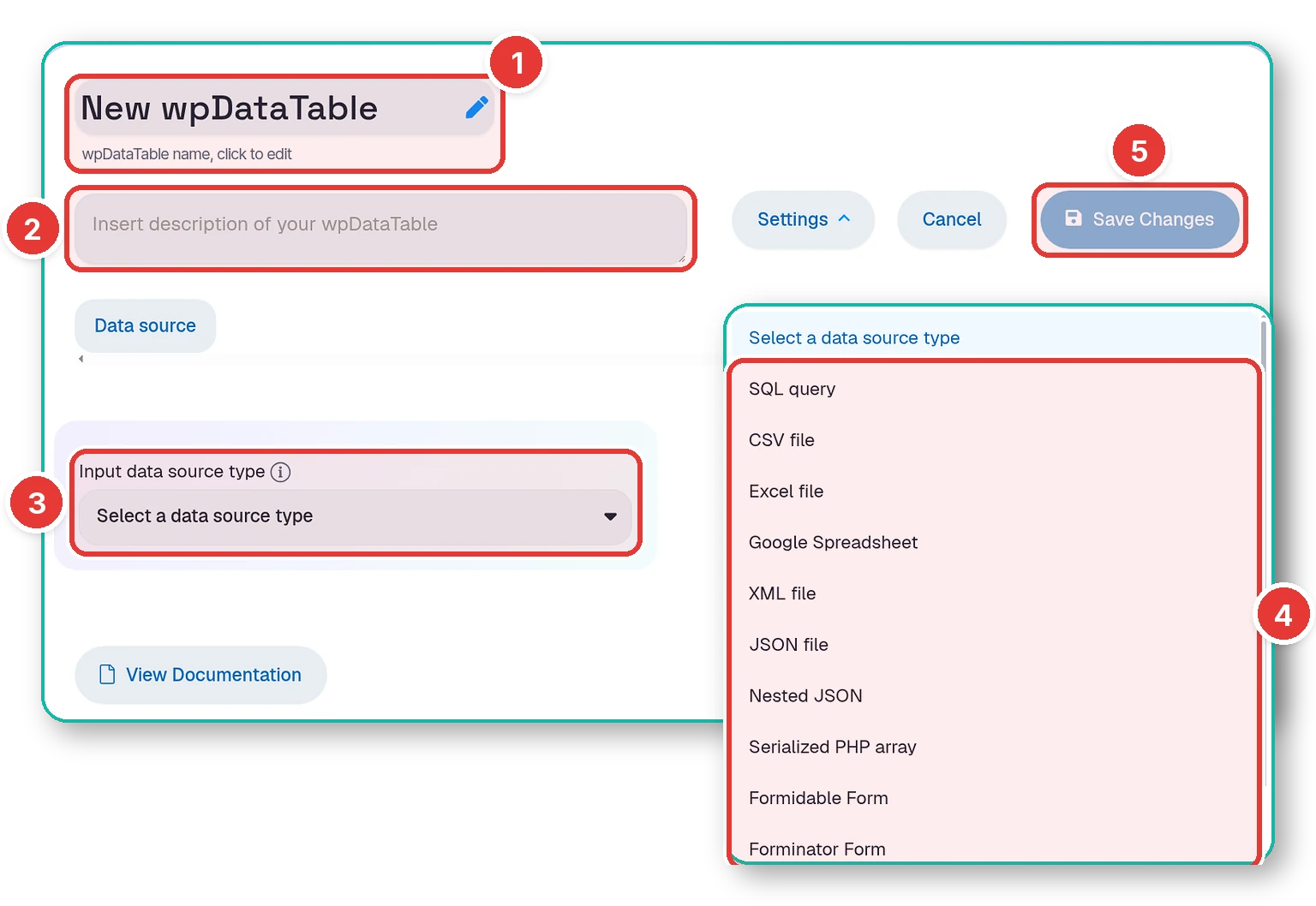
You can also add a description to any table in the wizard. It shows below the table title in the editor and in the Description column of the Tables list. When the table is saved, copy its shortcode, for example
| wdt_ID | Company name | Sector | Yearly revenue | Client since |
|---|---|---|---|---|
| 1 | Black Turtle | Architecture | 10,000,000.00 | 29/05/2011 |
| 3 | Theodore Consulting | Technology | 11,000,000.00 | 17/05/2004 |
| 4 | White Wing Industries | Business Consulting | 1,250,000.00 | 18/05/2006 |
| 5 | Twinkles Inc. | IT | 8,000,000.00 | 01/05/2006 |
| 6 | The Large Company | Construction | 7,000,000.00 | 01/06/2015 |
| 8 | Jailbreak Machinery | IT | 27,500,000.00 | 01/06/2001 |
| 9 | Infinite Scroll Maniacs | IT | 20,000,000.00 | 28/05/1996 |
| 10 | Thebest Construction Agency | Construction | 90,000,000.00 | 01/05/1996 |
| 11 | Allen Planning | IT | 0.88 | 15/12/2017 |
| 12 | Hamburg Calling | Technology | 2,000,000.00 | 26/08/2004 |
| wdt_ID | Company name | Sector | Yearly revenue | Client since |
| ∑ = 176,750,000.88 | ||||
| Avg = 17,675,000.09 | ||||
| Min = 0.88 | ||||
| Max = 90,000,000.00 |
What should I remember about the table creation wizard?
Every wpDataTables table starts in wpDataTables → Create a Table. Click Open Tabella AI to describe the table in plain words, or pick a card yourself: a Simple table for static layouts, a linked table to show a file or query as it is, and a manual or imported table when you want to edit the data in WordPress. Choose the database in Connection first if your site uses several.
Where can I read more?
These pages explain each table type in detail: