Table of Contents
How to create a table of WordPress posts with WP Post Builder in wpDataTables
Say you publish recipes as blog posts and want an index page that lists every recipe in the Desserts category with its author and date, and picks up new recipes as soon as you publish them. WP Post Builder creates such a table from your WordPress posts. You choose which posts to show with a few fields, see the result in a live preview, and the table reads the posts again on every page load, so you never update it by hand.
Which posts can WP Post Builder show?
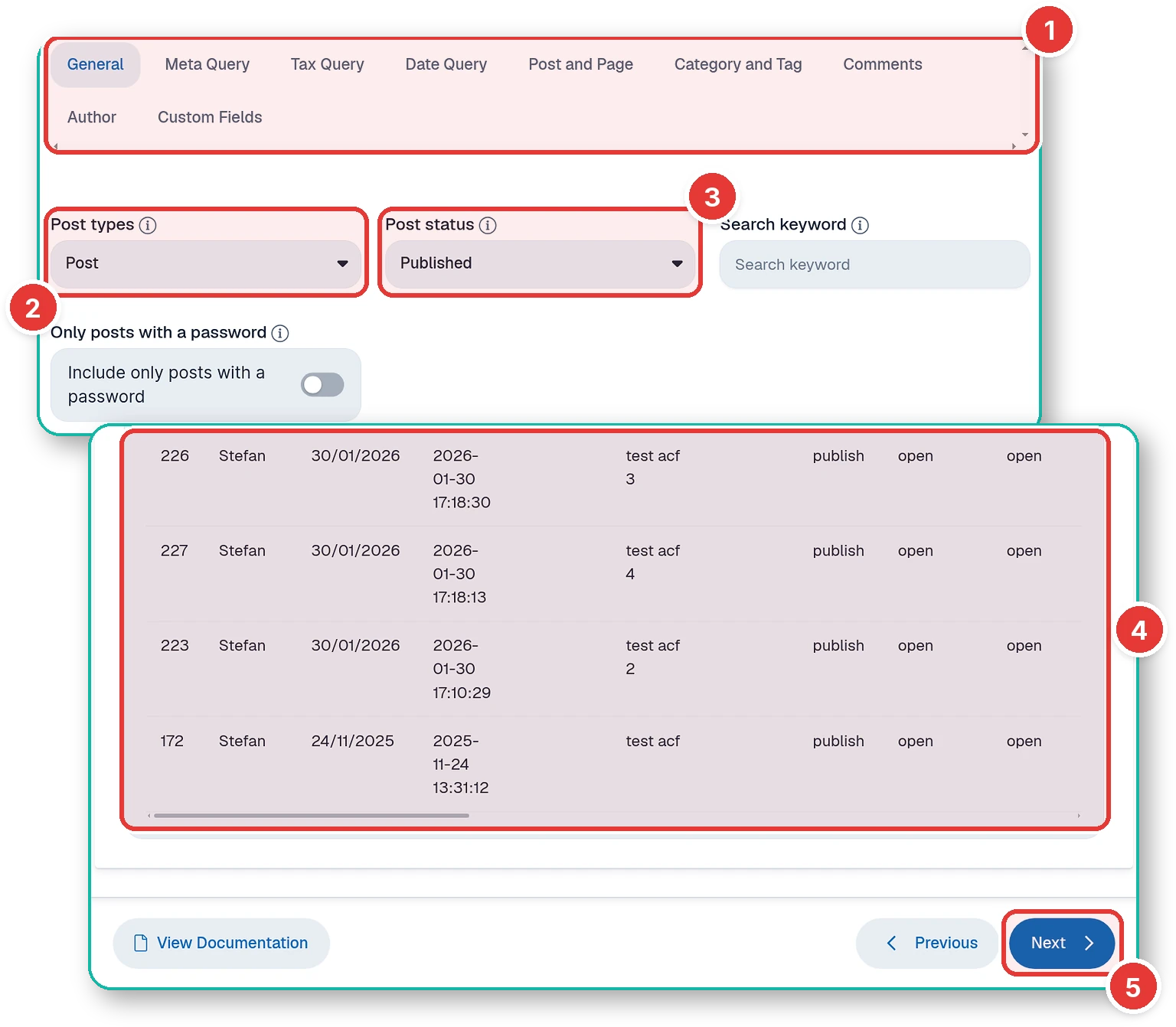
WP Post Builder shows posts, pages and custom post types, filtered by any of the parameters WordPress can query posts by. The parameters are grouped in tabs:
| Tab | Parameters |
|---|---|
| General | Post types, Post status, Search keyword, Only posts with a password, Post password |
| Meta Query | Custom field key, Value, Compare, Type |
| Tax Query | Taxonomy, Field, Terms, Include children |
| Date Query | Year, Month, Week, Day |
| Post and Page | Post ID, Post slug, Page ID, Post parent, Post parent in, Post parent not in, Post in, Post not in, Post name in |
| Category and Tag | Category ID, Category slug, Category in, Category not in, Tag slug, Tag ID, Tag in, Tag not in |
| Comments | Comment count, Comment number |
| Author | Author ID, Author name, Author in, Author not in |
| Custom Fields | Custom fields to show as columns |
To add custom fields as columns, for example a rating or release year, read how to show custom fields in a table.
How do I create a table of posts?
Go to wpDataTables → Create a Table, click Build a WP Post Table, set the parameters in the tabs, check the preview and click Create the table.
- Start the builder. Go to wpDataTables → Create a Table and click Build a WP Post Table.
- Name the table. Type a name, for example Dessert recipes.
- Choose the posts. In the General tab, choose the posts in Post types and Post status, for example Post and Published. Narrow the posts down in the other tabs, for example with the category slug
dessertsin Category and Tag. - Watch the preview. The preview below the tabs updates as soon as you change a field, so you see which posts the table will show.
- Create the table. Click Next for the final preview. Click Previous to change the parameters, or Create the table and choose the standard or the Excel-like editor.
Video: creating a table of published posts with WP Post Builder.
After the table is created, rename and hide columns in the editor the same way as in any other table, and add the table to a page with its shortcode. You can switch between the standard and the Excel-like editor at any time.
What should I remember about WP Post Builder?
Click Build a WP Post Table, choose the posts with the parameters in the tabs and watch the live preview, then click Next and Create the table. The table reads your posts on every page load, so new and changed posts show automatically.
Where can I read more?
These pages go further with tables of WordPress content: