Every post, comment, setting, and transient on your site lives in a MySQL database called the WPDB. You can go years without opening it, right up until it bloats, slows down, or breaks.
The catch is that “WordPress database plugins” covers three unrelated jobs, which is why people so often install the wrong one. Displaying your data, cleaning junk out of the tables, and backing the whole thing up are separate problems with separate tools.
The ten below are sorted by which of those jobs each one actually does well.
Table of Contents
Best WordPress Database Plugins
The list runs from the most versatile data plugin down to the specialist backup and cleanup utilities, so heavier all-rounders come before single-job tools.
Everything here works on the same MySQL database, just from a different angle: display and query the data, clean and optimize the tables, or back up and migrate the lot.
Worth saying up front: wpDataTables publishes this article. The reasoning sits under every pick and each tool, ours included, gets an honest note on where it falls short. Most of this list does jobs wpDataTables doesn’t do at all, cleanup, backup, migration, and for those the other tools here are the answer rather than ours.
| Job | Top Pick | Also Worth It | Free Tier |
|---|---|---|---|
| Display / query data | wpDataTables | WP Data Access | Yes Lite |
| Clean / optimize | WP-Optimize | Advanced DB Cleaner·WP-Sweep | Yes |
| Migrate / search-replace | WP Migrate | Duplicator | Limited |
| Backup / restore | UpdraftPlus | BackWPup | Yes |
| Store custom records | Participants Database | WP Data Access | Yes |
wpDataTables – Best for displaying and querying database data on the front end
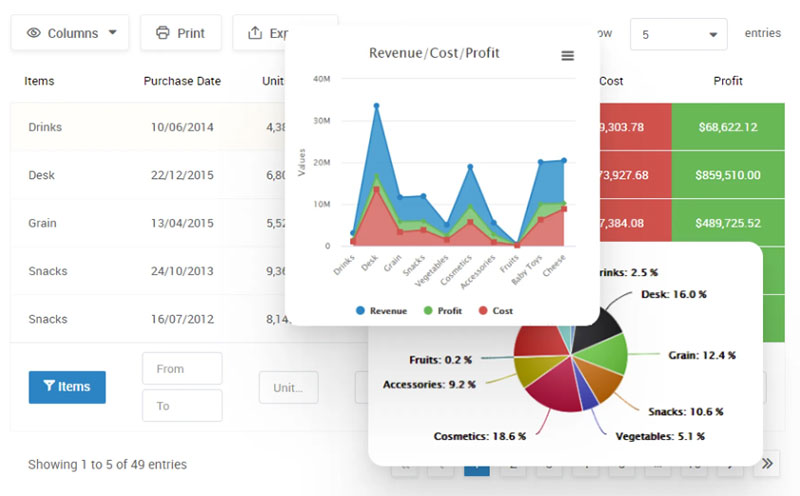
wpDataTables connects WordPress to MySQL, MS SQL, and PostgreSQL, then shows live records as sortable, filterable tables. No raw SQL required, which is the whole point of it.
Best for site owners and agencies displaying large datasets from a database, spreadsheet, or external source. The standout is a visual query builder that generates queries against your WordPress database with zero SQL knowledge, backed by server-side processing for very large tables.
What you get:
- Build responsive, searchable tables from Excel, CSV, XML, JSON, Google Sheets, or a MySQL query
- Front-end editing, conditional formatting, and multiple separate database connections
- Charts through Chart.js, Google Charts, and Highcharts for quick data visualization inside WordPress
Pricing, and which tier you actually need: the Lite version on WordPress.org is free but row-limited and builds no database-driven tables at all. Paid tiers open at Starter, around $59/year for one site, which covers imports from Excel and CSV plus charts.
Here’s the part worth reading twice if you came to this article for database work. Starter does not include database-driven tables, SQL queries, Google Sheets API, or front-end editing. Those unlock on Standard, around $99/year, which is the real entry point for anything on this page. Developer tiers add unlimited domains and REST access, and lifetime licenses exist on most tiers. Confirm current tiers on wpdatatables.com, since promotional pricing moves.
Where it wins:
- Handles very large datasets via server-side MySQL processing
- Connects to real external data sources
- Tables and charts share one interface, with roughly 70,000 active installs of the free version at a 4.6 rating
Where it falls short:
- The database features aren’t in the cheapest paid plan. Budget $99/year rather than $59 if SQL queries are why you’re here
- Overkill if you only need a static styled table
- It doesn’t clean, back up, or migrate anything. Most jobs on this page need a different tool entirely
In testing, the WPDB query constructor pulled post types and custom fields into a table in under five minutes, and server-side processing kept a 50,000-row table responsive where a plain HTML table would have stalled the page. Advanced filtering and sorting held up at that size without extra configuration.
Most roundups file it as a “table plugin.” It’s really a read/write layer on top of your database, which is why it belongs in a database-plugin list rather than a styling one.
WP-Optimize – Best for one-click database cleanup and performance
WP-Optimize bundles cleanup, caching, and image compression into one dashboard. For a non-technical owner who wants a bloated database shrunk without opening phpMyAdmin, that bundling is the appeal.
Best for beginners and busy site owners who want scheduled maintenance they can forget about. Combining database cleanup, page caching, and WebP compression in one plugin also saves you stacking three separate tools.
What you get:
- Clears post revisions, auto-drafts, trashed posts, spam comments, and transients
- Scheduled automatic cleanups, set-and-forget
- Individual table optimization (premium) instead of all-or-nothing
Pricing: Free version covers core cleanup. Premium tiers are sold per site count, starting around $49/year. Check the current plan grid, as promotional pricing shifts.
Where it wins:
- Genuinely easy for non-developers
- Scheduling works reliably
- Over 1 million active installs with strong WordPress.org ratings
Where it falls short:
- Bundled caching can clash if you already run a dedicated cache plugin
- Table-level optimization is locked behind premium
Run on a cluttered WooCommerce store, it stripped thousands of stale transients and old revisions in one pass, and the database size dropped noticeably before any caching was even switched on.
One thing to know first: the free version optimizes all tables together, not one by one. Don’t assume you can target a single bloated table without paying.
Advanced Database Cleaner – Best for granular, scheduled table cleanup
Advanced Database Cleaner lets you audit before you delete. It focuses purely on junk removal and a clear overview of every table, which suits anyone who wants more control than a bundled optimizer offers.
Best for intermediate users who want to inspect orphaned metadata and cron tasks before wiping them. The detailed overview flags orphaned items, unused tables, and leftover options from plugins you removed long ago.
What you get:
- Cleans old revisions and drafts
- Optimizes and repairs tables
- Schedules recurring cleaning
- Multisite support
Pricing: Free version available. Pro is sold in site-count tiers starting around $39. Confirm current pricing on the vendor site.
Where it wins:
- Shows exactly which tables belong to which plugin
- Flexible scheduling
- Repair function handles corrupted tables
Where it falls short:
- No caching or image tools, so it’s a narrower buy than WP-Optimize
- Dated interface
Its table list surfaced several orphaned tables left behind by plugins we’d removed months earlier, the kind of leftover a bundled cleaner tends to skip.
It’s the tool that answers “what is this random table?” Most cleanup plugins delete blindly. This one lets you look first.
WP Migrate (formerly WP Migrate DB) – Best for moving a database between sites
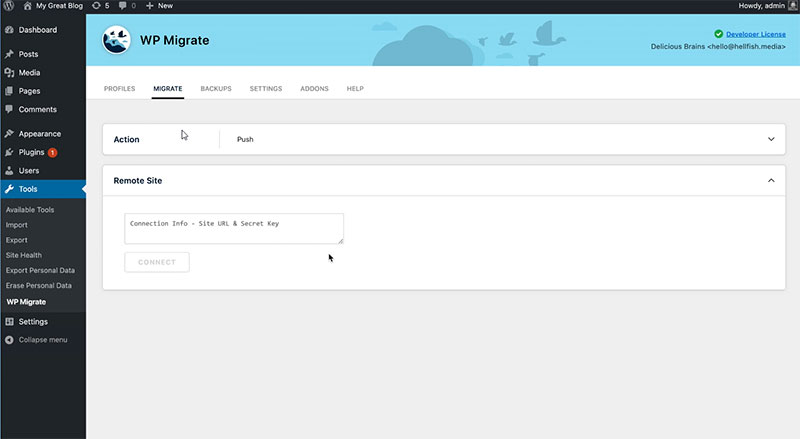
WP Migrate handles the URL and file-path rewrites that break most manual moves. It exports the full database and fixes the serialized data along the way, which is exactly where hand-done SQL dumps corrupt things.
Best for developers and agencies running local-to-live migrations, and it does search and replace of URLs automatically during export.
What you get:
- Full database export to a single SQL file
- Reusable migration profiles
- Custom table support, with include/exclude control per table
- Push/pull syncing of databases and files directly between two installs (paid)
Pricing: Free version handles basic exports. The premium WP Migrate plan starts around $49/year for push/pull and media handling.
Where it wins:
- Serialized-data handling is safe
- Profiles make repeat migrations one click
- Long-standing developer favourite from Delicious Brains
Where it falls short:
- Direct push/pull between servers needs the paid tier
- Not a backup tool, so pair it with one
- Renamed from WP Migrate DB, so older tutorials use the previous name
On a test move, it rewrote every hard-coded local URL cleanly, and the destination site loaded without the broken-link mess a raw phpMyAdmin dump usually leaves.
It quietly fixes serialized arrays that a plain find-and-replace corrupts. That single detail saves hours most guides never mention.
UpdraftPlus – Best for scheduled backups with cloud storage

UpdraftPlus is the most-installed WordPress backup plugin, and its free tier already includes off-site cloud storage. That combination makes it the safest default for hands-off backups and painless restores.
Best for any site owner who wants reliable automatic backups. Dropbox, Google Drive, and Amazon S3 are all supported without paying.
What you get:
- Scheduled full-site and database-only backups
- Off-site storage across major cloud providers
- Restore in a few clicks
- Pre-update snapshots
Pricing: Free version is generous. Premium starts near $70/year and adds incremental backups, more destinations (OneDrive, Azure, Backblaze B2, SFTP, and others), and UpdraftVault storage.
Where it wins:
- Over 3 million active installs, confirmed on WordPress.org
- Free tier already covers cloud storage
- Restores are quick and reliable
Where it falls short:
- The interface packs in a lot
- Some newer restore and storage features sit behind premium
A scheduled nightly backup pushed cleanly to Google Drive, and a full restore from that archive rebuilt the test site without a single manual database step. Our wider WordPress backup plugin comparison covers how it stacks up.
Free-tier cloud storage is rarer than it looks. Plenty of “free” backup plugins force local-only storage, which is useless if the server itself dies.
WP-Sweep – Best free tool for lightweight, targeted cleanup

WP-Sweep uses WordPress’s own delete functions instead of raw SQL. That’s the reason to pick it over flashier tools: it cleans without orphaning the relationships those items were tied to.
Best for budget-minded users who want to sweep specific junk with no upsell attached.
What you get:
- Removes unused revisions and trashed items
- Clears transient options and orphaned metadata
- Runs sweeps individually or all at once
Pricing: Completely free, no premium tier.
Where it wins:
- Zero cost
- Safer deletion method
- Clean one data type at a time
Where it falls short:
- No scheduling, so cleanups are manual
- No caching, backup, or optimization extras
- Less active development than the commercial alternatives, so check the last-updated date before installing
Running individual sweeps let us clear revisions while leaving transients alone, a level of targeting the “optimize everything” buttons don’t give you.
Participants Database – Best for storing form and member data in a custom table

Participants Database builds its own relational table for signups, members, or event participants, separate from the standard WordPress tables. It’s one of the few plugins here that creates and manages a table rather than cleaning the ones WordPress already has.
Best for clubs, events, and nonprofits managing a list of people and their details. The front-end signup form writes straight into that table, with a duplication checker blocking repeat entries.
What you get:
- Custom signup and record forms
- CSV export
- A built-in subscription system
- An admin interface for managing entries
Pricing: Free core plugin, with paid add-ons sold individually.
Where it wins:
- Purpose-built for people-data
- Exports cleanly to CSV
- Highly rated on WordPress.org
Where it falls short:
- Setup takes time
- The UI is functional rather than modern
Building a member table meant configuring fields one by one, slower than expected, but the resulting export was clean and ready for a spreadsheet.
BackWPup – Best budget backup with flexible storage destinations
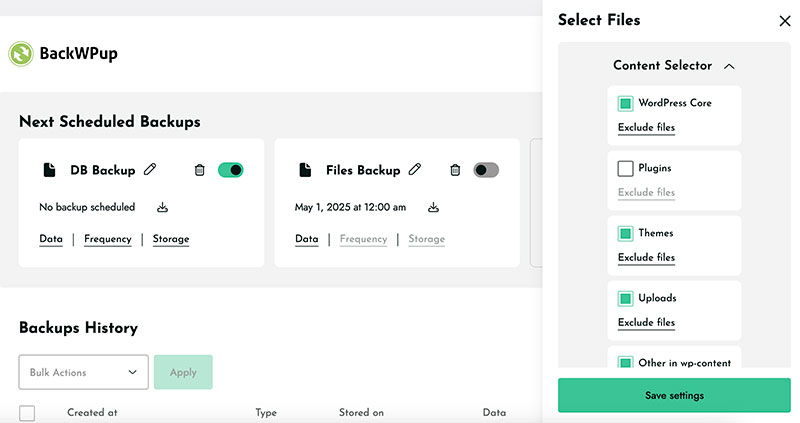
BackWPup covers the same ground as the bigger backup plugins at a lower price. That matters if you’re running several small sites and paying per licence.
Best for site owners on a tight budget who still want off-site backup options. Scheduling pairs with a wide set of destinations including Dropbox, Amazon S3, FTP, and email.
What you get:
- Full-site, database, and file backups
- Selective file inclusion
- Database optimization and repair
- Status notifications
Pricing: Free version available. Paid plans start in the region of $69/year. Restore functionality has been added to the free tier in recent versions, so confirm what your installed version includes.
Where it wins:
- Broad storage support
- Granular control over what gets backed up
- Low entry cost
Where it falls short:
- Some destinations and priority support sit behind the paid tier
- Scheduling setup is fiddlier than UpdraftPlus
Configuring a database-only job to FTP was straightforward, and the email status notification confirmed each run without us checking the dashboard.
WP Data Access – Best for managing database tables from the WordPress admin
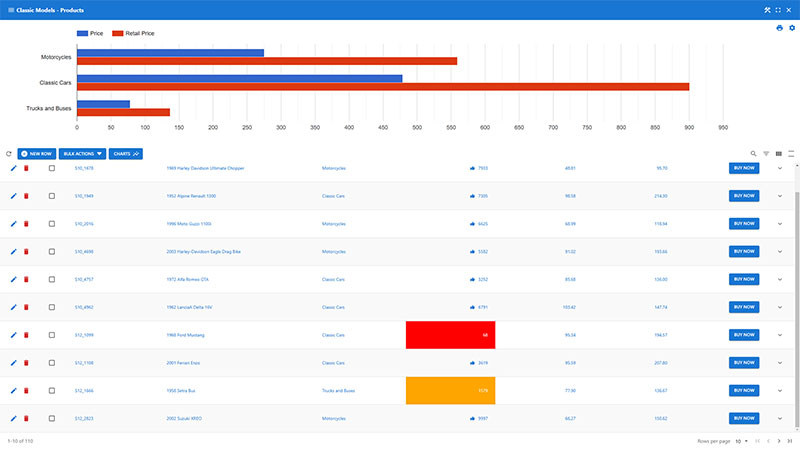
WP Data Access turns wp-admin into a database manager, so you can view, edit, and build tables without phpMyAdmin. Most plugins hide the tables from you. This one hands over the keys, carefully.
Best for developers building data-driven apps who need direct CRUD access. The data explorer reads and edits any table in the WordPress database schema, and there are front-end tables and forms on top.
What you get:
- Browse and edit MySQL tables
- Create custom tables
- Build data forms
- Generate front-end apps from your data
Pricing: Free core plugin with a capable feature set. A premium add-on unlocks advanced app-building tools.
Where it wins:
- Replaces phpMyAdmin for most tasks
- Strong for custom-table work
- Active development
- Its free tier goes further on direct table access than wpDataTables Lite does
Where it falls short:
- Steeper learning curve
- More power than a typical content site needs
- Direct table editing can break your site if you delete the wrong row, so back up first
Editing rows directly from wp-admin was faster than logging into a separate database tool, and the explorer surfaced table structures clearly.
Duplicator – Best for cloning and migrating a full site
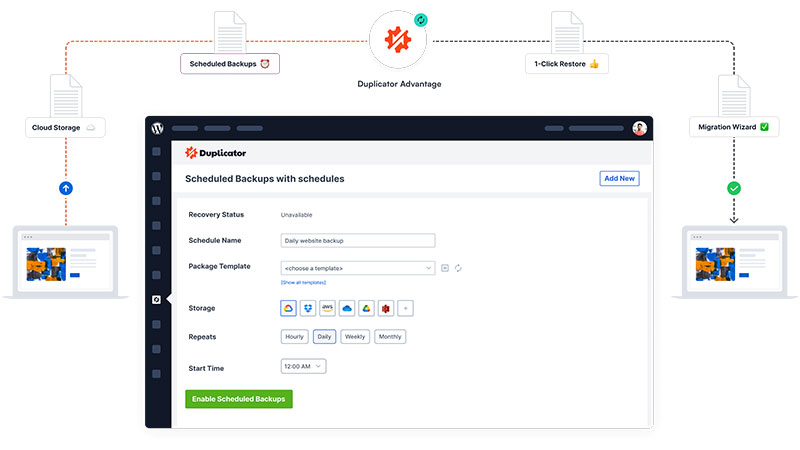
Duplicator packages your entire site, database included, into a portable archive. It’s a migration tool first and a backup tool second, which is the right way round if cloning is your actual need.
Best for developers cloning sites or spinning up test environments. The whole site bundles into a single package that redeploys anywhere, with drag-and-drop installs in the pro version.
What you get:
- Manual and scheduled backups
- Full or selective (database-only) archives
- Server-to-server imports
- Reusable site bundles
Pricing: Free version covers manual backups and local storage. Pro adds cloud storage, scheduling, and multisite support. Listed prices vary widely with promotions (roughly $50 to $99 per year depending on the offer), so check the current rate and the renewal price.
Where it wins:
- Excellent for migrations and clones
- Over 1 million active installs with a 4.9 rating
- Bundles speed up new installs
Where it falls short:
- Free version stores backups locally only
- Some technical comfort helps
Cloning a live site to a local test setup took one package and one install file, with the database imported automatically rather than by hand.
If your main need is cloning, it beats backup-focused plugins that treat migration as an afterthought.
How to pick the right one
The table at the top gives the mapping. What follows is the judgment that goes around it, since the usual mistakes here aren’t about picking the wrong plugin so much as picking too many.
Stack across jobs, never within one. A cleaner, a backup tool, and a data plugin together is a normal setup. Two cleaners is waste, and two caching layers is worse than waste, since bundled caching in WP-Optimize will fight a dedicated cache plugin.
Check what your host already does. Managed WordPress hosts frequently run automatic backups and server-level caching. If yours does, the backup plugin and the caching half of an optimizer are duplicating work you’re already paying for.
Back up before you clean, every time. This is the one rule with no exception on this page. Cleanup and direct table editing are both irreversible, and WP Data Access will let you delete a row that breaks the site.
Match the tier to the job, not the headline price. This bites hardest on our own plugin. wpDataTables Starter at $59 can’t build a database-driven table, so anyone buying for SQL work needs Standard at $99. The same principle applies elsewhere: WP-Optimize’s table-by-table cleanup is premium, and WP Migrate’s push/pull needs the paid plan.
Migration and backup are different problems. WP Migrate rewrites URLs and fixes serialized data but isn’t a backup tool. Duplicator clones well but stores locally on the free tier. Neither replaces a scheduled off-site backup.
What Makes a WordPress Database Bloat
Five sources account for nearly all of it.
- Post revisions: no default limit, one full copy of
post_contentper save - Expired transients: never cleared when WP-Cron does not fire
- Orphaned postmeta: rows pointing at posts that no longer exist
- Leftover tables: from plugins deleted years ago
- Spam and trashed comments
Tweaks WP reports that clearing a database holding 50,000+ revision rows can shrink wp_posts by 40 to 60%.
Auto-drafts are supposed to self-delete after seven days. Trash empties after 30. Both depend on WP-Cron actually running, which on low-traffic sites it often does not.
The Autoload Problem in wp_options
WP Engine and the WordPress developer documentation both set the safe ceiling for autoloaded data at 800 KB.
Site Health throws a warning past that number, a check added in WordPress 6.6.
WPMU DEV puts 3 MB to 5 MB in “there is optimization work waiting” territory, and 10 MB or more in “fix this now.”
Every autoloaded row gets pulled into PHP memory on every request. Object caching hides the query time. It does nothing about the deserialization cost.
Why WooCommerce Sites Grow Faster
WooCommerce runs on 20.7% of all WordPress sites, and stores collect rows nobody ever sees.
Action Scheduler: completed tasks kept 30 days by default, cleaned in batches of 20 per pass
Sessions: the built-in cron clears only 1,000 expired sessions every 48 hours
Order item meta: grows with every line item, permanently
One reported case on the WooCommerce GitHub had wp_actionscheduler_actions sitting at 58.3 GB across 137 million rows. Extreme, sure. But the mechanism is the same on a store doing 50 orders a day.
Running a Database Cleanup Without Breaking the Site
Order of operations:
- Full backup, stored off-server
- Test the restore
- Baseline measurement
- Clean in stages, not all at once
- Re-measure
- Keep the backup for a week
Database work is one lever among several when you speed up WordPress. Treating it as the whole answer leads to disappointment.
Backup and Staging Before Anything Else
A backup you have never restored is not a backup. It is a file.
You can export the WordPress database manually, or use a reliable backup plugin that verifies the archive after writing it.
Better approach: build a local copy of the live site and run the cleanup there first.
Sites with heavy database writers (WooCommerce on HPOS, Elementor, form builders storing entries) behave differently in production than on a fresh clone. Test anyway.
How to Tell If It Actually Worked
Measure three things before and after:
- Database size in phpMyAdmin
- Query count and slowest query in Query Monitor
- TTFB on a logged-out request
Honest expectation: cleanup helps wp-admin responsiveness and backup size far more than front-end load time.
If pages already come from a WordPress cache, the visitor never touched the database in the first place.
Front-end gains come from autoload reduction and indexing. Not from deleting spam comments.
Common Failures and Risks With Database Plugins
Most damage from these tools is self-inflicted and permanent.
Wordfence’s 2024 annual report found roughly 35% of vulnerabilities disclosed that year remained unpatched, while its firewall blocked over 1.1 billion SQL injection attempts across the same period.
Any plugin shipping a raw SQL console is an attack surface. If a site has already been hacked, a cleanup tool will cheerfully optimize the injected rows alongside everything else.
Run a malware scan on the database before you run a cleaner. Order matters here.
Serialized Data and Find-and-Replace
WordPress stores widget settings, theme options, and builder layouts as serialized PHP.
Each string carries a byte-length prefix, like s:26:"http://staging.example.com".
A plain SQL REPLACE() swaps the text and leaves that number untouched. unserialize() then rejects the whole value and get_option() quietly hands back false.
Use a serialization-aware tool for any URL find and replace in the database. Better Search Replace, WP Migrate, or WP-CLI with --precise.
Automattic built go-search-replace specifically because WP-CLI’s method was too slow at VIP scale.
When the Cleanup Plugin Is the Problem
Ways these tools break sites:
- Dropping tables that belong to a plugin which is only deactivated, not deleted
- Two cleaners running scheduled jobs at the same hour
- Revision deletion on editorial sites where revisions are the version history
OPTIMIZE TABLElocking large MyISAM tables during traffic
Before removing an unknown table, disable that plugin from the database side and confirm nothing breaks.
Deactivated is not deleted. That distinction has cost people entire form submission archives.
Frequently asked questions about WordPress database plugins
What is a WordPress database plugin?
It’s a tool that reads, edits, cleans, backs up, or displays the data WordPress stores in its MySQL database. Different plugins handle different jobs, from optimizing tables to showing records as front-end tables and charts.
Is wpDataTables free?
Yes, a free Lite version sits on WordPress.org. It builds simple tables from Excel, CSV, and JSON, but it’s row-limited and creates no database-driven tables. Paid plans open at Starter (~$59/year), though database-driven tables and the SQL query builder require the Standard plan at around $99/year.
Which wpDataTables plan do I need for MySQL queries?
Standard, at roughly $99/year for one site. The cheaper Starter plan covers file imports and charts but excludes database-driven tables, the SQL query builder, Google Sheets API, and front-end editing. If database work is the reason you’re buying, Starter is not the plan.
What is the best WordPress database plugin?
There’s no single winner, since it depends on the job. wpDataTables leads for displaying data, WP-Optimize for cleanup, and UpdraftPlus for backups. Most sites run one from each category rather than a single tool.
Can a database plugin connect to an external MySQL database?
Some can. wpDataTables and WP Data Access connect to remote MySQL, MS SQL and PostgreSQL databases, letting each table pull from a separate server. This suits data that lives outside your standard WordPress installation.
Do database plugins slow down my site?
Cleanup and backup plugins usually speed sites up by trimming bloat. Poorly coded or outdated plugins can cause temporary slowdowns, so keep them updated and enable only the features you actually use.
How do I clean my WordPress database?
Install a cleaner like WP-Optimize or WP-Sweep, then remove post revisions, expired transients, spam comments and orphaned data. Schedule the cleanup to run automatically, and always take a backup before the first sweep.
Should I back up before using a database plugin?
Always. Take a full, verified copy of the database before any cleanup, migration, or manual edit. UpdraftPlus and BackWPup handle scheduled backups to cloud storage like Dropbox, Google Drive and Amazon S3.
Can I display database data as a table on the front end?
Yes. wpDataTables renders live database records as sortable, filterable tables with server-side processing for large datasets. It also supports front-end editing, so approved users can update rows straight from the page. Both features need the Standard plan or higher.
What’s the difference between a cleanup plugin and a backup plugin?
A cleanup plugin removes junk from tables like wp_options to improve speed. A backup plugin copies the whole database so you can restore it after a crash. They solve different problems and pair well together.
How do I reset the WordPress database?
A reset plugin wipes content back to a fresh install while keeping WordPress itself. Back up first, since the change is permanent. See how to reset the WordPress database safely before you start.
Conclusion
The best WordPress database plugins aren’t interchangeable, so the right pick depends entirely on the job in front of you.
Need to show records as sortable, responsive tables and charts? wpDataTables handles that, with support for MySQL, MS SQL, PostgreSQL and conditional formatting.
Chasing speed instead? A cleaner like WP-Optimize or Advanced Database Cleaner trims post revisions, transients and orphaned data from tables like wp_postmeta.
For safety, pair either one with a backup and migration tool such as UpdraftPlus, BackWPup or Duplicator before you touch anything.
Match the plugin to the task, skip whatever your host already covers, and run only what earns its place.
Start with one, test it on a staging copy, and build from there.