Before purchase, you can test all plugin and Add-on features on our sandbox site.
Table of Contents
Video tutorial
What is cascade filtering with Powerful Filters?
Cascade filtering enables narrowing down the number of options available in each next filter by selecting from a previous one.
What does this addon do and who will find it useful?
Powerful filters is an add-on for wpDataTables which allows you and your site visitors to filter table data in the WordPress Tables frontend with Cascade filters; it also allows you to hide the table before the filter is applied.
Cascade filtering enables narrowing down the number of options available in each next filter by selecting from a previous one. For example, if in the first filter you have a list of continents, in second a list of countries, and in third a list of cities, when you choose a continent, the next 2 filters will only show the countries and cities that belong to this continent. Cascading filters are very useful for large datasets, since finding data becomes much faster and more convenient when the filtering options are narrowed down “on the fly”.
How do I install the Powerful Filters add-on?
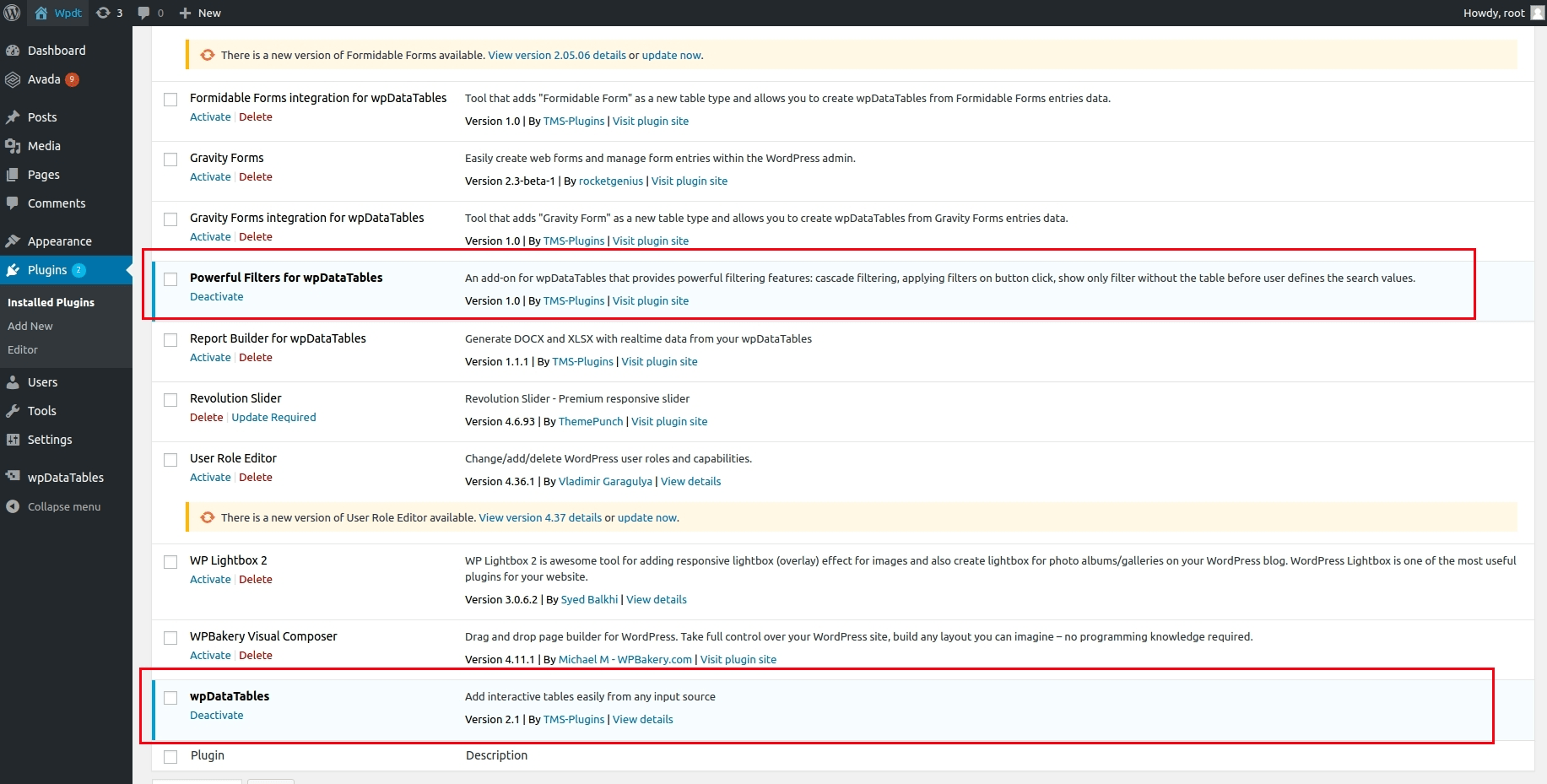
How to install the addon?
Installing the Powerful Filters add-on is a quite straightforward process if you have some experience with WordPress plugins. Once you’ve uploaded the plugin using either of the two upload methods, you should see the Powerful Filters add-on in your plugins list.
- Go to your WordPress admin panel, open the “Plugins” page, then click “Add new”, there choose “upload” and then browse to the ZIP file that you’ve downloaded from CodeCanyon.
- Go to our store , login with the credentials you received via e-mail when you purchased the plugin, download the plugin and extract the ZIP file that you’ve downloaded. Once you’ve done that open your WordPress installation through FTP, browse to wp-content/plugins, and upload the extracted folder there.
Once you’ve uploaded the plugin using either of these 2 scenarios, you should see the Powerful Filters addon in your plugins list. Just click “activate”, and you’re good to go!
Please note:
- You need the wpDataTables 2.1+ full version to run the addon! It will not work with earlier versions of the plugin, or with wpDataTables Lite.
- Predefined filtering values are currently not available for the Cascade Filtering feature.
How do I enable cascade filtering?
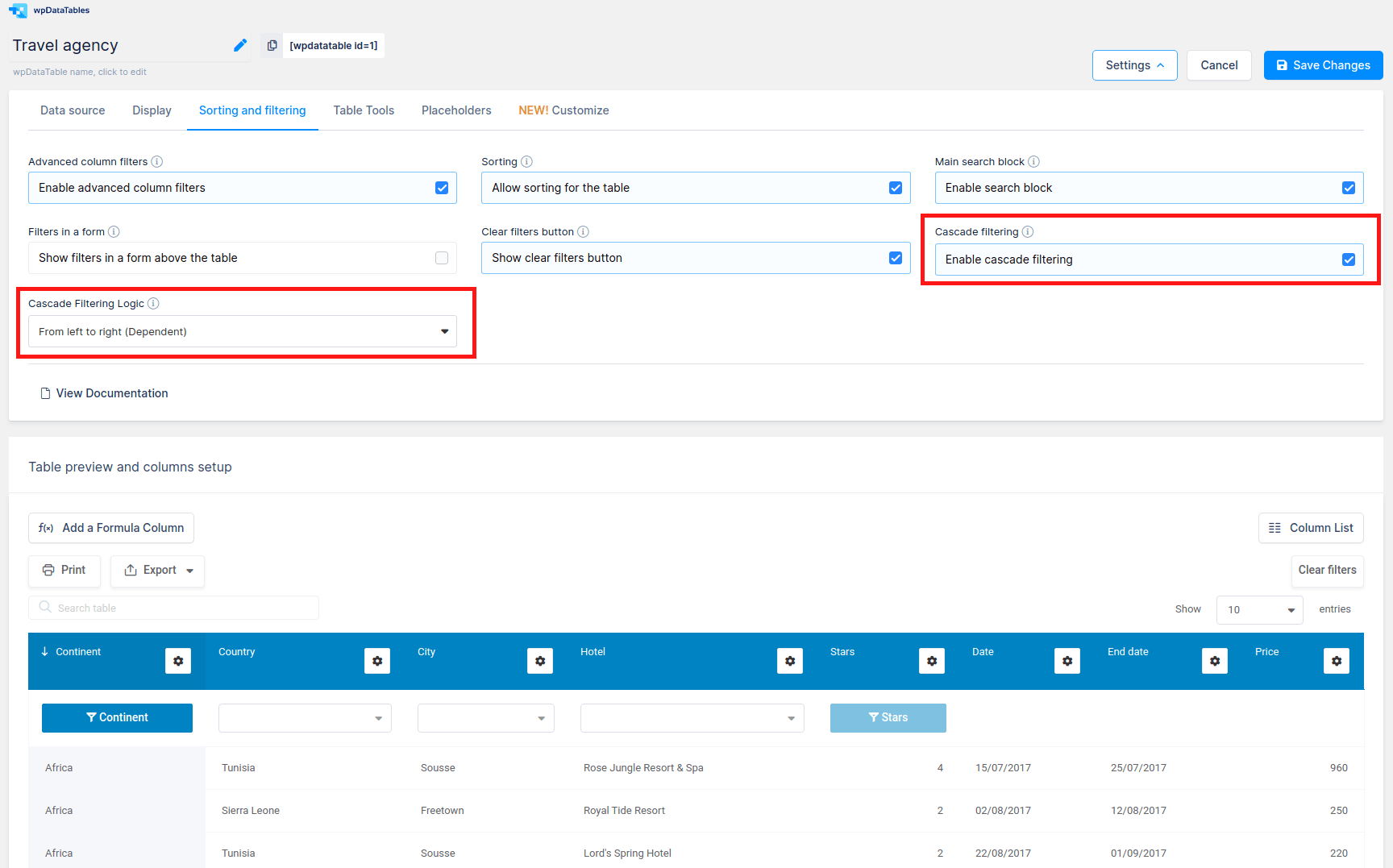
How to enable cascading with Powerful Filters?
After activating the Powerful Filters add-on you will notice several new options in the Sorting and Filtering tab on the table configuration page.
To try how the cascade works, enable the “Cascade filtering” option and choose either of two available logic types: “From left to right” (dependent filtering), and “Free” (independent filtering).
What is dependent (“From left to right”) filtering?
“Dependent” filtering means that you will only be able to make choices in the filters in order, from left to right. New from version 1.3, there is an available option for dependent filtering called “Hide all filters except first one”.
What is independent (“Free”) filtering?
“Independent” filtering means that there is no filtering order restriction — you can choose values in the filters however you wish.
Powerful Filters: From left to right
| Continent | Country | City | Hotel | Stars | Date | End date | Price |
|---|---|---|---|---|---|---|---|
| Europe | Portugal | Lisbon | Enigma Hotel & Spa | 4 | 09/06/2019 | 19/06/2019 | 1,580 |
| South America | Ecuador | Quito | Curiosity Hotel | 2 | 09/06/2019 | 19/06/2019 | 330 |
| Europe | Greece | Thessaloniki | White Coast Resort & Spa | 5 | 10/06/2019 | 20/06/2019 | 1,400 |
| Asia | United Arab Emirates | Abu Dhabi | Chateau Hotel | 2 | 11/06/2019 | 21/06/2019 | 350 |
| Europe | Netherlands | Amsterdam | Noble Obelisk Hotel | 5 | 13/06/2019 | 23/06/2019 | 1,850 |
| North America | Costa Rica | Tamarindo | Summer Isle Hotel | 2 | 26/06/2019 | 06/07/2019 | 310 |
| North America | Jamaica | Kingston | Grandiose Renaissance Resort | 3 | 09/07/2019 | 19/07/2019 | 620 |
| Australia | Papua New Guinea | Lae | Crown Baron Hotel | 5 | 11/07/2019 | 21/07/2019 | 1,400 |
| Australia | Australia | Melbourne | Comfort Hotel & Spa | 2 | 13/07/2019 | 23/07/2019 | 300 |
| Australia | Fiji | Suva | Crescent Resort | 3 | 14/07/2019 | 24/07/2019 | 640 |
| Africa | Tunisia | Sousse | Rose Jungle Resort & Spa | 4 | 15/07/2019 | 25/07/2019 | 960 |
| Asia | Maldives | Magoodhoo | Emerald Oyster Resort | 3 | 17/07/2019 | 27/07/2019 | 720 |
| Asia | Philippines | Cagayan de Oro | Quiet Dawn Hotel | 2 | 19/07/2019 | 29/07/2019 | 360 |
| North America | Barbados | Bridgetown | Cinnamon Hotel & Spa | 4 | 25/07/2019 | 04/08/2019 | 980 |
| South America | Argentina | Buenos Aires | Revelation Resort | 4 | 26/07/2019 | 05/08/2019 | 1,020 |
| Asia | Qatar | Doha | Excursion Resort | 5 | 27/07/2019 | 06/08/2019 | 1,400 |
| Asia | Philippines | Davao | Pinnacle Hotel | 4 | 29/07/2019 | 08/08/2019 | 1,100 |
| North America | Mexico | Mexico City | Parallel Tower Resort | 2 | 30/07/2019 | 09/08/2019 | 290 |
| Africa | Sierra Leone | Freetown | Royal Tide Resort | 2 | 02/08/2019 | 12/08/2019 | 250 |
| North America | Dominican Republic | Santo Domingo | Elite Ocean Resort | 2 | 02/08/2019 | 12/08/2019 | 270 |
| Europe | Italy | Florence | Mirror Resort | 4 | 06/08/2019 | 16/08/2019 | 1,100 |
| South America | Venezuela | Maracaibo | Aquamarine Pier Hotel | 1 | 06/08/2019 | 16/08/2019 | 350 |
| North America | Dominican Republic | Punta Cana | Obsidian Estate Hotel | 3 | 07/08/2019 | 17/08/2019 | 540 |
| Europe | Greece | Chania | Iceberg Resort | 5 | 11/08/2019 | 21/08/2019 | 1,300 |
| North America | Jamaica | Kingston | Obsidian Shore Hotel | 4 | 17/08/2019 | 27/08/2019 | 1,220 |
| Africa | Tunisia | Sousse | Lord's Spring Hotel | 2 | 22/08/2019 | 01/09/2019 | 220 |
| Asia | Maldives | Addu City | Saffron Peaks Resort | 4 | 23/08/2019 | 02/09/2019 | 1,300 |
| Europe | Greece | Pefkochori | Antiquity Resort & Spa | 4 | 23/08/2019 | 02/09/2019 | 1,220 |
| South America | Argentina | Mendoza | Ancient Raven Hotel | 5 | 05/09/2019 | 15/09/2019 | 1,480 |
| South America | Brazil | Rio de Janeiro | Lunar Brook Hotel | 5 | 08/09/2019 | 18/09/2019 | 1,700 |
| Asia | Turkey | Antalya | Luxury Hotel | 3 | 10/09/2019 | 20/09/2019 | 680 |
| Europe | Spain | Barcelona | Regal Square Resort | 3 | 13/09/2019 | 23/09/2019 | 520 |
| North America | Haiti | Port-au-Prince | Mahogany Hotel | 3 | 13/09/2019 | 23/09/2019 | 720 |
| Africa | Seychelles | Anse Boileau | Sunset Pass Resort | 5 | 15/09/2019 | 25/09/2019 | 1,620 |
| North America | El Salvador | Ilopango | Seashore Hotel & Spa | 4 | 16/09/2019 | 26/09/2019 | 890 |
| Africa | Egypt | Alexandria | Secluded Gorge Hotel & Spa | 5 | 17/09/2019 | 27/09/2019 | 2,050 |
| Europe | Spain | Madrid | Radiance Resort | 2 | 21/09/2019 | 01/10/2019 | 380 |
| South America | Peru | Lima | Supreme Treasure Hotel | 4 | 23/09/2019 | 03/10/2019 | 940 |
| South America | Venezuela | Caracas | Sightsee Hotel | 3 | 23/09/2019 | 03/10/2019 | 440 |
| Africa | South Africa | Cape Town | Remote Bear Hotel | 5 | 27/09/2019 | 07/10/2019 | 720 |
| Continent | Country | City | Hotel | Stars | Date | End date | Price |
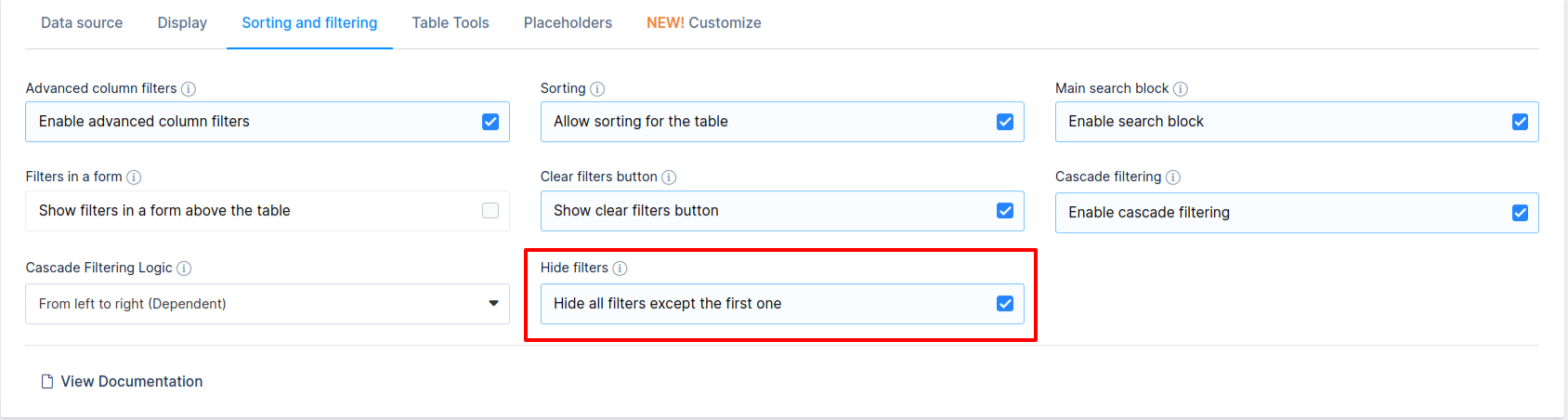
*NEW* From version 1.3 it is available new option for “Dependent filtering” call it “Hide all filters except first one”. This means that logic is same as for “From left to right logic”, but instead of disabling filters, they are hidden, so when you choose some value in first filter then second filter will be shown and so on. Isn’t that great? Check out live example below:
Powerful Filters: From left to right; Hide filters
| Continent | Country | City | Hotel | Stars | Date | End date | Price |
|---|---|---|---|---|---|---|---|
| Europe | Portugal | Lisbon | Enigma Hotel & Spa | 4 | 09/06/2019 | 19/06/2019 | 1,580 |
| South America | Ecuador | Quito | Curiosity Hotel | 2 | 09/06/2019 | 19/06/2019 | 330 |
| Europe | Greece | Thessaloniki | White Coast Resort & Spa | 5 | 10/06/2019 | 20/06/2019 | 1,400 |
| Asia | United Arab Emirates | Abu Dhabi | Chateau Hotel | 2 | 11/06/2019 | 21/06/2019 | 350 |
| Europe | Netherlands | Amsterdam | Noble Obelisk Hotel | 5 | 13/06/2019 | 23/06/2019 | 1,850 |
| North America | Costa Rica | Tamarindo | Summer Isle Hotel | 2 | 26/06/2019 | 06/07/2019 | 310 |
| North America | Jamaica | Kingston | Grandiose Renaissance Resort | 3 | 09/07/2019 | 19/07/2019 | 620 |
| Australia | Papua New Guinea | Lae | Crown Baron Hotel | 5 | 11/07/2019 | 21/07/2019 | 1,400 |
| Australia | Australia | Melbourne | Comfort Hotel & Spa | 2 | 13/07/2019 | 23/07/2019 | 300 |
| Australia | Fiji | Suva | Crescent Resort | 3 | 14/07/2019 | 24/07/2019 | 640 |
| Africa | Tunisia | Sousse | Rose Jungle Resort & Spa | 4 | 15/07/2019 | 25/07/2019 | 960 |
| Asia | Maldives | Magoodhoo | Emerald Oyster Resort | 3 | 17/07/2019 | 27/07/2019 | 720 |
| Asia | Philippines | Cagayan de Oro | Quiet Dawn Hotel | 2 | 19/07/2019 | 29/07/2019 | 360 |
| North America | Barbados | Bridgetown | Cinnamon Hotel & Spa | 4 | 25/07/2019 | 04/08/2019 | 980 |
| South America | Argentina | Buenos Aires | Revelation Resort | 4 | 26/07/2019 | 05/08/2019 | 1,020 |
| Asia | Qatar | Doha | Excursion Resort | 5 | 27/07/2019 | 06/08/2019 | 1,400 |
| Asia | Philippines | Davao | Pinnacle Hotel | 4 | 29/07/2019 | 08/08/2019 | 1,100 |
| North America | Mexico | Mexico City | Parallel Tower Resort | 2 | 30/07/2019 | 09/08/2019 | 290 |
| Africa | Sierra Leone | Freetown | Royal Tide Resort | 2 | 02/08/2019 | 12/08/2019 | 250 |
| North America | Dominican Republic | Santo Domingo | Elite Ocean Resort | 2 | 02/08/2019 | 12/08/2019 | 270 |
| Europe | Italy | Florence | Mirror Resort | 4 | 06/08/2019 | 16/08/2019 | 1,100 |
| South America | Venezuela | Maracaibo | Aquamarine Pier Hotel | 1 | 06/08/2019 | 16/08/2019 | 350 |
| North America | Dominican Republic | Punta Cana | Obsidian Estate Hotel | 3 | 07/08/2019 | 17/08/2019 | 540 |
| Europe | Greece | Chania | Iceberg Resort | 5 | 11/08/2019 | 21/08/2019 | 1,300 |
| North America | Jamaica | Kingston | Obsidian Shore Hotel | 4 | 17/08/2019 | 27/08/2019 | 1,220 |
| Africa | Tunisia | Sousse | Lord's Spring Hotel | 2 | 22/08/2019 | 01/09/2019 | 220 |
| Asia | Maldives | Addu City | Saffron Peaks Resort | 4 | 23/08/2019 | 02/09/2019 | 1,300 |
| Europe | Greece | Pefkochori | Antiquity Resort & Spa | 4 | 23/08/2019 | 02/09/2019 | 1,220 |
| South America | Argentina | Mendoza | Ancient Raven Hotel | 5 | 05/09/2019 | 15/09/2019 | 1,480 |
| South America | Brazil | Rio de Janeiro | Lunar Brook Hotel | 5 | 08/09/2019 | 18/09/2019 | 1,700 |
| Asia | Turkey | Antalya | Luxury Hotel | 3 | 10/09/2019 | 20/09/2019 | 680 |
| Europe | Spain | Barcelona | Regal Square Resort | 3 | 13/09/2019 | 23/09/2019 | 520 |
| North America | Haiti | Port-au-Prince | Mahogany Hotel | 3 | 13/09/2019 | 23/09/2019 | 720 |
| Africa | Seychelles | Anse Boileau | Sunset Pass Resort | 5 | 15/09/2019 | 25/09/2019 | 1,620 |
| North America | El Salvador | Ilopango | Seashore Hotel & Spa | 4 | 16/09/2019 | 26/09/2019 | 890 |
| Africa | Egypt | Alexandria | Secluded Gorge Hotel & Spa | 5 | 17/09/2019 | 27/09/2019 | 2,050 |
| Europe | Spain | Madrid | Radiance Resort | 2 | 21/09/2019 | 01/10/2019 | 380 |
| South America | Peru | Lima | Supreme Treasure Hotel | 4 | 23/09/2019 | 03/10/2019 | 940 |
| South America | Venezuela | Caracas | Sightsee Hotel | 3 | 23/09/2019 | 03/10/2019 | 440 |
| Africa | South Africa | Cape Town | Remote Bear Hotel | 5 | 27/09/2019 | 07/10/2019 | 720 |
| Continent | Country | City | Hotel | Stars |
“Independent” filtering means that there is no filtering order restriction, you can choose values in filters however you wish, selection made in each filter will narrow down the options list in all the other filters. Play around with filters in the following table to understand how it works:
Powerful filtering: Free
| Continent | Country | City | Hotel | Stars | Date | End date | Price |
|---|---|---|---|---|---|---|---|
| Europe | Portugal | Lisbon | Enigma Hotel & Spa | 4 | 09/06/2019 | 19/06/2019 | 1,580 |
| South America | Ecuador | Quito | Curiosity Hotel | 2 | 09/06/2019 | 19/06/2019 | 330 |
| Europe | Greece | Thessaloniki | White Coast Resort & Spa | 5 | 10/06/2019 | 20/06/2019 | 1,400 |
| Asia | United Arab Emirates | Abu Dhabi | Chateau Hotel | 2 | 11/06/2019 | 21/06/2019 | 350 |
| Europe | Netherlands | Amsterdam | Noble Obelisk Hotel | 5 | 13/06/2019 | 23/06/2019 | 1,850 |
| North America | Costa Rica | Tamarindo | Summer Isle Hotel | 2 | 26/06/2019 | 06/07/2019 | 310 |
| North America | Jamaica | Kingston | Grandiose Renaissance Resort | 3 | 09/07/2019 | 19/07/2019 | 620 |
| Australia | Papua New Guinea | Lae | Crown Baron Hotel | 5 | 11/07/2019 | 21/07/2019 | 1,400 |
| Australia | Australia | Melbourne | Comfort Hotel & Spa | 2 | 13/07/2019 | 23/07/2019 | 300 |
| Australia | Fiji | Suva | Crescent Resort | 3 | 14/07/2019 | 24/07/2019 | 640 |
| Africa | Tunisia | Sousse | Rose Jungle Resort & Spa | 4 | 15/07/2019 | 25/07/2019 | 960 |
| Asia | Maldives | Magoodhoo | Emerald Oyster Resort | 3 | 17/07/2019 | 27/07/2019 | 720 |
| Asia | Philippines | Cagayan de Oro | Quiet Dawn Hotel | 2 | 19/07/2019 | 29/07/2019 | 360 |
| North America | Barbados | Bridgetown | Cinnamon Hotel & Spa | 4 | 25/07/2019 | 04/08/2019 | 980 |
| South America | Argentina | Buenos Aires | Revelation Resort | 4 | 26/07/2019 | 05/08/2019 | 1,020 |
| Asia | Qatar | Doha | Excursion Resort | 5 | 27/07/2019 | 06/08/2019 | 1,400 |
| Asia | Philippines | Davao | Pinnacle Hotel | 4 | 29/07/2019 | 08/08/2019 | 1,100 |
| North America | Mexico | Mexico City | Parallel Tower Resort | 2 | 30/07/2019 | 09/08/2019 | 290 |
| Africa | Sierra Leone | Freetown | Royal Tide Resort | 2 | 02/08/2019 | 12/08/2019 | 250 |
| North America | Dominican Republic | Santo Domingo | Elite Ocean Resort | 2 | 02/08/2019 | 12/08/2019 | 270 |
| Europe | Italy | Florence | Mirror Resort | 4 | 06/08/2019 | 16/08/2019 | 1,100 |
| South America | Venezuela | Maracaibo | Aquamarine Pier Hotel | 1 | 06/08/2019 | 16/08/2019 | 350 |
| North America | Dominican Republic | Punta Cana | Obsidian Estate Hotel | 3 | 07/08/2019 | 17/08/2019 | 540 |
| Europe | Greece | Chania | Iceberg Resort | 5 | 11/08/2019 | 21/08/2019 | 1,300 |
| North America | Jamaica | Kingston | Obsidian Shore Hotel | 4 | 17/08/2019 | 27/08/2019 | 1,220 |
| Africa | Tunisia | Sousse | Lord's Spring Hotel | 2 | 22/08/2019 | 01/09/2019 | 220 |
| Asia | Maldives | Addu City | Saffron Peaks Resort | 4 | 23/08/2019 | 02/09/2019 | 1,300 |
| Europe | Greece | Pefkochori | Antiquity Resort & Spa | 4 | 23/08/2019 | 02/09/2019 | 1,220 |
| South America | Argentina | Mendoza | Ancient Raven Hotel | 5 | 05/09/2019 | 15/09/2019 | 1,480 |
| South America | Brazil | Rio de Janeiro | Lunar Brook Hotel | 5 | 08/09/2019 | 18/09/2019 | 1,700 |
| Asia | Turkey | Antalya | Luxury Hotel | 3 | 10/09/2019 | 20/09/2019 | 680 |
| Europe | Spain | Barcelona | Regal Square Resort | 3 | 13/09/2019 | 23/09/2019 | 520 |
| North America | Haiti | Port-au-Prince | Mahogany Hotel | 3 | 13/09/2019 | 23/09/2019 | 720 |
| Africa | Seychelles | Anse Boileau | Sunset Pass Resort | 5 | 15/09/2019 | 25/09/2019 | 1,620 |
| North America | El Salvador | Ilopango | Seashore Hotel & Spa | 4 | 16/09/2019 | 26/09/2019 | 890 |
| Africa | Egypt | Alexandria | Secluded Gorge Hotel & Spa | 5 | 17/09/2019 | 27/09/2019 | 2,050 |
| Europe | Spain | Madrid | Radiance Resort | 2 | 21/09/2019 | 01/10/2019 | 380 |
| South America | Peru | Lima | Supreme Treasure Hotel | 4 | 23/09/2019 | 03/10/2019 | 940 |
| South America | Venezuela | Caracas | Sightsee Hotel | 3 | 23/09/2019 | 03/10/2019 | 440 |
| Africa | South Africa | Cape Town | Remote Bear Hotel | 5 | 27/09/2019 | 07/10/2019 | 720 |
| Continent | Country | City | Hotel | Stars | Date | End date | Price |
In an example above you will see filters in a table, but if you want to see your filters in a form above the table you can enable option “Filters in a form” (click here to read more about Advanced Filtering features in core wpDataTables).
How do the ``Hide table`` and ``Search button`` features work?
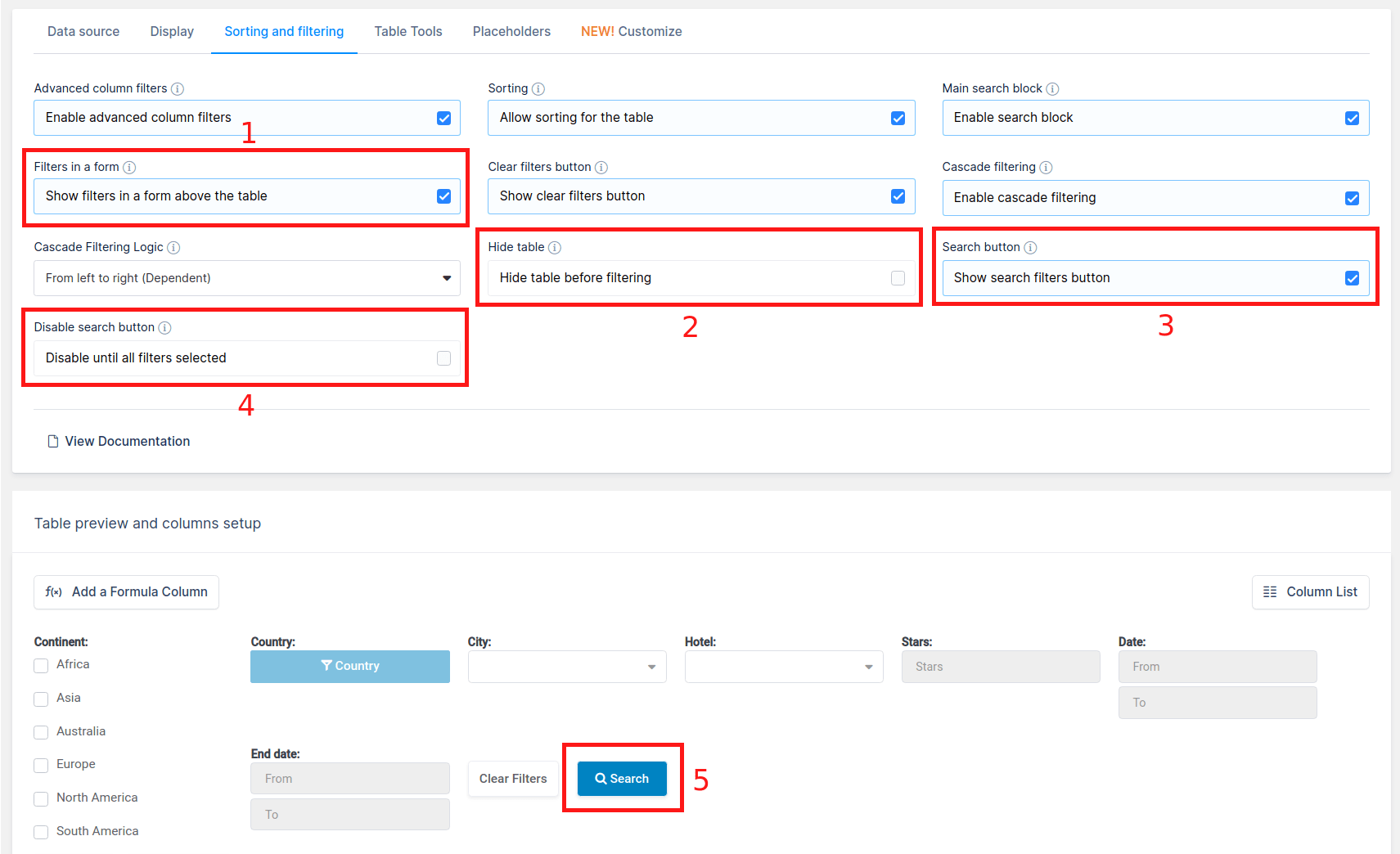
- If your table has the option “Filters in a form” enabled, and the filter is rendered outside of the table, Powerful Filters add-on will add two new options to the filtering tab: “Hide Table” and “Search button”.
- “Hide Table” – this option allows you to hide the table content before some selection is made in the filters. It is a great feature if, for example, you only want to show users data in the table that is based on an input of a particular filter (e.g. only a specific type number, or a single category), without distracting them by showing full table content all the time.
- Search button will allow you to add or remove the search button. By default, wpDataTables data is filtered automatically when any filter has been changed; and the Search button is enabled. Filtering won’t be applied “on the fly” – the table will only be filtered when you click the Search button next to the filters.
- Once you enable the Search button, you will see one more option – Disable search button. Enabling this option will keep the search button disabled until a user selects options in all available filters. This is useful when you only need to show users a particular row. In this way, you restrict users from applying broader filters.
- Search button shown at end of the filters above the table
Play around with the filters in the following table to understand how the “Hide table” and “Search button” features work:
Powerful Filters: Hide Table
| Continent | Country | City | Hotel | Stars | Date | End date | Price |
|---|---|---|---|---|---|---|---|
| Europe | Portugal | Lisbon | Enigma Hotel & Spa | 4 | 09/06/2019 | 19/06/2019 | 1,580 |
| South America | Ecuador | Quito | Curiosity Hotel | 2 | 09/06/2019 | 19/06/2019 | 330 |
| Europe | Greece | Thessaloniki | White Coast Resort & Spa | 5 | 10/06/2019 | 20/06/2019 | 1,400 |
| Asia | United Arab Emirates | Abu Dhabi | Chateau Hotel | 2 | 11/06/2019 | 21/06/2019 | 350 |
| Europe | Netherlands | Amsterdam | Noble Obelisk Hotel | 5 | 13/06/2019 | 23/06/2019 | 1,850 |
| North America | Costa Rica | Tamarindo | Summer Isle Hotel | 2 | 26/06/2019 | 06/07/2019 | 310 |
| North America | Jamaica | Kingston | Grandiose Renaissance Resort | 3 | 09/07/2019 | 19/07/2019 | 620 |
| Australia | Papua New Guinea | Lae | Crown Baron Hotel | 5 | 11/07/2019 | 21/07/2019 | 1,400 |
| Australia | Australia | Melbourne | Comfort Hotel & Spa | 2 | 13/07/2019 | 23/07/2019 | 300 |
| Australia | Fiji | Suva | Crescent Resort | 3 | 14/07/2019 | 24/07/2019 | 640 |
| Africa | Tunisia | Sousse | Rose Jungle Resort & Spa | 4 | 15/07/2019 | 25/07/2019 | 960 |
| Asia | Maldives | Magoodhoo | Emerald Oyster Resort | 3 | 17/07/2019 | 27/07/2019 | 720 |
| Asia | Philippines | Cagayan de Oro | Quiet Dawn Hotel | 2 | 19/07/2019 | 29/07/2019 | 360 |
| North America | Barbados | Bridgetown | Cinnamon Hotel & Spa | 4 | 25/07/2019 | 04/08/2019 | 980 |
| South America | Argentina | Buenos Aires | Revelation Resort | 4 | 26/07/2019 | 05/08/2019 | 1,020 |
| Asia | Qatar | Doha | Excursion Resort | 5 | 27/07/2019 | 06/08/2019 | 1,400 |
| Asia | Philippines | Davao | Pinnacle Hotel | 4 | 29/07/2019 | 08/08/2019 | 1,100 |
| North America | Mexico | Mexico City | Parallel Tower Resort | 2 | 30/07/2019 | 09/08/2019 | 290 |
| Africa | Sierra Leone | Freetown | Royal Tide Resort | 2 | 02/08/2019 | 12/08/2019 | 250 |
| North America | Dominican Republic | Santo Domingo | Elite Ocean Resort | 2 | 02/08/2019 | 12/08/2019 | 270 |
| Europe | Italy | Florence | Mirror Resort | 4 | 06/08/2019 | 16/08/2019 | 1,100 |
| South America | Venezuela | Maracaibo | Aquamarine Pier Hotel | 1 | 06/08/2019 | 16/08/2019 | 350 |
| North America | Dominican Republic | Punta Cana | Obsidian Estate Hotel | 3 | 07/08/2019 | 17/08/2019 | 540 |
| Europe | Greece | Chania | Iceberg Resort | 5 | 11/08/2019 | 21/08/2019 | 1,300 |
| North America | Jamaica | Kingston | Obsidian Shore Hotel | 4 | 17/08/2019 | 27/08/2019 | 1,220 |
| Africa | Tunisia | Sousse | Lord's Spring Hotel | 2 | 22/08/2019 | 01/09/2019 | 220 |
| Asia | Maldives | Addu City | Saffron Peaks Resort | 4 | 23/08/2019 | 02/09/2019 | 1,300 |
| Europe | Greece | Pefkochori | Antiquity Resort & Spa | 4 | 23/08/2019 | 02/09/2019 | 1,220 |
| South America | Argentina | Mendoza | Ancient Raven Hotel | 5 | 05/09/2019 | 15/09/2019 | 1,480 |
| South America | Brazil | Rio de Janeiro | Lunar Brook Hotel | 5 | 08/09/2019 | 18/09/2019 | 1,700 |
| Asia | Turkey | Antalya | Luxury Hotel | 3 | 10/09/2019 | 20/09/2019 | 680 |
| Europe | Spain | Barcelona | Regal Square Resort | 3 | 13/09/2019 | 23/09/2019 | 520 |
| North America | Haiti | Port-au-Prince | Mahogany Hotel | 3 | 13/09/2019 | 23/09/2019 | 720 |
| Africa | Seychelles | Anse Boileau | Sunset Pass Resort | 5 | 15/09/2019 | 25/09/2019 | 1,620 |
| North America | El Salvador | Ilopango | Seashore Hotel & Spa | 4 | 16/09/2019 | 26/09/2019 | 890 |
| Africa | Egypt | Alexandria | Secluded Gorge Hotel & Spa | 5 | 17/09/2019 | 27/09/2019 | 2,050 |
| Europe | Spain | Madrid | Radiance Resort | 2 | 21/09/2019 | 01/10/2019 | 380 |
| South America | Peru | Lima | Supreme Treasure Hotel | 4 | 23/09/2019 | 03/10/2019 | 940 |
| South America | Venezuela | Caracas | Sightsee Hotel | 3 | 23/09/2019 | 03/10/2019 | 440 |
| Africa | South Africa | Cape Town | Remote Bear Hotel | 5 | 27/09/2019 | 07/10/2019 | 720 |
| Continent | Country | City | Hotel | Stars | Date | End date | Price |
The wpDataTables core plugin also provides a comprehensive list of filter types: text, number, number range, date range, datetime range, time range, selectbox, multiselectbox and checkbox. Combinations of these filters, along with the Powerful Filters functionalities, provides real flexibility for configuring the filtering engine for almost any project. You can read more about the Advanced Filtering functionalities here.