


You have a CSV of quarterly sales sitting in your downloads folder, and instead of opening WordPress and walking through the table wizard, you ask Claude Desktop to build the table for you; it uploads the file, creates the wpDataTable, and hands back the shortcode. That is what the AI Assistant integration makes possible.
wpDataTables registers its core actions through the WordPress Abilities API and exposes them over a dedicated MCP endpoint, so an external, MCP-compatible AI client can discover and call them. This is not a built-in chat interface inside wpDataTables; there is no AI panel in the plugin. You switch the integration on once in the plugin’s settings, and from there the assistant lives outside WordPress.
Table of Contents
The WordPress Abilities API is a WordPress project that lets plugins describe what they can do in a machine-readable way, so an AI system can discover those capabilities instead of resorting to browser automation or direct database access.
wpDataTables registers its table, chart, media, and settings actions in that registry, and each one carries its own input schema and permission check. The Abilities API describes and exposes the capability; wpDataTables still runs all of the underlying logic, validation, and licensing rules.
For technical information about the project, refer to the WordPress Abilities API repository.
The MCP adapter connects the Abilities API to the Model Context Protocol, translating registered abilities into tools that an AI client can call. wpDataTables registers its own MCP server on top of that adapter and exposes it at /wp-json/mcp/wpdatatables-mcp-server, which is the endpoint an MCP client connects to.
You switch it on under wpDataTables → Settings → Main Settings with Enable MCP for AI assistants; until that is saved, the endpoint is not available. For implementation details, refer to the WordPress MCP adapter repository.
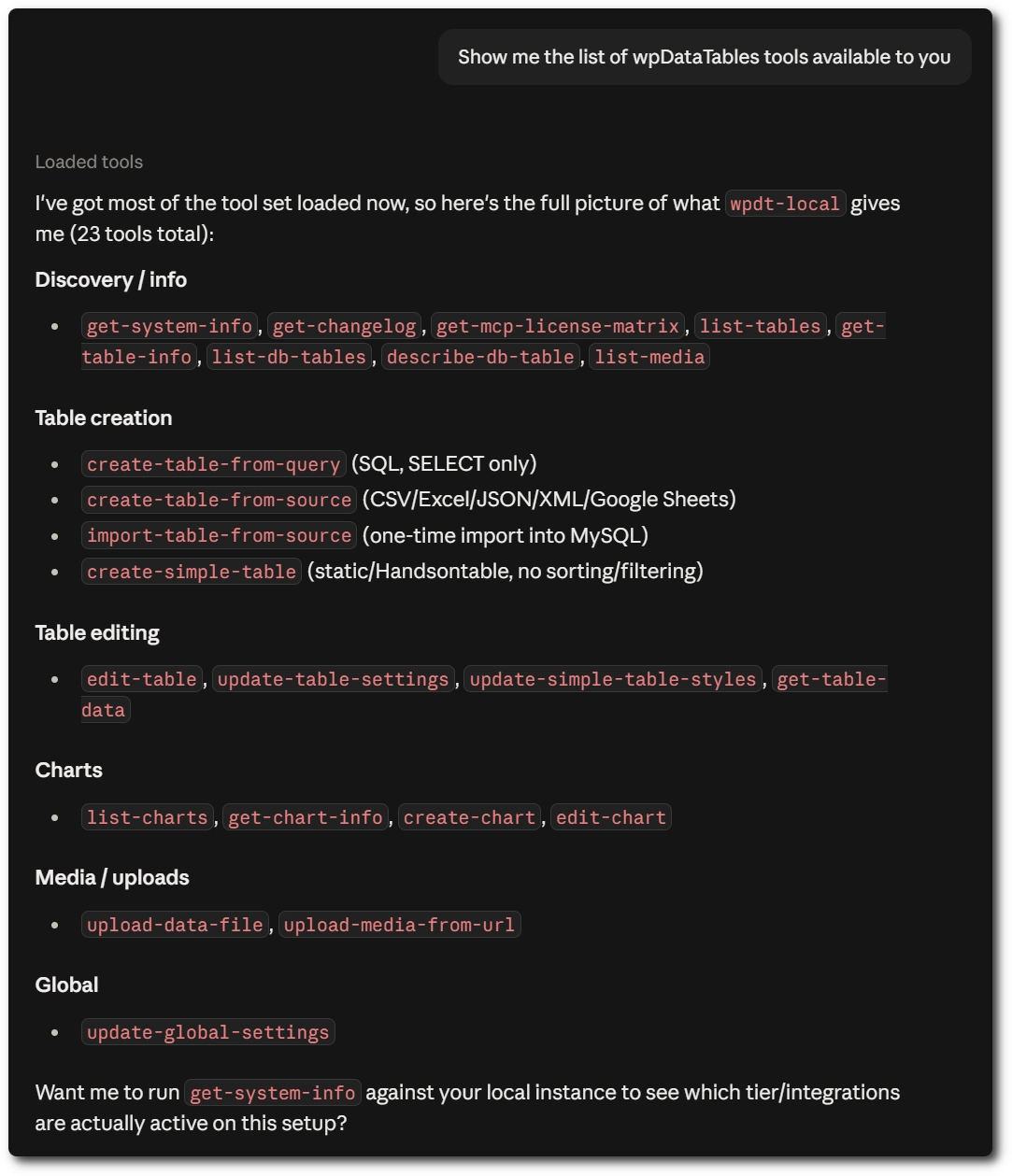
A connected assistant can call 25 wpDataTables actions, grouped below by what they do. Only these actions are exposed through the integration, and each one runs through its own permission and license checks.
Discovery and reading
SELECT queryEditing tables
Charts
Media and files
Settings
No. There is no delete action of any kind in the integration; an assistant cannot remove a table, a chart, or a row, and there is no ability that deletes anything on your site. Row-level data editing is also outside the integration for database-backed tables, so an assistant cannot insert, update, or delete records in your MySQL data.
The one exception is Simple tables, whose cell contents are part of the table definition itself and can therefore be changed through the Simple table editing actions. Everything else an assistant changes is table and chart configuration, media library files, or global plugin settings.
Only read-only SELECT queries, and only as the input to creating a table. There is no free-standing query action that returns arbitrary results to the assistant; SQL is accepted by the create a table from a SQL query action, which validates the statement and then builds a wpDataTable from it.
The validation parses the query and rejects INSERT, UPDATE, DELETE, DROP, TRUNCATE, CREATE, and ALTER, along with UNION queries and multiple statements chained with a semicolon. Subqueries and derived tables in FROM are also rejected, since wpDataTables does not support them.
To explore data without creating anything, the assistant reads existing tables instead, using the table data action with its search, column filter, and sorting parameters.
There is no export action that produces a file or a download. An assistant can, however, read the contents of a table and then write that data out on its own side, for example into a CSV or a spreadsheet on your computer.
For tables that do not use server-side processing, the table data action returns the full dataset in a single call; for server-side tables, it returns up to 500 rows per page, and the assistant is expected to narrow the result with search and column filters rather than page through every row. The practical effect is that an assistant can assemble an export, but wpDataTables itself is not generating an export file for it.
Most actions work on any installation, including the free version, while a few follow the same license rules as the equivalent feature in the wpDataTables back end. A license-limited action still appears in the assistant’s tool list; it returns an error explaining the required tier the first time the assistant actually calls it.
An AI assistant can only do what the WordPress account it authenticates as is already allowed to do, because the integration follows the same Permissions rules as wpDataTables itself.
You assign those rules under wpDataTables → Permissions, either to a role or to an individual user, and each rule covers the actions separately: listing, creating, editing, deleting, and viewing tables and charts. A rule can also be scoped to specific tables rather than all of them.
A Subscriber granted only the right to list one table can therefore ask an assistant to list that table and nothing more. Rules add up rather than replace each other, so a user granted access to one table directly, and to another through their role, reaches both.
Administrators always keep full access, and requests that carry no valid credentials are rejected outright and return no data. Because a connected assistant inherits everything its account can do, connect it with an account whose permissions match the work you actually want it to perform.
No. There are no changes to the table wizard, the table configuration screens, table rendering, or the query engine, and no AI chat interface is added anywhere in wpDataTables.
Tables and charts an assistant creates appear in the back end exactly as if you had built them yourself, and you can open and edit them normally. The integration only adds a second way to reach the same underlying actions.
You need WordPress 6.9 or newer, since that is the version that ships the Abilities API; on older versions, wpDataTables shows an admin notice, and the MCP server does not register at all.
You also need to switch the integration on under wpDataTables → Settings → Main Settings, with Enable MCP for AI assistants, plus a WordPress account carrying the wpDataTables permissions for the actions you want the assistant to perform, an application password generated from that account, and an MCP-compatible AI client such as Claude Desktop, Claude Code, or Cursor.
For the full setup, including the client configuration and troubleshooting, refer to the connecting an AI assistant to wpDataTables documentation.
The AI Assistant integration is aimed at developers, agencies, and advanced users who want to build or manage tables from an AI client rather than from the WordPress back end. Most wpDataTables users never need to configure it, since everything it exposes is already available in the plugin’s own interface.
It becomes worthwhile when you are creating tables in bulk, working from data files that live on your computer, or building automations around wpDataTables as part of a larger workflow.
To get your hands on wpDataTables Lite, please enter your email address below. We’ll send you a direct download link and keep you updated on existing features along with helpful tips and tricks!