Limited time
Make Better Decisions With Better Data
Up to 30%Off
Grab Now
Limited time

How do I edit charts in WordPress with wpDataTables?

You edit charts in wpDataTables with the same wizard you used to create them, only now every step is prefilled with the chart’s existing settings. Open the chart from the wpDataCharts browse page, change what you need and save it.

How do I open a chart for editing in wpDataTables?

You open a chart for editing from the wpDataTables -> wpDataCharts browse page by clicking its title or its “Configure” icon.

Editing charts with the wpDataTables plugin is easy – everything is done with the same wizard used to create them – the only difference is, the data is already prefilled.

To edit a chart, click either on its title, or on a “Configure” icon in actions buttons on the right side after you hover the chart row.

Highcharts

What happens after I open the chart editor?

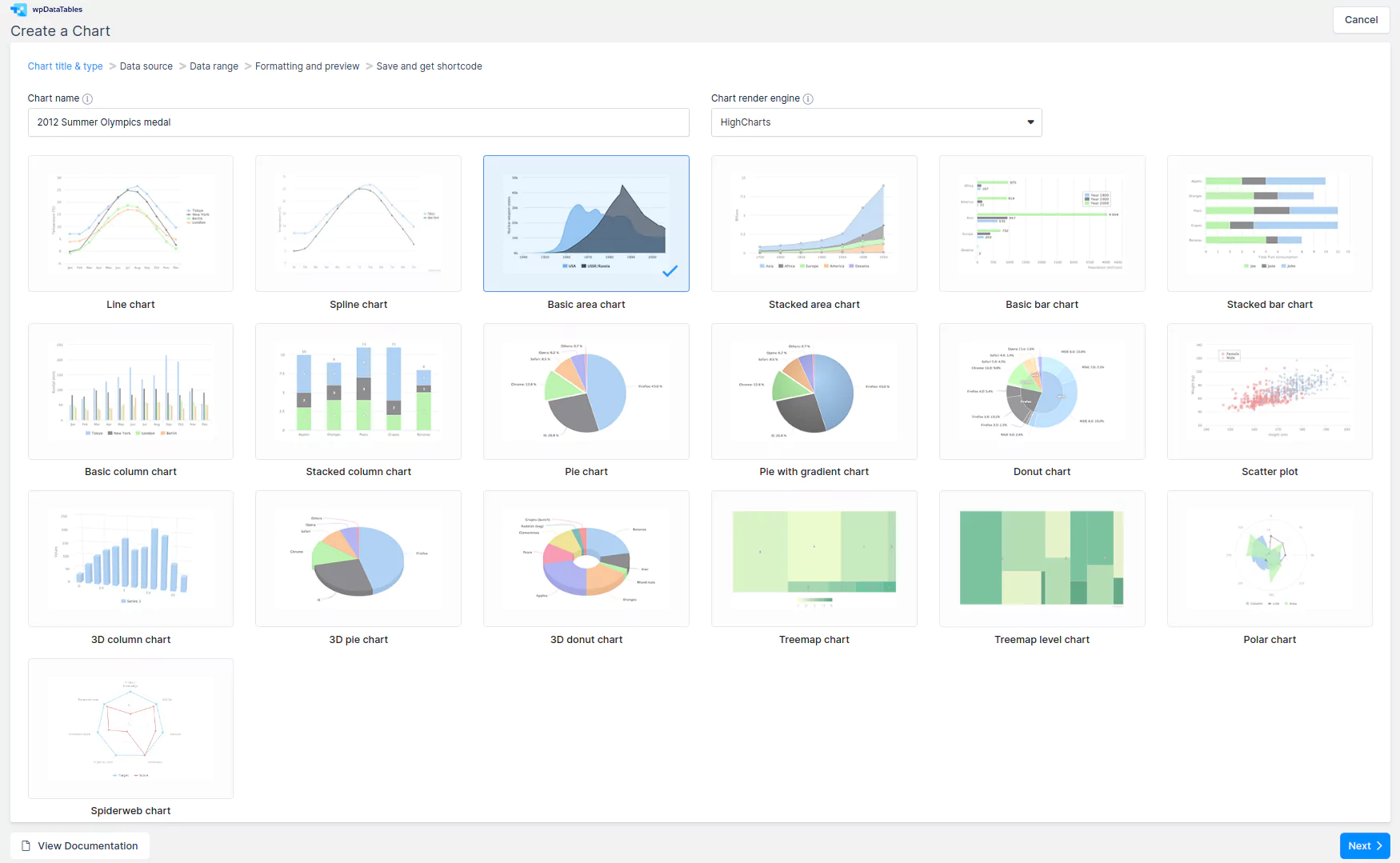
A chart creation / editor wizard will appear, where the steps are already pre-filled with the values that were provided when the chart was created.

The editing steps are the same as the steps used to create the chart, as explained here.

Are chart edits updated everywhere the chart is used?

Yes — when you finish editing and save the chart, it is updated on all posts or pages where it has been inserted.

When you finish editing, and save the chart, it will be updated on all posts or pages where it has been inserted. If you want charts that also react to visitors filtering a table on the same page, learn how to make charts follow table filtering.


Where can I learn more about creating and editing charts?

Wait, Before You Download!

To get your hands on wpDataTables Lite, please enter your email address below. We’ll send you a direct download link and keep you updated on existing features along with helpful tips and tricks!

By continuing, I accept Privacy Policy and T&C
Mail Box